Restart, Force Restart, Reset All Settings, and Erase iPhone: What Each One Touches
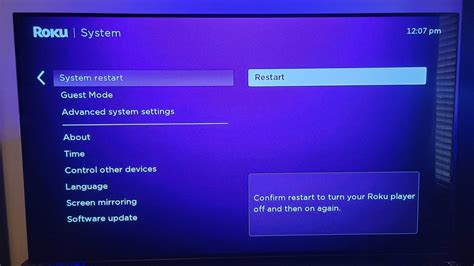
A regular restart, a force restart, Reset All Settings, and Erase All Content and Settings sit on the same menu tree but do four different things to your device.
| Action | Data erased | Settings erased | Typical use |
|---|---|---|---|
| Restart (soft) | None | None | Daily troubleshooting, weekly security habit |
| Force restart | None | None | Screen frozen, no response to touch |
| Reset All Settings | None | Yes, everything returns to default | Broken custom configuration, forgotten Wi-Fi or VPN setup |
| Erase All Content and Settings (factory reset) | Yes, all local data | Yes | Selling or giving away the device, unrecoverable corruption |

Reset All Settings is the row worth double-checking before you tap it: it clears every system and app preference back to its factory default, from saved Wi-Fi passwords to the keyboard dictionary to notification settings, without deleting a single photo or message. Apple’s restart instructions and its force restart guide both stop well short of covering this distinction, which is exactly where the confusion piles up when someone searches for what a restart does.
Does Reset All Settings delete my photos and apps?No. It clears system and app preferences back to their defaults, not your data. Photos, messages, and installed apps stay exactly where they were.
Why Face ID or Touch ID Won’t Work on the First Unlock After a Restart
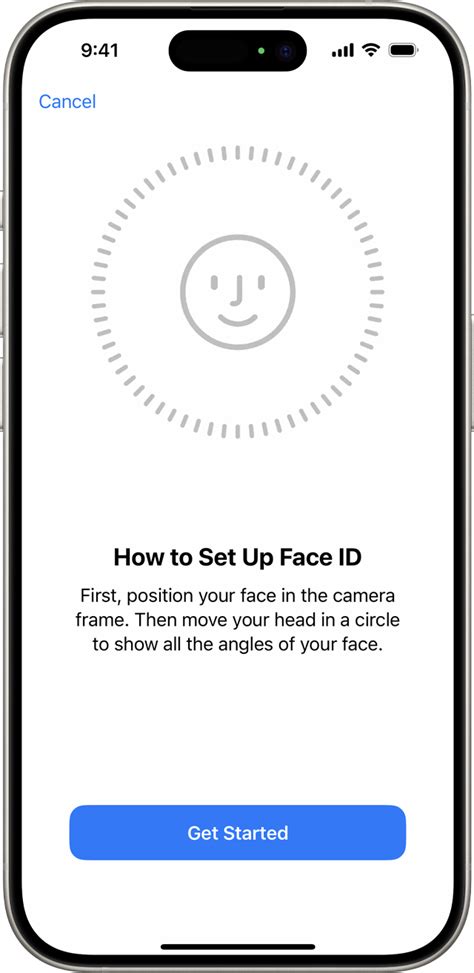
The Secure Enclave, the dedicated chip that stores your biometric data, requires a fresh passcode entry every time the rest of the system reboots around it. Apple’s Platform Security guide lists this as a firm rule across Face ID, Touch ID, and Optic ID alike: a passcode is required whenever the device has just been turned on or restarted, alongside triggers like 48 hours without an unlock or five failed face or fingerprint matches. The same document sets a second, more precise trigger: go 156 hours, that’s 6.5 days, without using the passcode and 4 hours without a successful biometric match, and the device locks out biometrics until the passcode is typed again, restart or not.
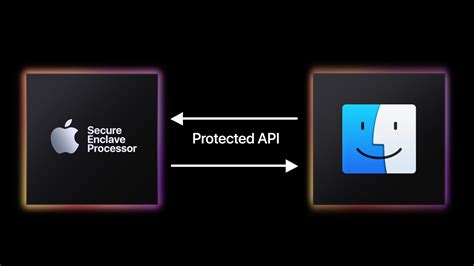
That single passcode prompt after a restart isn’t a glitch worth troubleshooting. Apple documents the same rule for Face ID specifically, unchanged since the feature shipped.
Why does my iPhone ask for a passcode instead of Face ID right after I restart it?The Secure Enclave can’t verify your face or fingerprint until you’ve re-authenticated with the passcode once after a reboot. This is a fixed security rule, not a setting you can turn off.
What Clears When You Restart

A restart flushes the contents of RAM, the device’s working memory, and force-quits every running app and background process, including ones that had stopped responding. It also fully drops and re-establishes the phone’s cellular and Wi-Fi connections. That’s the actual mechanism behind “restarting fixed my signal” or “restarting fixed my slow internet”: the phone re-negotiates with the cell tower and re-joins the Wi-Fi network from scratch instead of limping along on a stale connection.
Do I need to back up before restarting, and will it log me out of my apps or remove my Wallet cards?No backup is needed. App logins, saved passwords, and Apple Wallet cards all persist through a restart; only the biometric unlock requires the passcode once, as covered above.
When a Restart Helps and When It Doesn’t
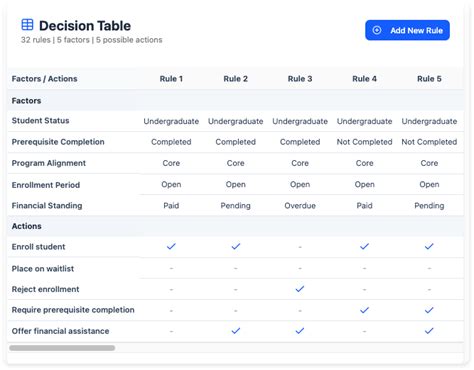
Restarting helps with symptoms tied to a stuck process or a stale connection, and does nothing for hardware failures, a forgotten passcode, or an interrupted software install.
| Symptom | Restart helps? | Why |
|---|---|---|
| One app frozen or unresponsive | Yes | Force-quitting and relaunching clears the stuck app process |
| Whole screen frozen, no response to any touch | Force restart, not a normal one | A soft restart needs the screen to register the slide-to-power-off gesture |
| Dropped calls or no signal | Often | Forces the device to re-register with the cell network |
| Battery draining unusually fast | Sometimes | Clears a runaway background process, though a buggy app resumes draining once reopened |
| Suspected malware or a zero-click exploit | Partially | The NSA notes some malicious code persists only in memory and doesn’t survive a reboot; malware already written to storage does |
| A software update stuck mid-install | No | Interrupting an install is a different failure mode needing its own recovery steps |
| Forgotten passcode | No | A restart never bypasses the passcode; it re-imposes it |

Malware resistance is only partial: a reboot interrupts code living solely in memory, but does nothing once malicious code has written itself to the device’s storage, so a single restart is a mitigation step, not a cure.
Restarting at the Wrong Moment
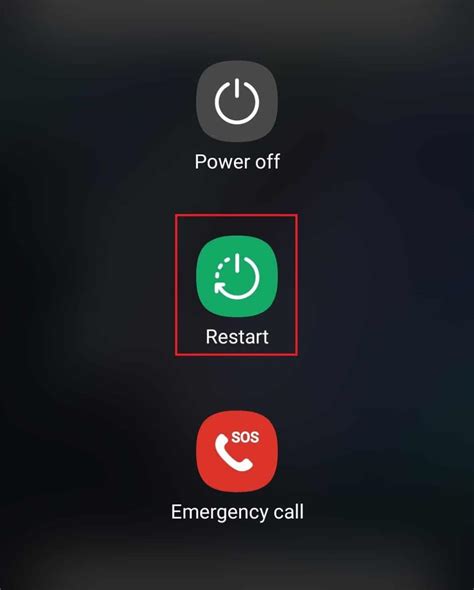
Restarting mid-call ends the call outright, the same as any other way of cutting power to the phone. A download or file transfer in progress, AirDrop included, is interrupted and generally has to start over once the phone is back on. Restarting during an active iOS software install is the one case worth actively avoiding: the safer move is to let the install finish or fail on its own first.
What happens if I restart my iPhone during a call or while something is downloading?The call drops immediately, and any in-progress download, transfer, or AirDrop stops and generally needs to start over once the phone is back on.
How Often to Restart, and What the Guidance Covers
The NSA’s Mobile Device Best Practices guide lists a single line among its recommendations: power the device off and on weekly. The guidance sits inside a document the NSA published on September 16, 2021, alongside advice like using only official app stores and avoiding public Wi-Fi, and it’s scoped narrowly: disrupting malicious code that lives only in memory and doesn’t survive a power cycle, not general performance or battery maintenance. Treating a weekly restart as a security habit on that same list is a more accurate framing than treating it as a speed trick.
Is it true the NSA recommends restarting your phone every week?Yes. The NSA’s 2021 Mobile Device Best Practices guide lists a weekly power-off-and-on among its recommended habits, aimed at security rather than performance.
How to Restart or Force Restart Safely
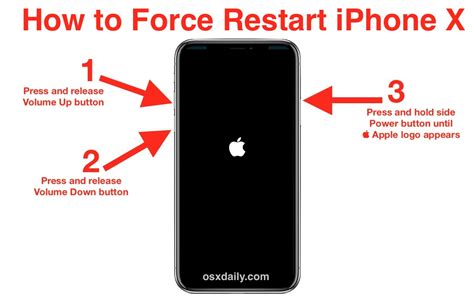
Both fixes take under a minute, and neither one requires a backup first.
- Standard restart: hold the side button, slide to power off, wait 30 seconds, then hold the side button again until the Apple logo appears, per Apple’s restart guide.
- Force restart (frozen screen): the button sequence varies by model; Apple’s force restart guide covers each one and links onward if the device still won’t respond afterward.