What Happens Inside iOS During a Restart
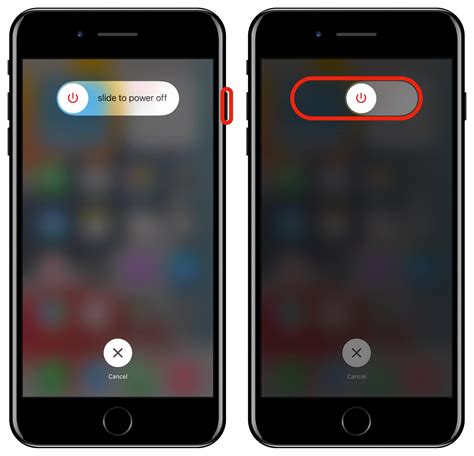
Restarting is a controlled shutdown, not a crash. iOS closes every foreground and background app, clearing each app’s in-memory state so its next launch starts clean. Background activity such as syncing, location tracking, and notification delivery pauses until the device finishes booting again. None of this touches the file system: photos, messages, contacts, and installed apps live in storage, not in the memory that gets cleared.
A force restart works the same way at the data level. Apple documents it as a hardware-level power cycle for when the touchscreen won’t respond to the normal slider: a quick volume-up press, a quick volume-down press, then holding the side button until the Apple logo appears (Apple Support). It doesn’t clear anything a standard restart wouldn’t. It just gets you there when the screen itself isn’t cooperating.
Will my AirPods or CarPlay reconnect automatically after a restart?Bluetooth accessories disconnect the moment the phone powers off, then typically pair again on their own once the device finishes booting, the same way they reconnect after moving out of and back into range. Active AirPlay streams or screen mirroring sessions end and need to be restarted manually from the receiving device.
Restart vs. Force Restart vs. Reset All Settings vs. Erase All Content and Settings
Four different actions get lumped together in everyday conversation, and only one of them touches your content at all.
| Term | What it does | Data affected | When to use it |
|---|---|---|---|
| Restart (reboot) | Powers the device off, then on, using the on-screen slider | Closes apps and background processes; no stored data removed | Routine refresh, minor glitches, after installing some apps |
| Force restart | Hardware button sequence that power-cycles the device without the touchscreen | Identical to a standard restart at the data level; nothing extra is cleared | iPhone frozen, screen unresponsive, apps won’t quit |
| Reset All Settings | Returns settings (network, keyboard dictionary, location, privacy) to defaults | Removes or resets saved Wi-Fi passwords and Apple Pay cards to defaults; photos, messages, apps, and documents are not deleted (Apple Support) | Wrong-feeling settings, network glitches, keyboard issues |
| Erase All Content and Settings | Wipes the device back to its out-of-box state | Removes photos, apps, contacts, and Apple Pay cards; turns off iCloud, iMessage, FaceTime, and Game Center; content already stored in iCloud is not deleted (Apple Support) | Selling, trading in, or a persistent problem nothing else fixed |
The table draws one boundary the leaders blur: a restart of any kind sits entirely outside the two settings-and-content actions in the bottom two rows, so no version of turning the phone off and on ever reaches the erasure step.
What’s the difference between Reset All Settings and Erase All Content and Settings?Reset All Settings clears configuration only (network, keyboard, location, privacy, and saved Apple Pay cards) and leaves personal content alone. Erase All Content and Settings removes the content itself, photos, apps, contacts, and Apple Pay cards, and turns off iCloud-linked services on the device, though nothing already backed up to iCloud is deleted.
What You Could Lose, and What You Won’t
Mid-task activity
A restart’s only real casualty is unsaved work in an open app: a note typed but not saved, a long email left mid-draft, a multiplayer game session, an in-progress upload or download in a browser or file-transfer app. Timers and stopwatches running in the Clock app stop and reset once the app relaunches. A phone call in progress ends the moment the device powers off.
Connected sessions and accessories
Bluetooth accessories, CarPlay sessions, and AirPlay streams behave as described above. A background download that hadn’t finished (an app update, a large file, a podcast episode) is interrupted and typically resumes automatically once the network reconnects, though some browser downloads simply stop and need restarting manually. Nothing about a restart deletes the partially downloaded file itself; it just pauses the transfer.
Restarting and Battery Health
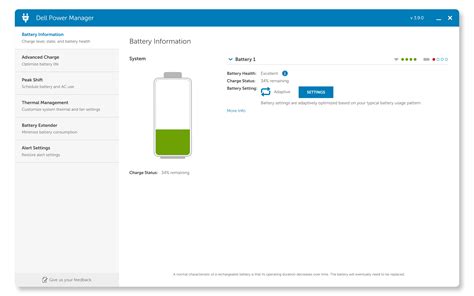
A restart trims short-term battery drain by closing apps that had been running in the background, but it has no lasting effect on the battery’s chemical capacity. Long-term battery health is governed by charge cycles and heat exposure over months, not by how often the device is powered off and on.
When a Restart Won’t Fix the Problem
A restart resolves problems caused by a stuck process or a runaway background task. It does nothing for a cracked screen, a swollen battery, water damage, or a chip-level fault, and repeating it several times in a row after the first attempt fails rarely changes the outcome. If the same crash or freeze returns within minutes of a fresh restart, the cause is more likely a specific app or a hardware fault than something a reboot can clear.
Does force restarting damage the battery or hardware?No. It’s the same power cycle as a standard restart, just triggered by buttons instead of the touchscreen, so it carries no extra wear on the battery or internal components.
How to Restart Your iPhone, by Model
| Model family | Power off (standard restart) | Force restart |
|---|---|---|
| iPhone X through the current iPhone 17 lineup (Face ID models) | Hold either volume button and the side button until the power-off slider appears | Quick press volume up, quick press volume down, then hold the side button until the Apple logo appears |
| iPhone 7 and iPhone 7 Plus | Hold the side button until the power-off slider appears | Hold the side button and volume-down button together until the Apple logo appears |
| iPhone 6s and earlier (Home button models) | Hold the side or top button until the power-off slider appears | Hold the Home button and the side or top button together until the Apple logo appears |
Sources: standard restart steps and per-model power button locations (Apple Support); force restart combinations (Apple Support).
The volume-plus-side-button sequence for powering off has carried over unchanged from the iPhone X in 2017 through the current iPhone 17 lineup, even as the models between them changed generation after generation.
What to Try if Restarting Doesn’t Help
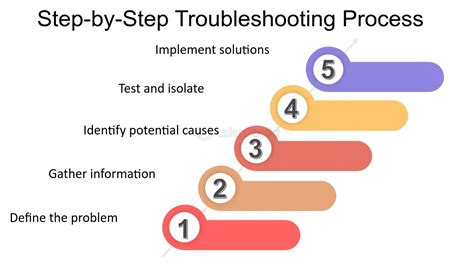
If a standard restart doesn’t respond, a force restart is the next step, since it works even when the touchscreen won’t. If the device still won’t turn on afterward, Apple’s guidance is to charge it for about an hour before trying again, and to check for a low-charge battery icon before assuming a deeper fault (Apple Support). Beyond that point, the issue sits outside anything a restart of any kind can reach.
Can I still force restart if the screen is completely black and unresponsive?Yes. Force restart is designed for exactly this case: the button sequence works independent of whether the touchscreen is responding, so a black or frozen screen doesn’t prevent it.