Getting a Device Recognized
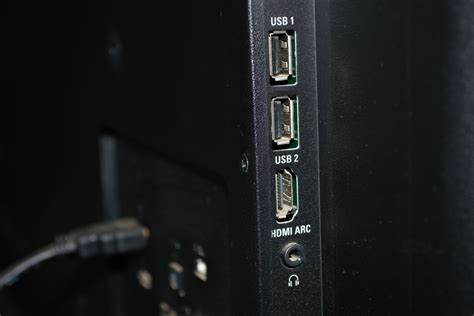
Every brand uses the same three-step mechanic: plug the drive or peripheral directly into the port (not through an extension cable, which several manufacturers flag as a common cause of failed detection), switch the input or source menu to USB, and browse from there. What varies by brand is what happens next: Samsung TVs typically raise a pop-up letting you pick Photos, Videos, or Music; LG TVs list the device under External Input and, on webOS 4.5 and newer, add it to the ThinQ Home Dashboard. If your TV shows nothing at all, check the port label before assuming it’s broken. Some ports are marked for service use only and are deliberately walled off from consumer input, a distinction covered in the troubleshooting section below.
Compatibility Limits That Matter
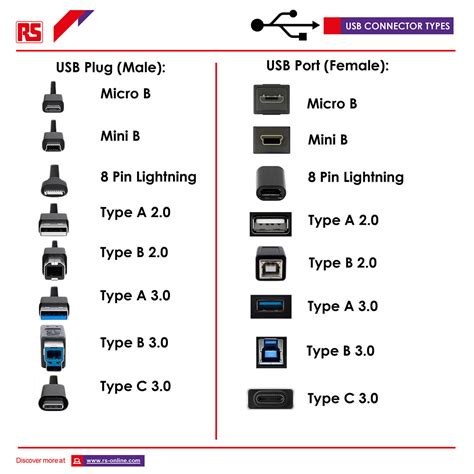
Storage compatibility on a TV comes down to three independent limits: file system, capacity or file count, and current draw.
| Brand / spec | Storage or load ceiling | File systems | Power ceiling | Source |
|---|---|---|---|---|
| LG (current webOS models) | ≤32GB flash memory; ≤2TB external drive | FAT32, NTFS | ≤500mA at 5V for the drive itself | LG USA Support |
| Samsung QLED/SUHD | No published capacity ceiling; ≤8,000 files/folders per device | FAT, exFAT, NTFS | 5V/1A port recommended for high-draw devices | Samsung Support |
| Samsung Full HD | No published capacity ceiling; ≤4,000 files/folders per device | NTFS (read-only), FAT16, FAT32 | Not specified | Samsung Support |
| USB-IF electrical baseline (all brands) | Not a storage spec; applies to the port itself | n/a | USB 2.0: 500mA/2.5W; USB 3.x: 900mA/4.5W | USB 2.0/3.x specification, via Tripp Lite/Eaton |
The 500mA figure is a hard electrical ceiling, not a guess at what will work: a manufacturer’s capacity recommendation is a practical threshold layered on top of it, and the two numbers answer different questions, one about power, one about file-system compatibility. For a drive that’s within a brand’s published capacity limit but still isn’t detected, current draw is a more likely culprit than file size: bus-powered external hard drives commonly ask for more than a USB 2.0 port’s 500mA ceiling, which is why LG and Samsung both recommend a drive with its own power adapter over one that draws power solely from the TV.
Why won’t my TV recognize my USB drive? The two most common reasons are a file system the TV doesn’t support (reformat to FAT32 or exFAT and retest) and a drive that draws more current than the port supplies (switch to a self-powered drive). A drive partitioned as GPT instead of MBR is a third, less common cause on older TV models.
Playing Photos, Video, and Music from a Drive
Once the drive is recognized, playback support hinges on codec and container as much as file system: MP4 and MKV containers with H.264 video are close to universally supported, while less common codecs or DRM-protected files bought from third-party stores frequently fail even on a TV that reads the drive correctly. Check your model’s supported format list before loading a large media library; finding out after transferring 200GB of video is a worse way to learn the limit.
Powering and Charging Devices from the Port
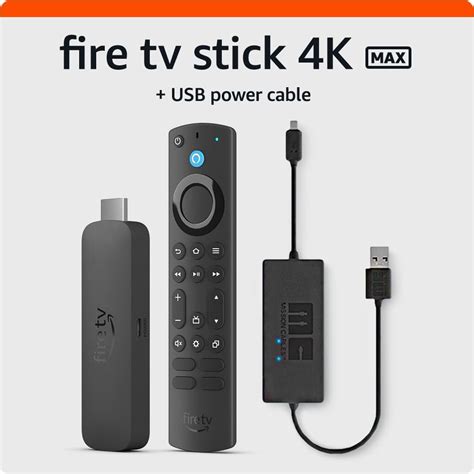
The generation of the port sets a hard ceiling on how much you can power from it.
| Device or port | Power required or supplied | Fits USB 2.0 port? | Fits USB 3.x port? | Source |
|---|---|---|---|---|
| USB 2.0 port output | 5V at 500mA (2.5W) | n/a | n/a | USB 2.0 specification, via Tripp Lite/Eaton |
| USB 3.x port output | 5V at 900mA (4.5W) | n/a | n/a | USB 3.x specification, via Tripp Lite/Eaton |
| Fire TV Stick HD (2026) | Built for Direct Power from a TV’s USB port; no separate adapter | Yes | Yes | Amazon Fire TV device specifications |
| Fire TV Stick 4K Max | Standard TV USB output is often marginal; official bundle adds a power cable with charge-storage circuitry to cover the gap | Marginal | Usually | Amazon product listing, Fire TV Stick 4K Max with USB Power Cable |
Buying the newest, lowest-draw stick solves the power question before it starts: Amazon’s 2026 Fire TV Stick HD is built around Direct Power specifically so it runs on whatever the TV’s USB port supplies, while the more powerful 4K Max ships as a bundle with supplemental power circuitry because a standard port alone is not consistently enough.
Can I charge my phone from my TV’s USB port? Yes, at low speed. A phone will draw more current than most TV ports were designed to sustain for a fast charge, so expect trickle charging. If you need the phone charged quickly, use a wall adapter instead.
Connecting Peripherals
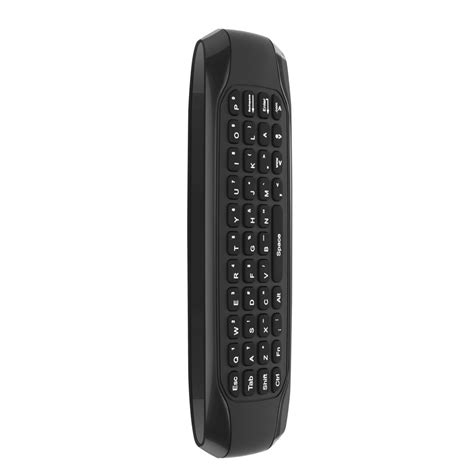
Most Google TV and Android TV models accept:
- Wired game controllers: Xbox and PlayStation controllers generally pair over USB when Bluetooth isn’t cooperating, though checking your specific TV’s compatibility list first saves a wasted trip to the closet.
- Keyboards and mice: turn the screen into a basic input surface for browsing or search, useful on TVs with clumsy remote-based typing.
- USB microphones: replace a broken or lost voice remote for hands-free search and assistant commands.
- Wired speakers: an alternative to Bluetooth audio where lag or pairing issues are a problem.
Can I use a USB hub on my TV? Generally no for storage devices. Samsung’s own documentation excludes USB hubs from its supported Mass Storage Class device list, so a drive connected through a hub may simply not appear, even though it works fine plugged in directly.
Updating Firmware via USB
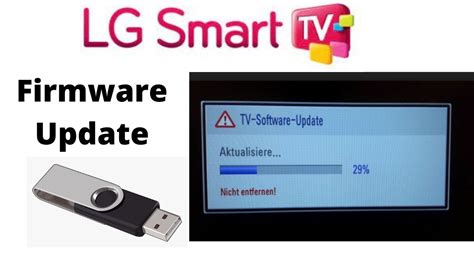
Manufacturers publish firmware files for download when a TV can’t or won’t connect to the internet for an automatic update: download the file to a FAT32-formatted drive from the manufacturer’s support site, plug it in, and the TV should detect and offer to install it. Only use files downloaded directly from the manufacturer’s domain.
Recording Live TV
Some smart TVs let you record live broadcasts to an external USB drive, a feature usually called PVR or Timeshift. It’s tied to over-the-air or cable tuner support, so it has no bearing on TVs used purely with streaming apps, and availability varies by market and model more than the other features on this page. Check your specific model’s manual before buying a drive for this purpose alone.
Troubleshooting and Safe Removal
| Symptom | Likely cause | Fix |
|---|---|---|
| Drive not recognized at all | Wrong file system, or partitioned as GPT instead of MBR | Reformat to FAT32, exFAT, or NTFS depending on model; convert to MBR if the drive is 2TB or smaller |
| Some files or folders missing | File/folder count over the model’s ceiling (around 4,000 on Samsung Full HD sets, around 8,000 on QLED/SUHD) | Split content across more than one drive, or trim folder count |
| Streaming stick or peripheral won’t power on | Current draw exceeds the port’s 500mA (USB 2.0) or 900mA (USB 3.0) ceiling | Use the device’s included adapter, or a self-powered hub, instead of the bare TV port |
| No reaction to any USB device on that port | Port is labeled for service use only | Check the port label and manual before assuming a hardware fault |
Three of these four failures trace to power or file rules the manufacturer states plainly; only the GPT-partition issue needs separate formatting software to fix.
Removing a drive without ejecting it first risks corrupting whatever file was open at the time.
- On LG webOS 4.5 and newer: select the device from the External Input list and choose Eject before unplugging.
- On other platforms: back out of any open media file first, then check the source or input menu for an eject or safe-removal option before pulling the drive.
Is it safe to just unplug my USB drive? Not reliably. Pulling a drive mid-transfer, or while a file from it is open, is the most common cause of a corrupted file system on a device that worked fine the day before. Use the eject option where the platform has one.