What changes if you add a dedicated e-reader instead of tuning your tablet
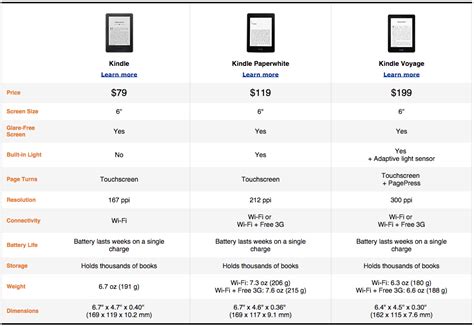
Two numbers explain most of the difference between reading on a tablet and reading on a dedicated e-reader: weight and screen-on time.
| Attribute | iPad 11″ (A16), Wi-Fi | Kindle Paperwhite (2024) |
|---|---|---|
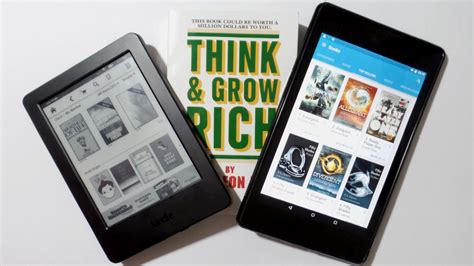
| Weight | 477 g (1.05 lb) | 211 g (7.4 oz) |
| Display | 11″ Liquid Retina LCD, 264 ppi, 500 nits | 7″ E Ink Carta 1300, 300 ppi |
| Rated battery | Up to 10 hours continuous web/video use | Up to 12 weeks at 30 min/day, Wi-Fi off |
| Charging port | USB-C | USB-C |
| Price | Varies by configuration | $159.99, per PCWorld’s comparison |
The 266-gram weight gap is what most people notice within the first twenty minutes of one-handed reading in bed. The battery gap mostly matters if you go a week or more between charges, which is common for occasional readers but rare for anyone who also uses the same device for video or browsing.
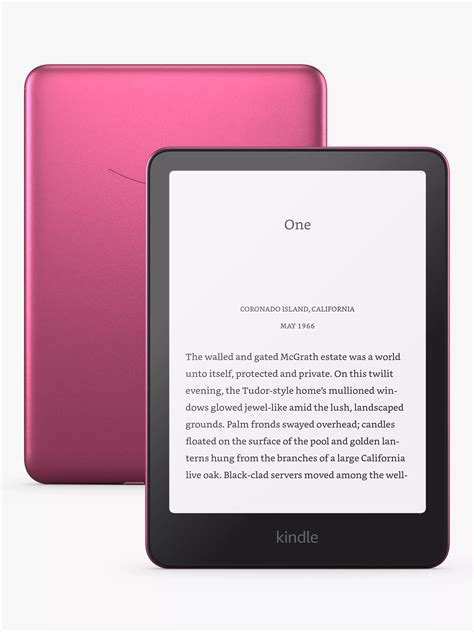
One reviewer tested the Kindle Paperwhite’s IPX8 waterproof rating by leaving it in a filled kitchen sink for an hour; it worked normally afterward.
Turning down the harshness: platform-specific display settings
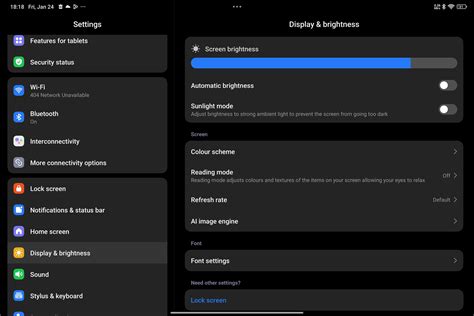
Two Apple settings and one Samsung setting do more for reading comfort than a blanket “lower your brightness” instruction.
| Platform | Setting | Path | Effect |
|---|---|---|---|
| iPadOS | Night Shift | Settings > Display & Brightness > Night Shift | Shifts screen colors warmer on a schedule |
| iPadOS | Reduce White Point | Settings > Accessibility > Display & Text Size > Reduce White Point | Dims and desaturates bright whites, separate from brightness |
| Samsung, One UI 3.1+ | Eye comfort shield | Settings > Display > Eye comfort shield | Adaptive or custom warm tint, schedulable sunset to sunrise |
Sources: Apple Support on Night Shift, Apple Support on Reduce White Point, and Samsung Support on Eye comfort shield.
Night Shift and Eye comfort shield adjust color temperature on a schedule. Reduce White Point is the only one of the three that also lowers the intensity of bright whites, which is the setting worth pairing with a brightness slider around 30 to 40 percent for the biggest drop in glare.
Will dimming my screen actually stop my eyes from hurting?Dimming and warming mainly cut glare and blue-light exposure. A small peer-reviewed pilot study comparing iPad reading to print reading found no statistically significant difference in eye dryness between the two groups, and the researchers linked fatigue more closely to the image quality of the display than to the type of technology behind it.
Does this actually stop eye strain, or just look like it does?
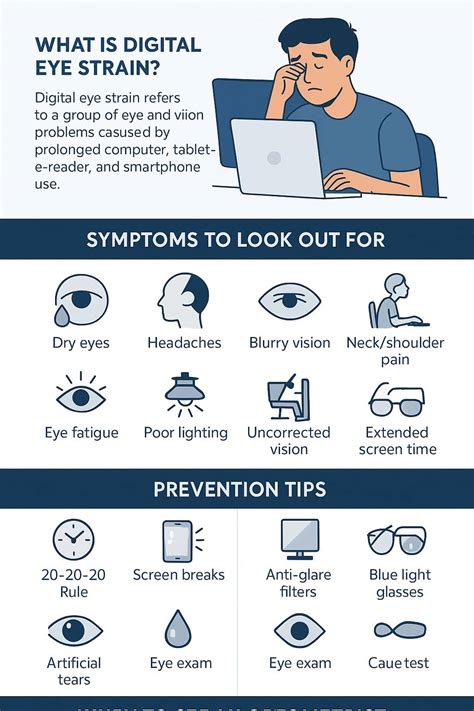
The clearest research on this question found barely any difference at all. A pilot study published in PMC comparing an iPad reading group to a printed-book group measured baseline eye dryness in both, under matched room lighting of roughly 260 to 270 lux. Abnormal eye dryness affected 33 percent of the iPad group versus 50 percent of the print group, a gap the researchers did not find statistically significant (p = 0.21).
Reading before bed: what the sleep research actually says
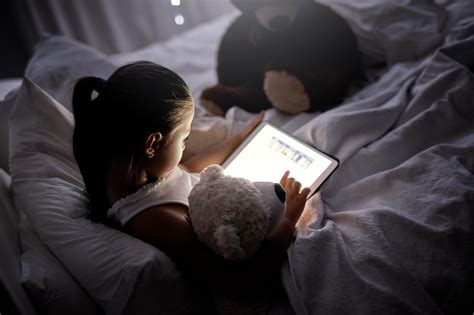
Brigham and Women’s Hospital researchers measured a real effect, and it looks different from the fixed-percentage claims that circulate online. In a study published in Proceedings of the National Academy of Sciences and summarized by Harvard Medical School, participants who read a light-emitting device (an iPad, in the study) before bed had reduced melatonin secretion, took longer to fall asleep, reported reduced evening sleepiness, showed a delayed circadian clock, and had reduced next-morning alertness, compared to a night spent reading a printed book.
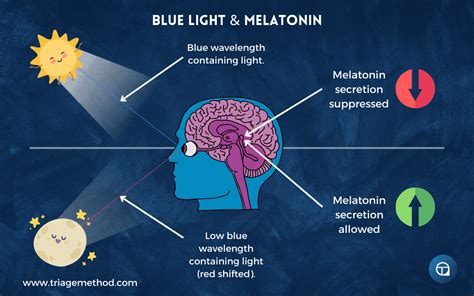
A separate Harvard experiment compared 6.5 hours of blue light exposure to 6.5 hours of equally bright green light. According to Harvard Health Publishing, the blue light suppressed melatonin about twice as long as the green light and shifted circadian rhythms about twice as much (3 hours versus 1.5 hours). The recommendation coming out of that research is to avoid bright screens for 2 to 3 hours before bed, not to rely on a fixed numeric drop in melatonin.
Does reading on a tablet before bed actually mess with my sleep?Yes, measurably, according to the Brigham and Women’s Hospital study above: participants who read a light-emitting device before bed had delayed melatonin release, took longer to fall asleep, and reported lower next-morning alertness compared to a night of reading a printed book. Dimming the screen and switching to warm colors in the last hour helps, but the research points to avoiding bright screens for two to three hours before bed as the more reliable fix.
Making PDFs and textbooks less painful
Reflowable text and fixed-layout PDFs behave completely differently on the same screen, and most reading apps treat them the same way by default.
- Use EPUB when it exists. Reflowable text adjusts to your font size and screen orientation; a scanned or fixed-layout PDF does not, so a textbook chapter that’s actually available as EPUB will always be easier to read than the PDF of the same chapter.
- Crop PDF margins before reading. Removing dead white space around a scanned page lets you zoom the actual text larger without losing the page edges off-screen.
- Read landscape and split the page. Two-column textbook PDFs are often more readable split into left-then-right passes in landscape orientation than shrunk to fit a single portrait view.
- Run OCR on scanned pages if you need to search or highlight. A scanned PDF is just an image of text until it’s OCR’d, so search and copy-paste tools won’t work until that step is done.
Can I make PDFs and textbooks less painful to read on a tablet?Yes, but only if you treat them differently from novels. Split view, margin cropping, and OCR solve layout problems that display settings alone can’t touch.
Borrowing library books and keeping your files organized
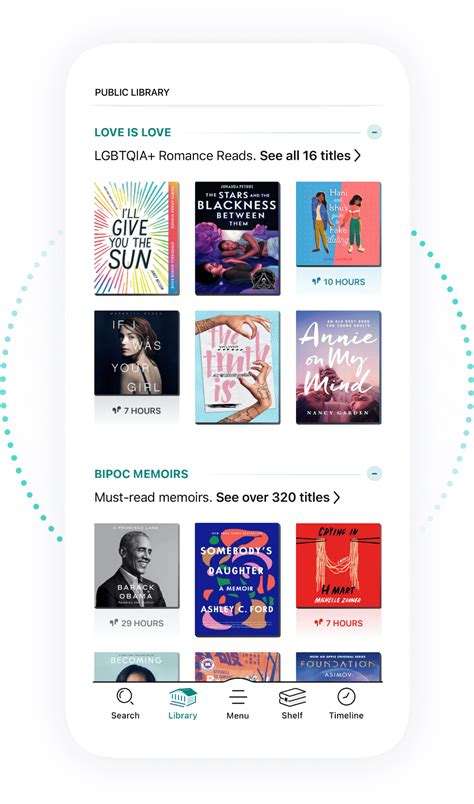
A library ebook and a personal EPUB file follow different rules on the same tablet. Libby, from OverDrive, lets you borrow ebooks and audiobooks with a participating library card; loans sync automatically and expire, unlike a file you own outright. A book borrowed through Kindle’s own lending system stays inside the Kindle app and won’t open in Libby’s reader, and a Libby loan won’t open in Kindle: the two ecosystems don’t share files. For a personal EPUB bought or received elsewhere, most sideloadable Android reading apps accept drag-and-drop transfer over USB or a cloud folder; Apple’s Books app has historically been more restrictive about sideloaded content on iPadOS.
Accessibility features already built into your tablet
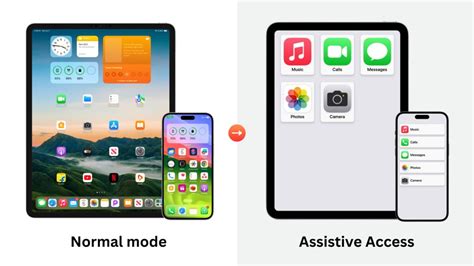
An 11-inch iPad already ships with a working screen reader, adjustable text-to-speech, and a screen magnifier: Apple’s own technical specification for the device lists VoiceOver, Zoom, Magnifier, and Spoken Content among its built-in accessibility features, at no extra cost and with no separate app to install. Android tablets carry an equivalent built-in screen reader, TalkBack, under a similar accessibility menu. Turning these on for reading, instead of treating them as features for other people, is one of the few genuine accessibility discussions missing from most tablet-as-e-reader guides.
When your current setup is enough, and when it isn’t
Four reading patterns point toward four different answers, and the deciding factor is rarely the one people assume.
| Reading pattern | What actually matters | Better fit |
|---|---|---|
| Under 30 minutes a day, mostly seated | Weight and battery rarely become noticeable in a single sitting | A tuned tablet is enough |
| An hour or more, often lying down | The 266-gram weight gap between an iPad and a Paperwhite becomes noticeable after 15 to 20 minutes one-handed | A dedicated e-reader is more comfortable |
| Daily reading outdoors in direct sunlight | A 500-nit LCD washes out in direct sun; a reflective E Ink display gets more readable as ambient light increases | A dedicated e-reader has the real advantage here |
| Manga, comics, color textbooks, and PDFs | Color rendering and app flexibility matter more than a few hundred grams | A tablet remains the better tool |
The weight gap decides the bedtime-reading case, and the display technology decides the outdoor case. Neither settles the question by itself, which is why a single verdict for “tablet versus e-reader” doesn’t hold up across these four situations.
Is it worth buying a dedicated e-reader instead of just using my tablet?Only for two of the four reading patterns above: long sessions held in one hand, and regular reading in direct sunlight. For short sessions, seated reading, or color-heavy content like manga and textbooks, a tuned tablet does the job without an extra device or an extra $159.99 purchase.