Check Your Real Hardware First
Every guide to this topic recommends a distro before confirming what the reader is actually working with. That’s backwards. Two numbers decide almost everything: installed RAM, and whether the CPU only supports 32-bit software. On Windows, open Task Manager’s Performance tab for installed RAM, or run systeminfo | find "System Type" in Command Prompt, which reports “x64-based PC” or “x86-based PC.”
| Symptom | Likely constraint | How to check |
|---|---|---|
| Browser tabs crash, system freezes under light use | RAM below 2 GB | Task Manager → Performance → Memory, or systeminfo |
| A 64-bit ISO won’t boot at all | CPU or firmware is 32-bit only | systeminfo | find "System Type"; pre-2008 CPUs are the usual suspects |
| Fans spin constantly, disk light never stops | Spinning mechanical hard drive | Check drive type in Device Manager; an SSD swap often helps more than a new OS |
| Windows Update refuses Windows 11 | Missing TPM 2.0 or Secure Boot | tpm.msc, or Microsoft’s Windows 11 requirements page |
The RAM and architecture numbers rule out entire categories before you compare a single distro’s desktop screenshots.
Can I install a 64-bit-only Linux distro on an old 32-bit-only laptop?No. A 64-bit ISO simply won’t boot on a CPU or BIOS limited to 32-bit instructions. antiX still ships both architectures, with 32-bit aimed at “very old computers,” per its own download page, and the official Puppy Linux requirements thread distinguishes 512 MB/32-bit builds from 1 GB/64-bit builds. Most 2026-era Ubuntu-based distros no longer offer a 32-bit image at all.
Why RAM and Architecture Set the Limit, Not the Distro’s Reputation
A distro’s reputation for being lightweight is not the same as its official minimum. The table below uses each project’s published figures, sourced individually.
| RAM you have | Recommended OS | Official minimum | Source |
|---|---|---|---|
| 4 GB+, 64-bit, made in the last ~10 years | ChromeOS Flex | 4 GB RAM, 16 GB storage, x86-64 CPU | |
| 2 GB to 4 GB | Linux Mint | 2 GB RAM min (4 GB recommended), 20 GB disk | Linux Mint FAQ |
| 1 GB to 2 GB | Xubuntu | 1 GB RAM, 8.6 GB disk, 64-bit CPU | Xubuntu |
| Under 1 GB, or 32-bit only | antiX / Puppy Linux | antiX: 512 MB recommended, 7 GB disk. Puppy: 512 MB (32-bit) / 1 GB (64-bit) | antiX, Puppy forum |
This isn’t a ranking of which system is best. It’s a filter. A machine with 1.5 GB of RAM can technically boot Linux Mint, but it sits right at the edge of Mint’s stated minimum, well short of its comfort zone, which is exactly the gap most listicles blur.

If You Mostly Browse and Use Cloud Apps: ChromeOS Flex
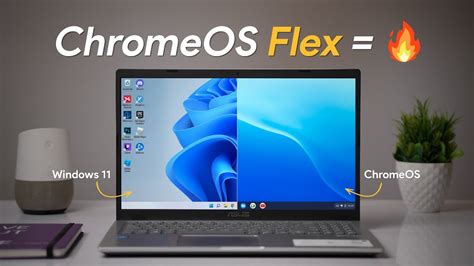
ChromeOS Flex requires an Intel or AMD x86-64 CPU, 4 GB RAM, and 16 GB of internal storage, and Google notes that components made before 2010 might result in a poor experience, with several specific older Intel GMA graphics chips explicitly unsupported per its official requirements page. It’s built for cloud-first use: documents, email, streaming, and a bundled Linux app container for tools like LibreOffice or GIMP, but no Android app support and no dual-boot.
Does ChromeOS Flex let me keep my files and dual-boot with Windows?No. Installing it erases everything on the target drive, and dual-booting isn’t supported, according to Google’s own FAQ. If you just want to try it, run it live from the USB installer without installing, and back up first.
If You Want a Familiar Full Desktop: Linux Mint and Xubuntu
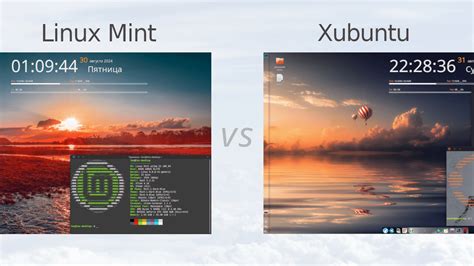
Linux Mint states its minimum as 2 GB RAM and 20 GB of disk space, with 4 GB RAM and 100 GB recommended for comfortable use. Xubuntu is more precise about its floor: its team lists 1 GB RAM and 8.6 GB of free disk space as the minimum, a figure most secondary articles round down to “8 GB.” Recommended resources are a 1.5 GHz dual-core CPU and 2 GB RAM.
Both are full, mainstream desktops with long-term Ubuntu-based support windows, office suites, and browsers preinstalled, unlike the ultra-minimal distros in the next section, which trade completeness for a lower floor.
What’s the actual minimum RAM to avoid a distro feeling broken, not just installable?Treat “recommended,” not “minimum,” as the real floor. Xubuntu installs on 1 GB but is comfortable from about 2 GB; Linux Mint installs on 2 GB but recommends 4 GB. Below the recommended figure, the OS boots and runs, but modern web pages and multitasking are where it struggles first.
If Your Machine Is Genuinely Ancient (Under 1 GB RAM): antiX and Puppy Linux
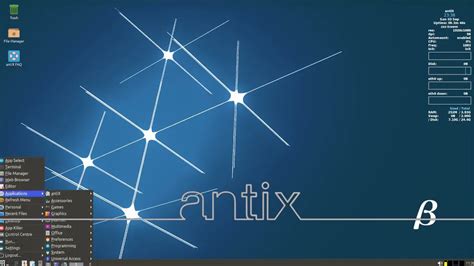
antiX documents 512 MB of RAM as its recommended minimum and 7 GB of disk space for a hard-drive install, per its own project page, and offers separate 64-bit and 32-bit images, with 64-bit aimed at machines built in roughly the last decade. antiX 26, code-named “Stephen Kapos,” is built on Debian 13 “Trixie” and ships five different init-system options for users who specifically want to avoid systemd, according to the antiX 26 release notes.
Puppy Linux’s own forum documentation splits requirements by architecture: 32-bit builds need a single-core Pentium 4 or equivalent with 512 MB RAM, while 64-bit builds ask for a 64-bit dual-core CPU and 1 GB RAM. Puppy typically runs entirely from RAM after boot, which is why it feels fast on drives that are themselves failing or slow, since disk I/O drops out of the picture once the system has loaded.
If You Need to Keep Windows: What Still Works
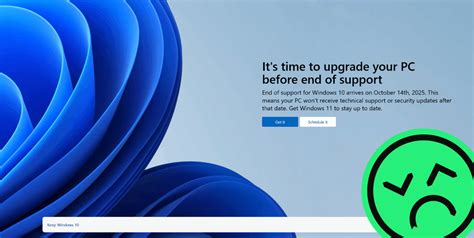
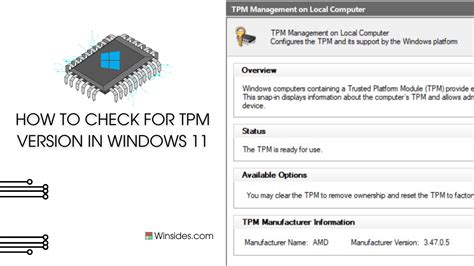
Upgrading to Windows 11 is the obvious next step, but Microsoft’s requirements page lists TPM 2.0, UEFI Secure Boot, 4 GB RAM, and 64 GB of storage, and this specific TPM 2.0 gate is why most machines old enough to prompt this search fail the eligibility check outright, independent of RAM or CPU speed.
One Windows 10 edition sidesteps the October 2025 cutoff entirely: Windows 10 IoT Enterprise LTSC 2021 is documented on Microsoft’s lifecycle page as supported through January 13, 2032. It strips out the Microsoft Store and most consumer apps for a smaller, more stable footprint. The part that gets skipped elsewhere: it’s distributed through OEM and volume-licensing channels for embedded and fixed-function devices such as kiosks, medical terminals, and industrial controllers. Reporting from TechRadar notes explicitly that a home user would need to go through a device OEM or organizational licensing to run it legitimately.
Is it dangerous to keep browsing on Windows 10 now that support has ended?The OS keeps working, but Microsoft confirms there are no more free security patches, so newly discovered vulnerabilities go unfixed. Antivirus software helps but doesn’t replace OS-level patching, which is why Microsoft frames ESU enrollment or migration as the necessary fix.
Can a home user legally install Windows 10 IoT Enterprise LTSC on a personal laptop?Not through a normal retail purchase. It’s licensed for OEM preinstallation and enterprise volume licensing aimed at embedded and fixed-function devices, so it isn’t a straightforward substitute for a home Windows 10 or 11 installation, whatever a downloaded ISO makes technically possible.
What Happens to Your Files When You Switch
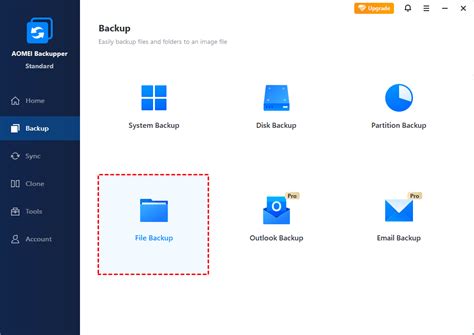
Every option above erases the target drive by default except a Windows in-place upgrade. Back up documents, browser bookmarks, and any local email archive to an external drive or cloud storage before touching a USB installer, since none of the operating systems above offer an automatic migration path from Windows.
Common Mistakes That Waste an Afternoon
- Trusting a “minimum RAM” number as a comfort number. Every project above documents both a minimum and a recommended figure, and the gap between them is usually double.
- Assuming ChromeOS Flex can coexist with the current OS. It can’t; it wipes the drive and doesn’t support dual-boot.
- Bypassing Windows 11’s TPM check without a plan. It’s technically possible on some hardware, but Microsoft doesn’t guarantee update reliability or support on a device that fails its own eligibility check.
- Reusing a hard drive that’s the real bottleneck. If the drive is a spinning mechanical disk, no operating system change fixes constant disk activity; an SSD swap usually does more than a distro switch.