setfacl) beat editing group membership. For copying files between Linux machines you already control, scp or rsync over SSH needs nothing extra installed on most distributions. For ongoing access from Windows or macOS clients, Samba is the only broadly compatible option, and it should never be reachable from the open internet. For a single one-off transfer, a short-lived HTTP server or a tool such as Warpinator beats setting up a permanent share you will forget to remove.
Sharing files in Linux is not one problem. Copying a file between two accounts on your own machine, handing a folder to a Windows laptop on your Wi-Fi, and moving a large file to a server across the world are three different jobs, and each has a tool that fits it best.
Match the method to the situation first
Every method below trades setup effort against reach. Pick the row that matches who needs access and how often.
| Your situation | Best method | Setup effort | Encrypted in transit |
|---|---|---|---|
| Two user accounts, same machine | POSIX ACLs (setfacl) |
Low, one command per folder | N/A, local filesystem |
| One-time copy to a Linux box you control | scp or rsync over SSH |
None beyond SSH already running | Yes |
| Windows or macOS device joins regularly | Samba (SMB) share | Medium: package, config, firewall rule | Yes, if SMB2/SMB3 enforced |
| Two Linux machines, ongoing sync | NFS export | Medium: server plus client mount | No, by default |
| Single ad-hoc transfer, no server wanted | python3 -m http.server, Warpinator, or magic-wormhole |
Very low, nothing persists | Varies by tool |
The deciding factor is not which protocol is best in the abstract. It is whether the other machine already has your SSH key, whether it runs Windows, and whether you want the share to still exist tomorrow.
Sharing between two local accounts on the same machine
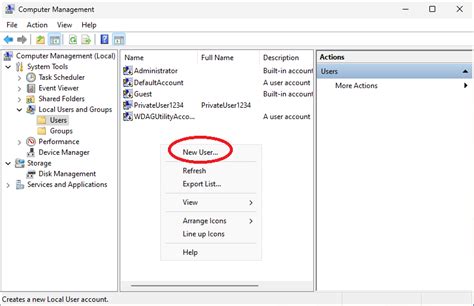
The default Linux permission model, owner, group, everyone, makes cross-account sharing awkward, because it was not built for arbitrary user-to-user grants. setfacl -m u:otheruser:rwx ~/shared-folder fixes this directly, without moving either user into a shared group or changing the folder’s primary ownership. Add -R for existing subdirectories and a default ACL (-d) so new files created later inherit the same grant automatically.
Copying files directly between two Linux machines you control
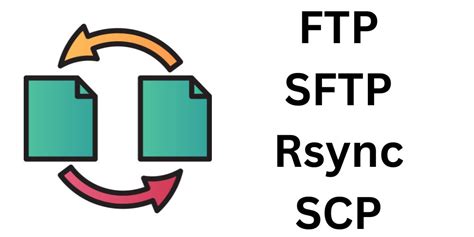
If both machines are Linux and you can already SSH into the destination, you do not need a sharing protocol at all. scp -r localdir user@host:/remote/path copies a directory tree in one command. rsync -avz localdir/ user@host:/remote/path/ does the same thing but only transfers the bytes that changed on repeat runs, which matters once directories get into the gigabytes. Add -e ssh explicitly if your system’s default rsync transport is not SSH. Neither tool leaves anything running after the transfer finishes: no daemon, no open port, no share to forget about.
What’s the real difference between scp and rsync for a one-time copy?For a single full copy of a small directory, they perform about the same, and scp’s syntax is shorter. Rsync earns its keep on repeat transfers or interrupted ones: it resumes and only re-sends changed blocks, while scp always starts over from zero.
Sharing a folder with Windows or macOS on your network
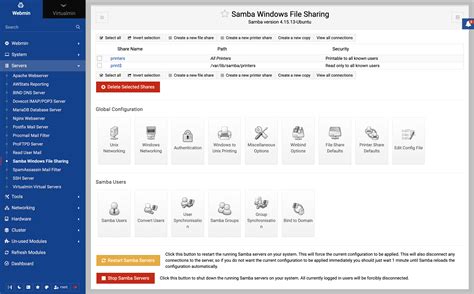
Samba is the practical default whenever a Windows or macOS machine needs access. Install it (sudo apt install samba on Debian-based distributions), add a share block to /etc/samba/smb.conf naming the path and setting read only = no if write access is needed, then create a Samba-specific password for each user with smbpasswd -a username. Samba maintains its own user database separate from your Linux login, so this step is not optional even for a user who can already log into the machine.
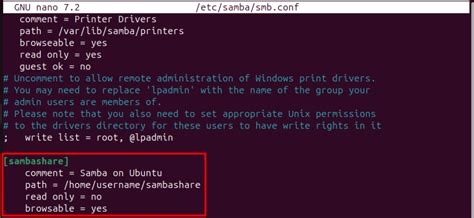
Restart the service and open the firewall for Samba traffic before testing from the other machine. Ubuntu 24.04 LTS ships Samba version 4.19.5 in its official package archive, which is recent enough to default to SMB2/SMB3 and to have SMB1 disabled out of the box, a change Samba’s maintainers made starting with release 4.11.0, according to a Red Hat security advisory confirming the change.
Why doesn’t my Samba share show up in Windows 11’s network view?Modern Windows builds turned off legacy NetBIOS discovery. The share still works by direct address (
\\ip-address\sharename), but for it to appear automatically in Windows’ network browser, the Linux side needs the WSDD (Web Services Dynamic Discovery) daemon running alongside Samba.
Accessing a Windows share from Linux
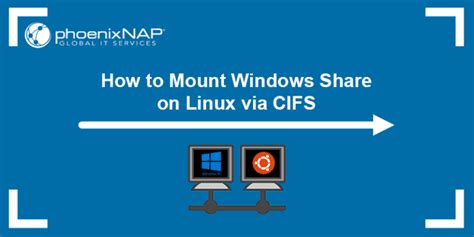
The direction reverses cleanly with mount.cifs, part of the same Samba suite. Create a mount point (mkdir ~/WindowsShare), then run sudo mount.cifs //windows-pc-address/SharedFolder ~/WindowsShare/ -o user=windows-username,uid=$UID. This mounts the share for the current session only; add an entry to /etc/fstab with the _netdev option if you need it to reconnect automatically at boot.
One-off transfers without running a server
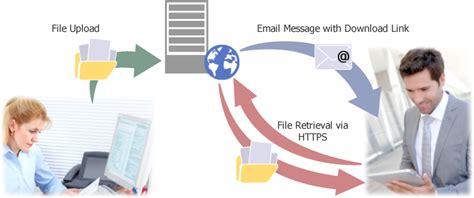
Setting up Samba or NFS for a single file is more infrastructure than the job needs. Three lighter options:
- python3 -m http.server 8000 – run from the directory holding the file, then fetch it from any browser on the same network at
http://your-ip:8000. No authentication, no encryption: fine for a trusted LAN, wrong for anything else. - Warpinator – bundled with Linux Mint, installable elsewhere; discovers other Warpinator instances on the LAN automatically and transfers files with a click, no configuration.
- magic-wormhole – generates a short one-time code (
wormhole send file.zip) that works across the open internet without opening any ports or running a persistent server, because it relays through a public rendezvous server.
Can I share files between two Linux machines without installing anything extra?If SSH is already running on the destination, which it usually is, scp needs nothing new installed on either side. That’s the lowest-friction option when both machines are Linux and you already have a login.
Choosing the underlying protocol: NFS vs SMB vs SSH-based tools
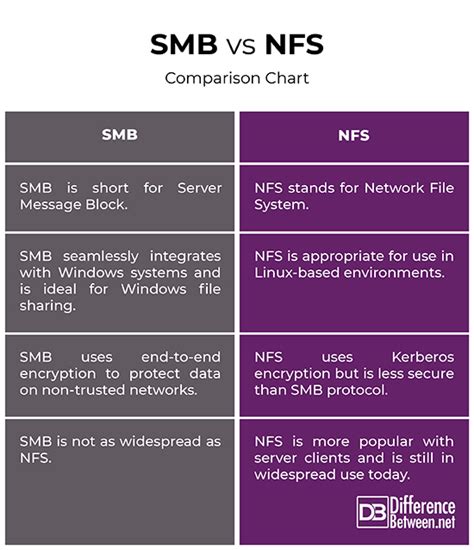
| Method | Encryption in transit | Auth model | Needs a daemon running |
|---|---|---|---|
| NFS | No, by default (Kerberos adds it, rarely used at home) | Host-based (client IP), not per-user | Yes, nfs-kernel-server |
| SMB (Samba) | Yes, with SMB2/SMB3 negotiated | Per-user, separate Samba password database | Yes, smbd/nmbd |
| SSH-based (scp, rsync, sftp) | Yes, always | Per-user, existing login or SSH key | No persistent daemon beyond sshd |
| Ad-hoc (Warpinator, magic-wormhole) | Varies by tool | None, or a one-time code | No, ends when the transfer finishes |
The decision that actually holds: pick NFS only when every client is Linux or Unix and you control the network, pick SMB the moment a Windows or macOS client is involved, and reach for SSH-based tools whenever a share does not need to persist past the current task.
Fixing “Permission denied” and “Access is denied”
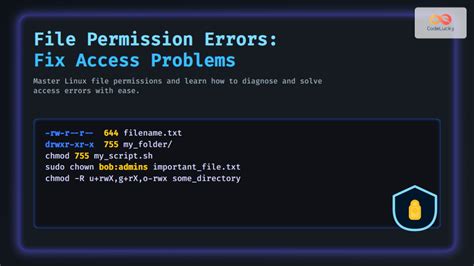
| Symptom | Likely cause | Fix |
|---|---|---|
| cp: Permission denied copying into another user’s home folder | No ACL or group grant on the target directory | setfacl -m u:youruser:rwx /path/to/folder |
| Windows shows “Access is denied” but the share is visible | Samba user exists but lacks a Samba password, or filesystem permissions block that user | Run smbpasswd -a username, then confirm with ls -ld that filesystem permissions allow that user too |
| Windows 11 can’t see the share at all in Network | WSDD not installed or not running | sudo apt install wsdd && sudo systemctl enable --now wsdd |
| mount.cifs fails with an authentication error | Username on the Windows side doesn’t match the user= option, or the account is a Microsoft account, not a local one | Re-run with the exact local Windows username, or create a local account with a defined password |
Securing a share before you leave it running
A file share is only as safe as its weakest exposure point. The CISA #StopRansomware Guide recommends blocking TCP port 445 inbound and outbound at the internet perimeter firewall, precisely because SMB was never designed to be exposed to the open internet. Never forward port 445 from your router. If you need file access while away from home, use a VPN or a mesh network tool to reach your LAN first, then connect to the Samba share as if you were local.
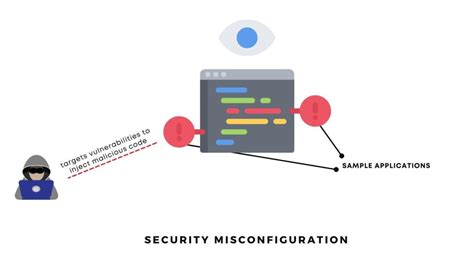
Guest access is the second common mistake: leaving guest ok = yes on a share means anyone who reaches it, on the LAN or beyond a misconfigured firewall, gets in with no password at all. Create a named Samba user for every person who needs access instead.
Is it safe to leave Samba running on a laptop I take to public Wi-Fi?Not with default settings. Set your network connection profile to “Public” so Windows or your firewall blocks incoming SMB requests on untrusted networks, and stop the smbd service entirely when you don’t need it rather than leaving it listening.
A laptop with Samba running and a public network profile still listening on port 445 is discoverable by anyone else on that same coffee-shop network within seconds of a port scan.