cp original.txt newname.txt to create a full, independent duplicate under the new name: it uses roughly double the disk space of the original, gets its own inode, and leaves any hard links to the original untouched. Run mv original.txt newname.txt instead when you just want to relabel the same file: it uses no extra disk space, keeps the same inode, and finishes instantly regardless of file size, as long as source and destination sit on the same filesystem. To copy a whole directory under a new name, add -r: cp -r originaldir newdirname.
Copy a file under a new name
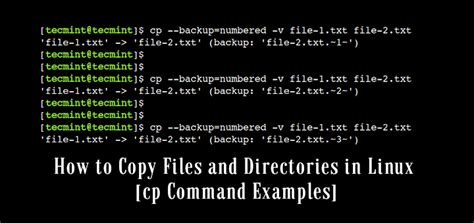
The destination argument to cp is also the new filename, so cp report.txt report-2026.txt copies report.txt into a file called report-2026.txt in one step, with no separate rename command involved. The same syntax works across directories: cp report.txt ~/backups/report-2026.txt copies, relocates, and renames at once. If report-2026.txt already exists, GNU coreutils documents that cp overwrites it without asking, which the next section covers as a real risk rather than a footnote.
Can I copy and rename a file in one command?Yes.
cp source newnamedoes both, since the copy destination and the new filename are the same argument.
Copy or rename: what changes on disk
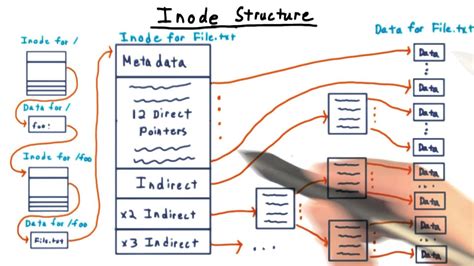
Copying with cp and renaming with mv look similar on the command line but change different things underneath. On the same filesystem, mv only updates a directory entry, matching the behavior documented for the underlying rename system call that mv relies on; cp allocates a new inode and duplicates the file’s data.
| Aspect | cp (copy) | mv (rename, same filesystem) |
|---|---|---|
| Extra disk space used | Yes, equal to the file’s size while both exist | None |
| New inode created | Yes | No |
| Speed for a large file | Scales with file size | Near instant |
| Behavior across filesystems | Same either way | Falls back to copy-then-delete (see below) |
| Effect on the original | Left untouched under its old name | Old name no longer exists |
For a multi-gigabyte video file already on the same disk, that difference decides your wait time: mv finishes immediately because nothing is copied, while cp has to write the same volume of data a second time before it finishes.

GNU coreutils 9.11, released in April 2026, added an –exchange flag to mv that atomically swaps two files’ names, useful in scripts that update a live file without a moment where neither name exists.
--checksum flag on cp that verifies file integrity after copying. No such option appears in the current GNU coreutils cp documentation; verifying a copy still requires a separate step, such as comparing output from sha256sum.Does renaming a file with mv count as making a copy?No. mv relabels the existing inode on the same filesystem, so no extra disk space is used and any hard links to the file keep working against the same data.
Renaming files safely with mv

mv original.txt newname.txt renames a file only if newname.txt doesn’t already exist as a directory; if it does, Linux moves original.txt inside that directory instead of renaming it. Neither cp nor mv asks before overwriting an existing file by default. The classic guard is -i (prompt first), but the coreutils manual marks -n/–no-clobber as deprecated in favor of --update=none, which skips existing files without a prompt, or --update=none-fail, which does the same but reports an error for anything skipped; the Arch Linux packaged man page confirms both are current options.
Bulk renaming with the rename command
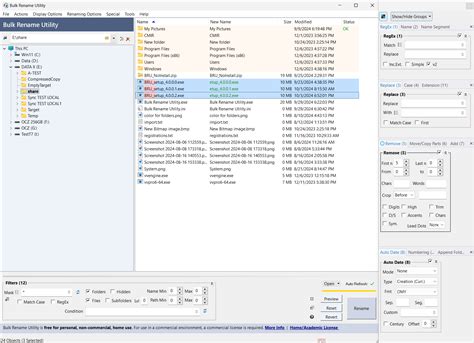
The single-file tools above don’t scale to hundreds of files at once, which is where the separate rename command comes in, and where most tutorials quietly assume a distro they may not be running on.
Which rename do you have installed?
Linuxize documents two unrelated programs sharing the name rename: a Perl-based version using regex substitution (rename 's/pattern/replacement/' files), and a C version from util-linux using plain string substitution (rename oldstring newstring files). Check which one you have with rename --version. On Debian and Ubuntu, Putorius confirms /usr/bin/rename typically resolves through /etc/alternatives/rename to the Perl file-rename script; on Fedora, RHEL, and Arch, the preinstalled rename is the util-linux version, and the Perl syntax requires installing a separate package (prename on Fedora, perl-rename on Arch). For a filename that starts with a dash, add -- before it so the shell doesn’t parse it as an option, and wrap Perl rename patterns in single quotes so the shell doesn’t expand them first.
- No error, no result: the command runs, prints nothing, and nothing changes, meaning the pattern matched nothing under the installed implementation.
- A syntax complaint about an unterminated expression: a sign you’re feeding Perl regex syntax to util-linux’s rename, which expects a plain old-string, new-string pair instead.
- Files renamed to literal garbage, slashes included: the reverse problem, a plain string pair fed to the Perl version, which reads it as a broken regex.
| Distro family | Default rename | Syntax | Perl regex support |
|---|---|---|---|
| Debian, Ubuntu, derivatives | Perl-based (rename, via file-rename) | rename 's/old/new/' files |
Yes, by default |
| Fedora, RHEL, CentOS | util-linux rename | rename oldstring newstring files |
No; install prename |
| Arch Linux | util-linux rename | rename oldstring newstring files |
No; install perl-rename |
| BusyBox / Alpine minimal images | Often absent entirely | Not applicable | Not applicable |
Running a regex-based rename one-liner from a tutorial on a system where rename belongs to util-linux does not produce an error describing regex syntax; it just fails to match anything or renames files to the literal pattern text, which is why the mismatch is easy to miss until the files are already wrong.
Why did the rename command I copied from a tutorial fail on my system?Most likely a mismatch between the Perl-based rename and the util-linux rename, which use completely different argument syntax; run rename –version to check which one is installed.
Preserving permissions and timestamps when copying
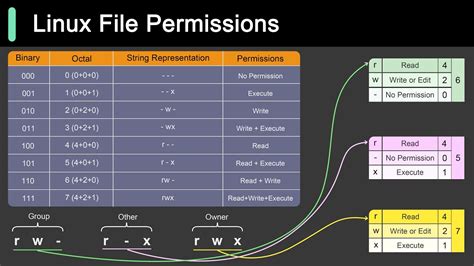
cp by default gives the copy the current date and time as its modification timestamp, not the original file’s metadata. Add -p to keep the original owner, permissions, and timestamps, or -a for a fuller copy that also preserves links and directory structure recursively. Neither flag matters for a plain mv, since renaming changes no metadata at all.
What happens when the copy or move crosses filesystems
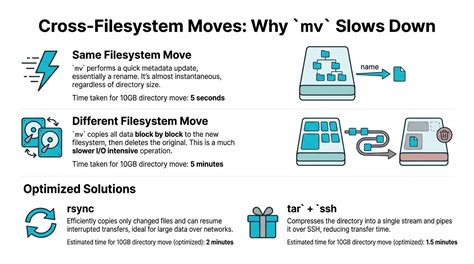
Moving a file with mv across two different filesystems, such as from a home partition to a USB drive, doesn’t use the instant-rename trick at all: GNU coreutils documents that mv falls back to copying the data with the same routine cp -a uses, then deletes the source only after that copy succeeds. If that copy is interrupted partway through a multi-file move, the documented behavior leaves whatever already finished on the destination and whatever hadn’t started yet on the source, so a directory being moved between drives can end up split across both locations if the process is killed midway.
What happens if I move a file between two different drives?Its data is copied to the new drive first, and the original is deleted only after that copy finishes, so a cross-drive move briefly uses double the disk space and takes as long as a full copy.
Common mistakes when copying and renaming files

The five mistakes below share a common cause: treating cp and mv as safer, undo-friendly tools when neither offers a trash bin or confirmation by default.
| Symptom | Cause | Fix |
|---|---|---|
| A file you meant to copy is gone, only the renamed version exists | mv was used instead of cp | Use cp for an independent duplicate; mv only relabels |
| An existing file was silently overwritten | Neither cp nor mv prompts by default | Add -i, or –update=none to skip existing files instead |
| A rename one-liner from a tutorial errors out or matches nothing | The installed rename is the util-linux version, not the Perl one the tutorial assumed | Check with rename –version and install the matching package |
| mv into what looked like a rename target instead moved the file into a folder | A directory with that exact name already existed | Check with ls before renaming |
| A script’s mv flags are silently ignored inside a container | BusyBox’s cut-down mv only supports -f -i -n -t -T | Install GNU coreutils in the image, or drop the unsupported flags |