What glitch text is made of
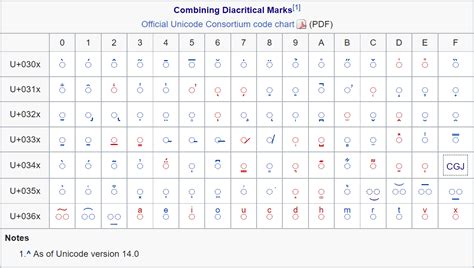
Every letter in glitch text is a normal character followed by one or more combining marks: small symbols Unicode was built to stack above, through, and below a base letter. The specific set almost every generator uses is the Combining Diacritical Marks block, 112 code points from U+0300 to U+036F, added in Unicode version 1.1 in 1993 (Unicode Consortium). Those marks exist for real languages: accents in French and Spanish, tone marks in Pinyin, a vertical stroke used in Marshallese. A glitch-text generator just attaches many of them, often dozens, to a single letter instead of the one or two a language would normally need.
Because each mark is its own Unicode code point riding after its base letter, the string is still made of standard characters. Nothing about it depends on a special font, an app, or an image. Anywhere that accepts Unicode text accepts glitch text, for the same reason it accepts an emoji or an accented word.
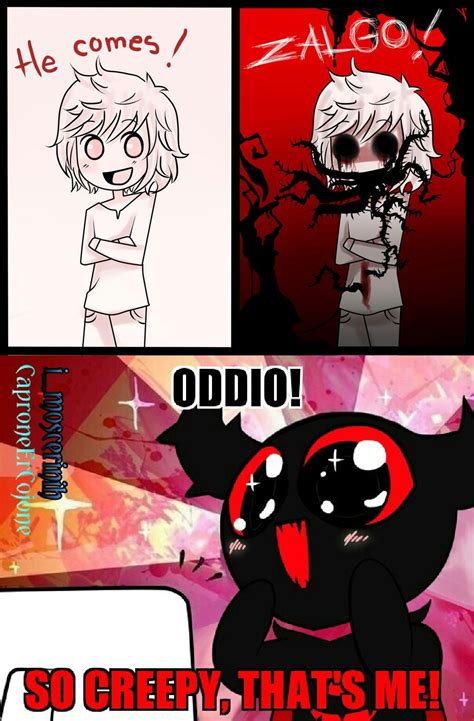
The style is commonly called Zalgo text after an internet meme. The name traces to July 27, 2004, when a SomethingAwful forum member using the handle Shmorky, later identified as Dave Kelly, posted modified versions of a syndicated comic strip using the word on his personal site (Know Your Meme).
Make glitch text
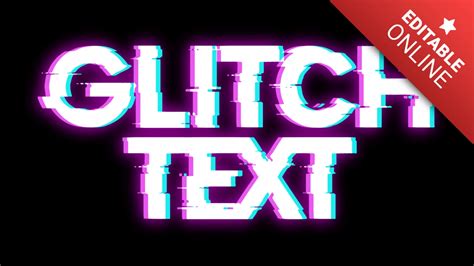
Type or paste text into the box, choose an intensity, and copy the result. It runs entirely in your browser; nothing you type is sent anywhere.
Glitch text vs. iPhone’s own text effects
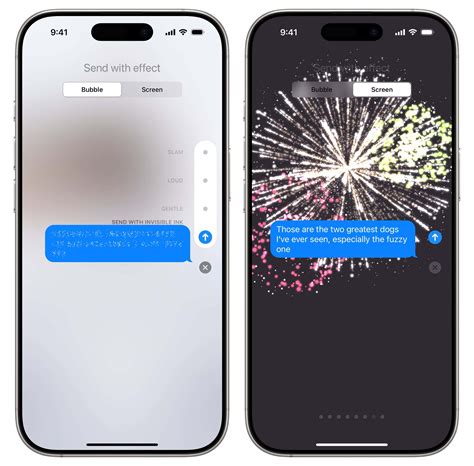
Glitch text is not the same thing as the animated text effects built into iPhone’s Messages app, and the overlap in vocabulary causes real confusion. Messages has its own effects menu: bold, italic, underline, and strikethrough, plus eight animations named big, small, shake, nod, explode, ripple, bloom, and jitter (Apple Support). Jitter in particular makes a word visibly shake once the message arrives, close enough to “iPhone glitch text” that some searchers looking for one land on articles about the other.
The difference is mechanical. Apple’s jitter effect is an animation the Messages app applies; it only plays inside Messages, on devices that support it, and never changes the underlying characters. Glitch text changes the characters themselves, so it looks distorted everywhere it’s pasted, not only in Messages.
Is glitch text the same as the jitter effect in Messages? No. Jitter is an Apple animation that plays only inside the Messages app and leaves the text itself unchanged. Glitch text is a different set of Unicode characters, so it looks the same wherever you paste it.
Sending it from an iPhone: iMessage vs. SMS/MMS
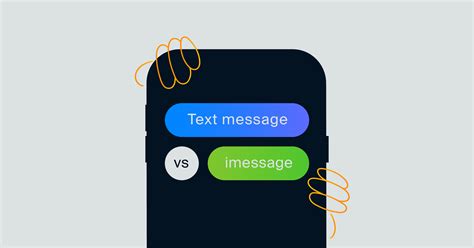
What happens to glitch text after you hit send depends on which transport carries the message.
iMessage (blue bubble)
When both sides use iMessage, the message travels over Apple’s own protocol, which publishes no specific character limit for plain text (Apple Support). Heavy glitch text generally goes through in one piece.
SMS/MMS and RCS (green bubble)
If iMessage isn’t available, the phone falls back to a green bubble carried by either RCS or plain SMS/MMS (Apple Support). This is where glitch text behaves very differently depending on which of the two actually carries it.
| Transport | Bubble | Encoding | Single-message limit | If split, each part carries |
|---|---|---|---|---|
| iMessage | Blue | Apple’s own protocol | No published limit | n/a |
| RCS | Green | UTF-8 | 160 characters | 153 characters |
| SMS/MMS, plain text | Green | GSM-7 | 160 characters | 153 characters |
| SMS/MMS, any Unicode character (including one glitch mark) | Green | UCS-2 | 70 characters | 67 characters |
Figures from Twilio’s SMS/RCS character-limit documentation, describing the carrier-network standards Apple’s Messages app runs on, not an Apple-specific figure. Only two tables carry genuine quantified data on this topic; a third or fourth would either restate these numbers or invent categories without real data behind them.
A single glitch-text mark dropped into an otherwise plain SMS is enough to force the whole message into UCS-2, so a 150-character green-bubble text that would have fit in one segment splits into three the moment it carries even one combining mark.
Apple’s own security-release page lists iOS 26.5.2 as the current build at the time of writing, several point releases past the iMessage/RCS split that shipped years earlier; the blue/green mechanics above haven’t changed across that stretch of updates (Apple Support).
Why does my friend on Android see broken characters I don’t see? If the message went out as SMS instead of RCS, the two devices may reassemble the UCS-2 segments differently, especially at heavy intensity where a mark stack can straddle a segment boundary. Lower the intensity, or send it over RCS/iMessage instead, to avoid the split.
Where it gets rejected: usernames, contact names, login fields
There’s no single authoritative list of which iPhone apps strip glitch text, because that behavior is set by each app’s own input validation, not by iOS itself. The reliable method is to test the specific field first: paste a short, medium-intensity sample before committing to a long one.
| Field type | Typical tolerance | Why |
|---|---|---|
| Free-text message body (Messages, Notes, most captions) | High | Accepts arbitrary Unicode with no length check tied to visible characters |
| Bio or display-name field with a character counter | Medium | The counter usually counts code points, so glitch text can burn through the visible limit far faster than the same word in plain text |
| Username or login name | Low | Many services validate against a narrow character set and reject or normalize anything outside it |
| Contact name saved in iPhone Contacts | Low to medium | Displays fine locally, but search and sorting may treat the combining marks as separate characters and fail to match the plain-text name |
The character-counter problem is a specific technical cause, not a guess: because each combining mark is its own code point, code that counts length by code point instead of by rendered letter sees a five-mark word as five times longer than it looks (Unicode combining-character reference).
Can I use glitch text as my iPhone contact name? You can save it, and it displays normally in Contacts. Search and alphabetical sorting are what’s likely to misbehave, since they may not match the plain-text version of the name.
Common mistakes
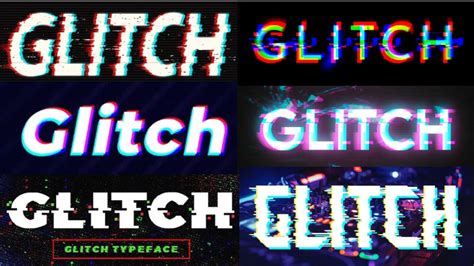
- Maxing out the intensity for a whole sentence. A heavy stack is built for a single word or short phrase; across a full sentence it becomes unreadable and, per the accessibility note below, harder for assistive technology to parse.
- Pasting straight into a username field without testing first. Validated fields are the most likely to reject or silently strip the marks.
- Assuming the recipient sees exactly what you typed. Whether the message travels as iMessage, RCS, or plain SMS changes both the length budget and, occasionally, how the marks reassemble on the far end.
- Trying to retype it from memory after losing the copy. A specific heavy mark stack isn’t practical to recreate by hand; keep the generated string saved somewhere you can paste from again.
Why heavy glitch text is an accessibility barrier

This isn’t a minor caveat. Stacking dozens of combining marks onto one base character is, in the words of a developer who documented the technique, something that “breaks accessibility for users of screen readers” (Greg Tatum). Screen readers generally still render the underlying base letters correctly, since those don’t change, but heavy mark stacks go well past what any pronunciation engine expects attached to a single letter, and independent testing of how screen readers handle unusual or decorative characters has repeatedly found this category among the least consistently handled (Deque Systems).
Keep glitch text to a short display name or a single emphasized word instead of a caption someone needs read aloud, and avoid it entirely in anything that must stay accessible, such as a support message or an alt description.
Does VoiceOver read glitch text correctly? It generally reads the base letters, since those are unchanged, but heavy mark stacks can slow or garble pronunciation because the marks go well beyond what the pronunciation engine expects on one character.
Is there a safe way to preview it before you send it?
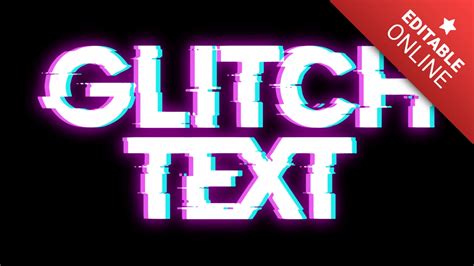
Yes: paste the generated text into the exact app you plan to use, at the intensity you plan to use, before sending it to anyone. The preview shows you exactly what that specific app does with it, since behavior varies by app and by iOS version. This takes ten seconds and avoids every failure mode above.