Figure out which method applies to your TV
The method depends on what’s already built into the TV or the streaming device plugged into it.
| TV or device type | Free method | Connection | Known limitation |
|---|---|---|---|
| Apple TV 4K/HD, AirPlay 2 smart TV | Built-in Control Center remote | Wi-Fi, same Apple Account | Requires iOS 12+/iPadOS 13+; volume needs AirPlay or CEC audio |
| Samsung Smart TV (2016+) | SmartThings app | Wi-Fi, Samsung Account, internet | Won’t work without an active internet connection, even on a local network |
| LG Smart TV (webOS) | LG ThinQ app | Wi-Fi (iPhone); Wi-Fi or Bluetooth (Android) | iPhone can’t power the TV on via Bluetooth the way Android can |
| Roku TV or streaming device | The Roku App (Official) | Wi-Fi, “Control by mobile apps” enabled | A Roku streaming stick needs the TV’s HDMI-CEC to control TV power/volume |
| Fire TV / Firestick | Fire TV app | Wi-Fi, Amazon account | Requires signing in with the same Amazon account used on the TV |
| Android TV / Google TV | Google TV app (3.19+) | Wi-Fi, Google account | QR-code pairing has a known iPhone-specific bug; use the manual code instead |
| Older TV, no smart platform, no CEC | Lightning/USB-C IR adapter | Infrared, direct line of sight | No iPhone has a built-in IR emitter, so the adapter is a strict requirement |
The deciding factor is what the TV already speaks: an Apple Account and AirPlay, a manufacturer’s own cloud account, or plain infrared with nothing electronic behind it.
Apple TV and AirPlay-compatible TVs
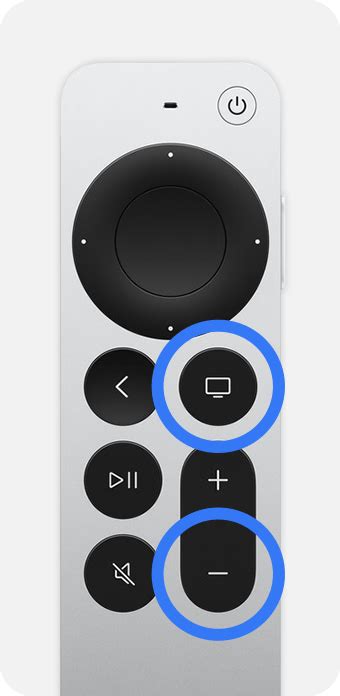
Any iPhone with iOS 12 or later, or iPad with iPadOS 13 or later, activates remote controls automatically the moment it joins the same Wi-Fi network and Apple Account as an Apple TV 4K, according to Apple’s own setup documentation. Open Control Center, tap the Apple TV Remote icon (adding it first through Settings > Control Center if it isn’t already there), choose the device, and enter the four-digit code shown on screen.
Apple still sells a standalone third-generation Siri Remote for $59, which is the real cost of skipping the free iPhone method entirely.
Volume and mute only work through the iPhone if the setup includes AirPlay-compatible speakers or a HomePod, or if the TV’s audio path supports HDMI-CEC, according to Apple’s support documentation; otherwise the remote that came with the TV still controls volume. If the remote seems unresponsive, Apple recommends moving within about 20 feet of the Apple TV and, on tvOS 18 or later, checking the Bluetooth signal strength indicator under Settings > Remotes and Devices > Remote. Losing a physical Siri Remote entirely is a separate case: the Find My Remote feature that locates it through the iPhone needs iOS 17 or later and tvOS 17 or later.
Can I use my iPhone as a TV remote without installing any app at all?
Yes, for an Apple TV or an AirPlay 2 compatible smart TV. The Apple TV Remote lives in Control Center by default and needs no download, only the same Wi-Fi network and Apple Account on both devices.
Every other smart TV platform
Every other major smart TV platform reaches the iPhone through its own free manufacturer app, tied to an account and the same Wi-Fi network.
Samsung
SmartThings is Samsung’s own free app, and it requires a Samsung Account plus an active internet connection, according to Samsung’s support documentation, even when the phone and TV are already on the same local network. Most Samsung TVs from 2016 onward ship with SmartThings compatibility already built in, per TechWiser’s testing. Once the TV is registered as a device in the app, opening its card reveals a full on-screen remote with volume, channel, input, and app-launch controls.
A paid app called “Sam TV Remote: Smart Things TV” appears in the App Store and charges roughly $15 for functionality the real, free SmartThings app already provides at no cost; it is not published by Samsung.
LG
LG’s ThinQ app, the successor to the discontinued LG TV Plus, requires iOS 11.0 or higher, according to LG’s own support library. On webOS 3.5 and later TVs, ThinQ can turn the TV fully on and off; older webOS versions only support powering it off through the app. LG’s documentation draws a real platform difference here: Android phones can wake the TV over Wi-Fi or Bluetooth, but an iPhone can only do it over Wi-Fi.
Roku
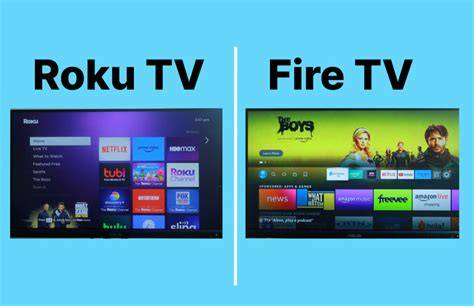
The Roku App (Official) requires iOS 14.0 or later and a Roku device running Roku OS 6.2 or later, per Roku’s own support pages. A setting called “Control by mobile apps” gates how much the app can do: Limited restricts it to text entry and app launches, Enabled allows full remote control from devices on the same network, and Permissive opens it to any device inside or outside the network. If the connected hardware is a Roku streaming player rather than a built-in Roku TV, the app can only reach the TV’s own power and volume if HDMI-CEC is turned on; a Roku TV’s volume is handled natively and needs no CEC at all. Roku’s own troubleshooting documentation states plainly that it strongly advises against third-party remote apps for security reasons.
Fire TV
Amazon’s official Fire TV app is free, requires signing in with the Amazon account already used on the TV, and needs both devices on the same Wi-Fi network, according to Amazon’s customer service documentation. Selecting the remote icon and “Set Up New Fire TV” walks through pairing from there.
Android TV and Google TV
The Google TV app pairs by tapping “TVs nearby” near the bottom of the screen, selecting the device, and entering the code that appears on the television, exactly as described in Google’s current support documentation for iPhone and iPad. Google’s own setup guide also acknowledges a known issue with QR-code based Google TV setup specifically on iPhone, and recommends switching to manual code entry when it happens. The faster, app-free pairing option requires Google TV app version 3.19 or later if it was previously installed.
Why does the Google TV app get stuck on the QR code screen on my iPhone?
Google’s own support documentation acknowledges this as a known iPhone-specific issue. Press the down arrow on the physical remote to switch to manual setup, or enter the on-screen pairing code directly in the Google TV app instead of scanning.
TVs with no smart features at all
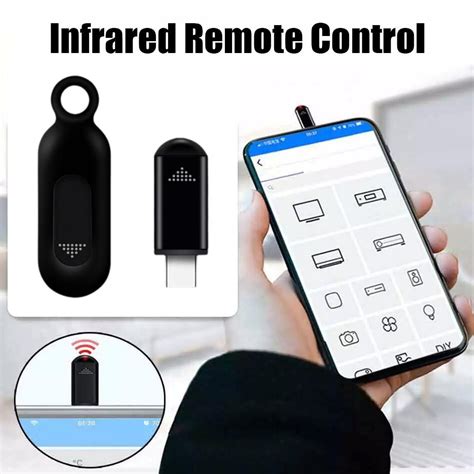
Televisions built without any smart platform, and older sets without HDMI-CEC, cannot be reached by any of the apps above. Since no iPhone model has ever included a built-in infrared emitter, the only way to control this class of TV from an iPhone is a Lightning or USB-C infrared adapter that plugs into the phone and sends real IR signals, typically priced from $15 to $50 in third-party listings. These adapters pair with a companion app that stores or learns the exact IR codes the original remote used.
Why iPhone volume control doesn’t always work
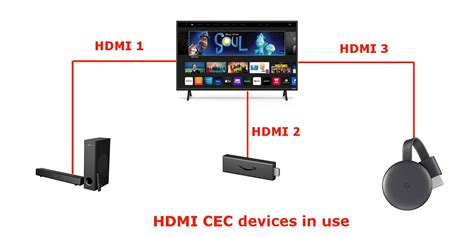
iPhone volume control only works when the setup includes HDMI-CEC or an AirPlay-compatible audio path; without one of the two, the physical remote that shipped with the TV, or the TV itself, still has to handle volume.
| Setup | Does the iPhone control volume | Why |
|---|---|---|
| Apple TV with AirPlay 2 speakers or HomePod | Yes | Apple TV Remote routes volume through AirPlay |
| Apple TV, no AirPlay audio, CEC-enabled TV | Sometimes | Volume passes through CEC only if the TV or soundbar supports it |
| Roku streaming player, CEC enabled on the TV | Yes | CEC lets the Roku app forward volume commands to the TV |
| Roku TV (built into the television) | Yes | Volume is native to the Roku platform, no CEC required |
| Any TV with CEC turned off in its settings menu | No | The app has no path to the TV’s amplifier at all |
The deciding switch, in every row above, is whether HDMI-CEC or AirPlay is actually turned on inside the TV’s own settings menu, not whether the remote app itself claims to support volume.
Can I control my TV’s volume with my iPhone if I don’t have a soundbar or HomePod?
Only if the TV’s HDMI-CEC setting is turned on. Without CEC or an AirPlay-compatible audio path, volume has to come from the TV’s own remote or its physical buttons.
Why your iPhone can’t find the TV
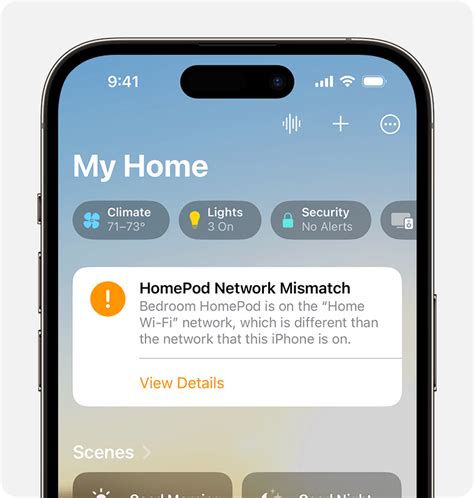
Two causes account for most failed connections, and both are documented directly by Roku’s own support team using real IP examples: a wired device on one subnet (say, 192.168.2.169) and a Wi-Fi device on another (192.168.1.173) will never see each other, and a router broadcasting separate 2.4GHz and 5GHz network names can just as easily strand the phone and the TV on different bands. A VPN active on the phone can also hide the TV from discovery entirely, since it routes traffic off the local network.
My iPhone and TV are on the same Wi-Fi, so why can’t the app find it?
Check that both devices show the identical network name, including the band suffix if the router splits 2.4GHz and 5GHz into separate networks, and turn off any VPN on the phone before retrying.
Common mistakes that break the setup
- Downloading an imposter app. Paid listings like “Sam TV Remote: Smart Things TV” charge for features the real, free manufacturer app already includes.
- Assuming Bluetooth powers on every TV. An Android phone can wake an LG webOS TV over Bluetooth; an iPhone needs Wi-Fi for that same power-on command.
- Leaving Roku’s mobile-app permission on Limited. That setting blocks full remote control, restricting the app to text entry and app launches only.
- Keeping a VPN active during setup. It routes traffic away from the local network and hides the TV from discovery.
Do I need to buy special hardware to use my iPhone as a remote?
Only for TVs with no smart platform and no HDMI-CEC support. Every platform covered above, Apple TV, Samsung, LG, Roku, Fire TV, and Android TV or Google TV, already has a free app that needs no extra accessory.