Clear Safari Cache and Cookies on iPad
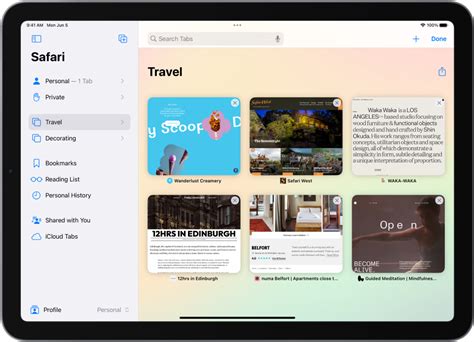
The right path depends entirely on which iPadOS version is running, because Apple restructured Settings partway through Safari’s life on iPad.
iPadOS 18 and later
- Open Settings.
- Tap Apps, then tap Safari.
- Scroll down and tap Clear History and Website Data.
- Choose a timeframe: Last hour, Today, Today and yesterday, or All history.
- Tap Clear History to confirm.
This doesn’t change AutoFill information. For a narrower option that clears tracking and login data without touching browsing history, use Advanced > Website Data > Remove All Website Data instead.
Apple rolled the Apps section into Settings with iPadOS 18 in September 2024, folding roughly a dozen previously top-level screens, including Safari, Mail, and Messages, into one alphabetized list. Anyone working from a screenshot older than that date should look for Safari directly inside Settings, since the Apps folder simply didn’t exist on their version.
iPadOS 17 and earlier
- Open the Safari app.
- Tap the sidebar icon, then tap History.
- Tap the More button, then tap Clear.
- Choose a Clear Timeframe.
- Tap Clear History.
If Safari Profiles are set up, both methods let you clear a single profile’s history or all profiles at once. Profiles arrived with Safari 17 and each keeps its own separate history, cookies, and website data.
| iPadOS version | Path to clear Safari data | What changed |
|---|---|---|
| 18 and later | Settings > Apps > Safari > Clear History and Website Data | Safari moved into a new Apps catch-all, introduced systemwide in September 2024 |
| 17 | Settings > Safari, or the Safari app’s own History panel | Safari sat directly in Settings’ top-level list; Safari Profiles introduced this version |
| 16 and earlier | Settings > Safari > Clear History and Website Data | No profiles feature; one shared history and cache for all browsing |
Anyone still running iPadOS 16 or earlier will not see a Profiles section at all, so a screenshot showing profile selection during clearing simply doesn’t apply to that device.
If I have multiple Safari profiles, does clearing history clear all of them?Only when you specifically select All Profiles during the timeframe step. Each profile keeps its own separate history, cookies, and website data, so clearing one leaves the others intact.
Fix “Clear History and Website Data” Grayed Out
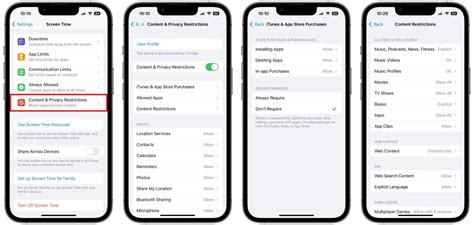
A grayed-out button usually has one of two explanations: there’s nothing left to clear, or Screen Time’s web-content restriction is blocking the action.
- Open Settings.
- Tap Screen Time.
- Tap Content & Privacy Restrictions.
- Tap Content Restrictions, then Web Content.
- Set Web Content to Unrestricted.
If the button stays gray after confirming Web Content is unrestricted, there’s genuinely nothing left to clear.
Why is Clear History and Website Data still grayed out even with Content & Privacy Restrictions turned off?If the restriction is confirmed off and the button is still gray, the most likely explanation is simply that there’s no history or website data currently stored to remove.
Clear Cache for Third-Party Apps
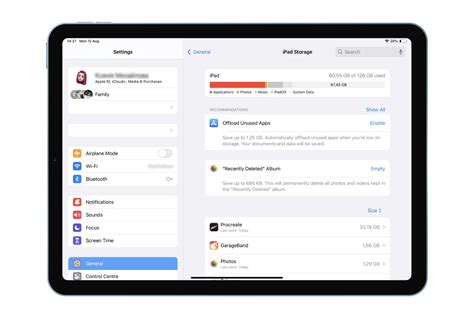
Third-party apps have no shared cache-clearing switch, so the right method depends on whether the app offers its own in-app option, and on whether you’re willing to lose the app’s local data to reclaim space.
What Offload App Actually Does
Offloading removes the app itself to free its storage, but keeps its documents and data; reinstalling picks up right where you left off. Deleting removes both the app and its data. Offloading is not a lightweight, cache-only clear: the entire app binary disappears until you tap the icon again to redownload it.
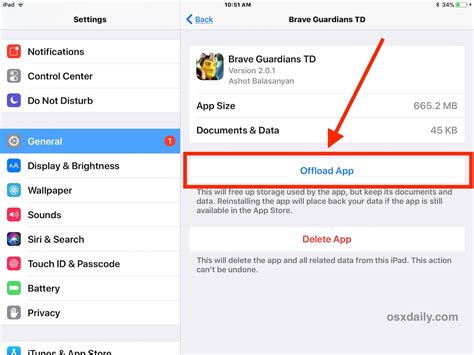
| Situation | Where to look | Action | What survives |
|---|---|---|---|
| App feels bloated, you’ll use it again soon | Settings > General > iPad Storage > [app name] | Offload App | Documents, data, and login state; the icon stays and redownloads on tap |
| App has a broken or bloated local cache with no in-app option | Settings > General > iPad Storage > [app name] | Delete App, then reinstall | Nothing locally; cloud-synced data returns after sign-in |
| App exposes its own cache setting (common in streaming, maps, and media apps) | Inside the app’s own Settings menu | Check for a built-in clear-cache or clear-downloads option | Login, preferences, and account data |
| You want to see what’s using space before deciding | Settings > General > iPad Storage | Review the per-app size breakdown | Nothing removed; this step is diagnostic only |
The deciding factor is whether the app exposes its own cache control: if it does, that option clears only the cache, while Offload App and Delete App both act on the entire app instead.
Does Offload App clear an app’s cache, or remove the whole app?It removes the whole app. Offloading deletes the app binary to reclaim its space but keeps documents and data on the iPad, so it does not selectively clear just the cache while leaving the app installed and running.
Clear Cache in Chrome and Edge on iPad
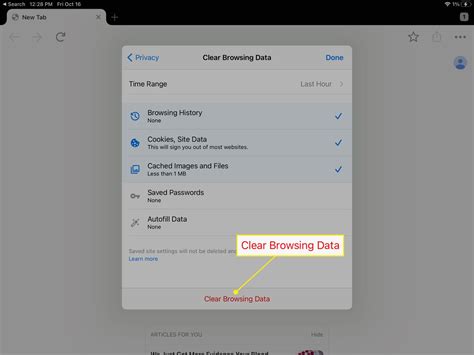
Chrome and Edge each keep their own cache, separate from Safari’s, and clearing one browser has no effect on the others.
Chrome: Open Chrome, tap More, tap Delete Browsing Data, set a Time Range, select the data types to remove (cached images and files, cookies, history), then tap Delete Browsing Data.
Edge: Open Edge, tap Settings and more, tap Settings, tap Privacy, search, and services, tap Clear browsing data, tap Choose what to clear, set a Time range, select Cached images and files, then tap Clear now.
Does clearing Safari’s cache also clear Chrome’s cache?No. Each browser installed on the iPad manages its own cache independently, so clearing Safari leaves Chrome, Edge, or any other browser completely unaffected; each one needs to be cleared through its own settings.
Why Storage Doesn’t Always Drop After Clearing Cache
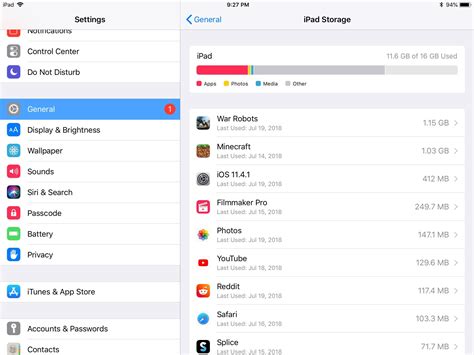
Clearing Safari or app caches often frees less storage than expected because iPadOS quietly files a large share of temporary data under “Other” in the Storage screen: system logs, non-removable caches, and index files that no user-facing switch can clear. Apple’s own storage guide confirms this category exists and that cached data doesn’t always count toward an app’s listed usage. A restart sometimes reclaims a sliver of it, though Apple publishes no figure for how much.
What Clearing Cache Won’t Fix

- Corrupted app-specific databases: cache clearing removes temporary files only; the app’s own saved data survives untouched, so reinstalling is the actual fix.
- Bugs that return after every reinstall: these live in the app’s code, so no storage action changes them.
- Safari rendering issues from an outdated iPadOS: an OS update addresses this; cache clearing does not.
- Login failures from an expired account or wrong credentials: these are account issues a fresh cache cannot resolve.
Will clearing my cache delete my photos or files?No. Every method described here touches only browsing data or, for apps, their offloaded or deleted local files. Photos, iCloud Drive documents, and purchased content stay exactly where they are.
How Often You Actually Need to Do This
There is no official schedule from Apple for clearing cache on iPad. The honest answer is: only when a specific symptom shows up, such as a site failing to load correctly, storage running low, or a single app behaving oddly.
Do I need to restart my iPad after clearing cache for it to take effect?No. Clearing works immediately. Restarting is a separate, optional step that can additionally clear a small amount of temporary system data, distinct from whatever Settings or a browser just cleared.