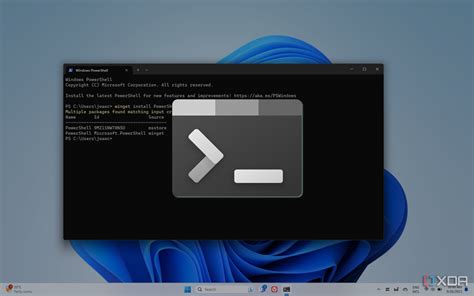
pwsh --version should report 7.6.3 or newer.
Which method fits your system
The right method depends on three things: whether your distribution has a Microsoft-published package, whether you have root access, and whether you want automatic updates.
| Method | Auto-update | Root required | Best for |
|---|---|---|---|
| Microsoft APT/DNF repository | Yes, via apt/dnf | Yes | Debian, Ubuntu, RHEL, on a system you administer |
Snap (snap install powershell) |
Yes, automatic | Yes, for snapd setup | Distros with snapd but no Microsoft repo package |
| Binary tar.gz archive | No, manual | No | Any distro, ARM, no-root environments, CI containers |
Container image (mcr.microsoft.com/dotnet/sdk) |
Depends on image tag | N/A | Ephemeral or test workloads |
Pick the tar.gz archive whenever root access is unavailable or the target distribution sits outside this list; every other row assumes sudo.
Officially supported distributions

Debian and Ubuntu
sudo apt-get update
sudo apt-get install -y wget apt-transport-https software-properties-common
source /etc/os-release
wget -q https://packages.microsoft.com/config/ubuntu/$VERSION_ID/packages-microsoft-prod.deb
sudo dpkg -i packages-microsoft-prod.deb
rm packages-microsoft-prod.deb
sudo apt-get update
sudo apt-get install -y powershell
Substitute debian for ubuntu in the config URL on Debian hosts. This is the same repository sequence Microsoft documents for Ubuntu directly; the method table above is what tells you whether it’s the right one for your system rather than a default to reach for automatically. Ubuntu’s interim releases, the odd-numbered point releases such as 25.10, are never tested or supported by Microsoft; only LTS releases receive a repository package.

RHEL
source /etc/os-release
majorver=${VERSION_ID%%.*}
curl -sSL -O https://packages.microsoft.com/config/rhel/$majorver/packages-microsoft-prod.rpm
sudo rpm -i packages-microsoft-prod.rpm
rm packages-microsoft-prod.rpm
sudo dnf update -y
sudo dnf install powershell -y
This mirrors the DNF repository method Microsoft publishes for RHEL. Alpine is also officially supported, with its own package steps on Microsoft’s dedicated Alpine install page; its musl-libc-based commands differ enough from apt/dnf that they aren’t reproduced here.
| Distribution | Package manager | Support ends | Notes |
|---|---|---|---|
| Alpine (current) | apk | Tied to Alpine’s own release lifecycle | See Microsoft’s dedicated Alpine install page |
| Debian 12 | APT | Tied to Debian’s release lifecycle | .deb via packages.microsoft.com |
| RHEL 8 / 9 | DNF | Tied to RHEL’s release lifecycle | .rpm via packages.microsoft.com |
| Ubuntu 24.04, 22.04 | APT | Tied to each release’s own end-of-support date | Ubuntu 26.04 has no repo package yet |
Ubuntu 26.04 is the outlier here: its APT repository package isn’t published, so Snap or the tar.gz archive are the only current paths on that release.
Everyone else: the binary archive
Arch, Fedora, openSUSE, and any distribution Microsoft doesn’t officially test all work through the same binary archive method Microsoft documents as its own fallback. This also solves the no-root case, since nothing here needs sudo.
curl -L -o /tmp/powershell.tar.gz \
  https://github.com/PowerShell/PowerShell/releases/download/v7.6.3/powershell-7.6.3-linux-x64.tar.gz
mkdir -p ~/.powershell
tar zxf /tmp/powershell.tar.gz -C ~/.powershell
~/.powershell/pwsh
The tradeoff is that this method installs no update mechanism at all. You re-run it manually against a newer version tag whenever you want to upgrade.
Can I install PowerShell without root or sudo access?
Yes. The binary tar.gz archive extracts anywhere a normal user can write, including a home directory, and needs no elevated privileges at any step.
ARM and ARM64 systems

Arm support follows .NET’s own supported-OS lifecycle rather than a separate PowerShell policy, and on Linux it’s available only through the binary archive: swap the filename above for powershell-7.6.3-linux-arm64.tar.gz on 64-bit Arm, or the arm32 build on 32-bit Arm hardware. There’s no APT, DNF, or Snap package for either architecture.
Running PowerShell in a container

Microsoft’s .NET SDK container images bundle a current PowerShell build, though Microsoft states directly that these images may lag on security patches and are meant for testing, not production.
docker run -it mcr.microsoft.com/dotnet/sdk:9.0 pwshFor anything production-facing, build your own image from a base you control and install PowerShell inside it with the binary archive method shown above.
PowerShell inside WSL
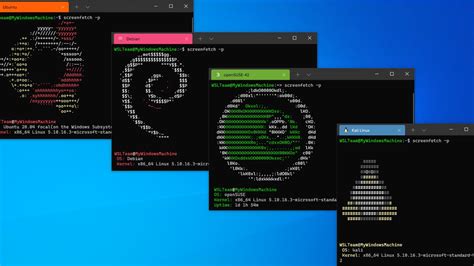
Installing PowerShell inside a WSL distribution uses exactly the same distro-specific commands as a native Linux install; nothing about WSL changes the package manager. The one genuine difference is file placement. Microsoft’s own WSL documentation recommends keeping project files inside the Linux file system instead of the Windows-mounted /mnt/c path, since cross-boundary file access there runs measurably slower than staying entirely within WSL’s native file system.
Verifying, updating, and pinning a version
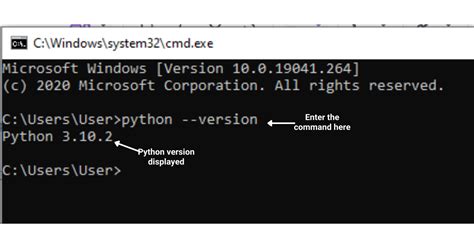
pwsh --versionIf a script depends on specific PowerShell behavior, hold the package at its current version instead of letting an unattended upgrade move it:
sudo apt-mark hold powershellDoes installing PowerShell replace bash as my default login shell?
No. Installing the powershell package only adds pwsh as an available program. Your login shell stays whatever /etc/passwd already specifies until you change it yourself with chsh.
How do I stop PowerShell from auto-updating to a version that breaks my scripts?
Hold the package with your package manager’s pinning mechanism, apt-mark hold powershell on Debian and Ubuntu or an equivalent DNF version-lock on RHEL, and release the hold only after testing the newer release against your scripts.
Installing modules from the PowerShell Gallery
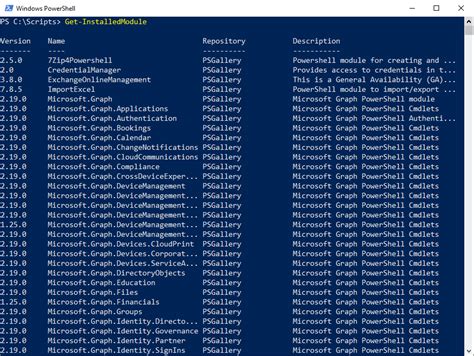
The first thing most people do after installing pwsh is pull in a module. Since PowerShellGet 2.0 on PowerShell 6 and later, installing to the current user needs no elevation, and the command is identical on Linux, Windows, or macOS:
Install-Module -Name Az -Scope CurrentUserUsing pwsh in CI
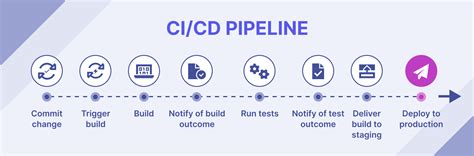
pwsh ships preinstalled on GitHub’s standard Ubuntu, Windows, and macOS hosted runner images. The one recent exception is the newer, deliberately minimal ubuntu-slim image: a maintainer opened a request in November 2025 to add pwsh to ubuntu-slim specifically, since that image strips tools the standard images carry by default.
- name: Run a PowerShell script
  shell: pwsh
  run: Get-ChildItem -Recurse | Measure-Object
Troubleshooting
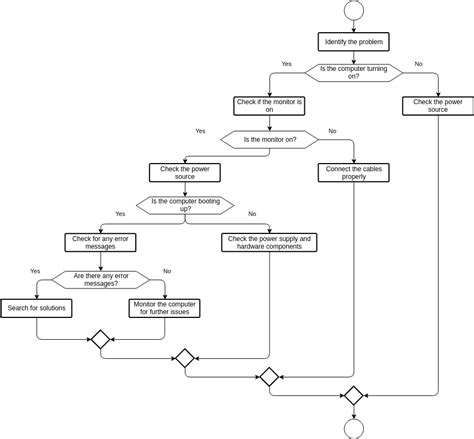
| Symptom | Likely cause | Fix |
|---|---|---|
| apt-get reports no installation candidate for powershell | The Microsoft repository config wasn’t registered for your exact VERSION_ID, or your release has no repo package yet | Re-run the packages-microsoft-prod step against your actual release, or fall back to Snap or the tar.gz archive |
| GPG or signature errors during apt update or dnf update | The signing key wasn’t imported correctly, or a distro upgrade removed it | Reinstall the packages-microsoft-prod package for the current release |
| .NET tooling conflicts or the wrong SDK version appears after installing PowerShell | The package manager pulled a conflicting .NET package from the OS’s own repository while resolving PowerShell’s dependency | Lower the priority of the OS-provided .NET packages relative to the Microsoft repository, or use the tar.gz archive, which touches no system .NET packages |
| Snap reports the powershell snap isn’t available for your architecture | The classic Snap build isn’t published on every channel for every architecture | Use the matching linux-arm64 or linux-x64 tar.gz from GitHub Releases instead |
Three of these four fixes trace back to a single root cause: an incomplete or outdated Microsoft repository registration.
Why does apt say there’s no installation candidate for powershell?
Almost always because the repository step ran against the wrong VERSION_ID, or because your release doesn’t have a Microsoft repo package yet, as is currently the case for Ubuntu 26.04.
Uninstalling
On Debian or Ubuntu: sudo apt-get remove powershell. On RHEL: sudo dnf remove powershell. For a tar.gz install, delete the extraction directory. There’s no package manager entry to clean up.