
Find out what’s actually slowing your phone down
If everything feels slow all the time, the cause is usually different from a single app freezing while the rest of the phone runs fine, so check which pattern you’re actually seeing before changing any settings.
| Symptom | Likely cause | Try this first |
|---|---|---|
| Everything is slow, all apps | Low free storage or too many background apps competing for memory | Free storage to 15%; restart |
| One app is slow or freezes, others are fine | That app’s own cache or data is bloated, or it’s misbehaving | Clear that app’s cache and data, not the whole phone |
| Speed drops over weeks, improves right after a reboot | Background processes accumulating faster than Android reclaims them | Reboot weekly instead of leaving the phone on for weeks |
| Slower right after an OS update, on an old or storage-strapped phone | The update targets a newer hardware baseline than your device | Delay non-security updates if performance matters more than new features |
| Typing, scrolling, and animations feel laggy, but apps open fine | A perceived-speed issue: animation duration only, no change in actual resource load | Reduce the animation scale in Developer Options |
Android’s own performance guidance treats a low-memory-kill rate above 1% as a critical problem worth fixing, which is one reason background-app buildup gets blamed for slowdowns more than almost anything else on this list.
Free up real resources: storage, cache, and background apps
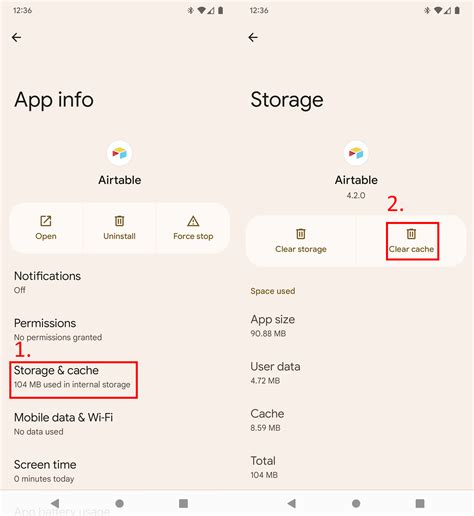
Clearing cache and storage changes what Android actually has to work with, which is why this section delivers most of the real gain, more than the animation settings further down.
Clear cache without duplicating work
Every app, including your browser, stores its own cache. Clearing Chrome’s cache and clearing “app cache” generally are the same action performed twice if you do both separately. Go through Settings, Apps, and clear cache per app instead of treating the browser as a special case.
Uninstall, disable, or restrict, in that order
Uninstall apps you don’t use. For preinstalled apps you can’t remove, disable them if the option exists. For apps you need occasionally but not constantly, restrict their background activity instead of removing them.

Flash storage such as UFS or eMMC slows down as it fills. How-To Geek’s CPDT Benchmark testing across different storage levels is the basis for the resulting guidance: keep at least 10% free, with 15% as a safer cushion for new photos and temporary files. A UFS 4.0 chip, the current flagship standard, moves data at up to 23.2 gigabits per second per lane when there’s room to work with. A nearly full drive doesn’t reach that speed regardless of chip generation.
How much free storage do I actually need?At least 10% is the baseline for stable flash-storage performance; 15% gives enough headroom for new photos and temporary files without constant cleanup.
Tricks that make your phone feel faster, not necessarily perform faster
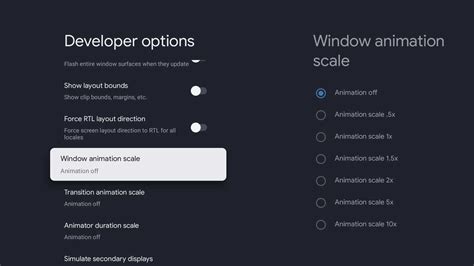
Reducing the Developer Options animation scale to 0.5x is the single most common “speed up Android” tip, and it works exactly as advertised for what it changes: transitions finish faster. It doesn’t reduce CPU or memory load, so pair it with the fixes above instead of expecting it to replace them.
| Fix | Real gain or perceived only | Effort |
|---|---|---|
| Clear cache, free storage to 15%+ | Real: frees actual RAM and storage headroom | Low |
| Restart weekly | Real: clears accumulated background processes | Very low |
| Animation scale to 0.5x | Perceived: shortens visual transitions, no load change | Low, once Developer Options is on |
| Switch to a maintained Lite app | Real for RAM, battery, and storage, if the app is still supported | Low, but verify status first |
| Factory reset | Real: wipes all accumulated state | High effort, high risk without a verified backup |
To reach the animation settings: open Settings, About Phone, tap Build Number seven times until the developer message appears, then go to System, Developer Options, and set Window Animation Scale, Transition Animation Scale, and Animator Duration Scale to 0.5x. That path, including the seven-tap gesture, still matches Android’s own developer documentation.

Lite-app advice ages badly if it isn’t checked. Meta discontinued Messenger Lite for Android, cutting it off for existing users after a stated shutdown date and redirecting them to Messenger or Facebook Lite. Facebook Lite itself is still listed and actively updated on Google Play. If an article recommends a specific Lite app, confirm it’s still on the Play Store before installing it.
What happened to Lite apps like Messenger Lite?Messenger Lite for Android was shut down by Meta, with users redirected to Messenger or Facebook Lite. Facebook Lite remains available and updated.
Does your phone’s age or RAM change what will help?
A five-year-old budget phone and a current flagship don’t get the same result from the same checklist, so match your effort to your actual hardware tier.
| Device tier | Recommended focus | Realistic ceiling |
|---|---|---|
| 1GB RAM or less (Android Go class) | Storage and cache cleanup, Lite apps, avoid heavy launchers | Real help, but a firm ceiling below newer hardware regardless of cleanup |
| 3 to 5 year old mid-range, 3 to 4GB RAM | Storage cleanup, fewer background apps, animation scale | Can recover most of its original responsiveness |
| Current flagship, 8GB+ RAM | Cleanup mostly prevents future slowdown | Little ceiling effect; headroom is already large |
Google’s own entry-level device guidelines define the 1GB RAM tier explicitly, which is why that group gets a separate row instead of being folded into “old phones” generally.
Updating and resetting: when each one helps or hurts
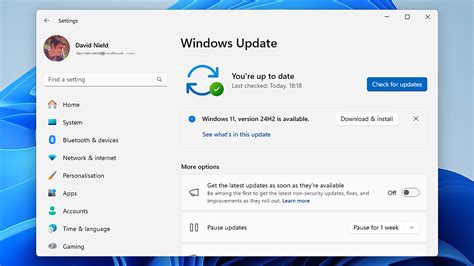
Updates usually help through bug fixes and optimization work.
Will updating my phone make it faster or slower?On adequately provisioned devices, updates typically help. On old, storage-strapped phones, an update can slow things down, since it’s built for a newer hardware baseline than the device was designed around.
Before you reset: the real backup checklist
“Back up your data first” isn’t specific enough to prevent the actual losses people run into. Before a factory reset, verify:
- Two-factor codes: authenticator app entries are recoverable elsewhere, not only on this device.
- Offline game saves: confirmed cloud-synced, or accepted as lost.
- SMS verification: your number still routes to your SIM after the reset, not just to the app’s cached session.
- Local-only photos: actually uploaded, not just queued to upload.
Mistakes that make phones slower, not faster
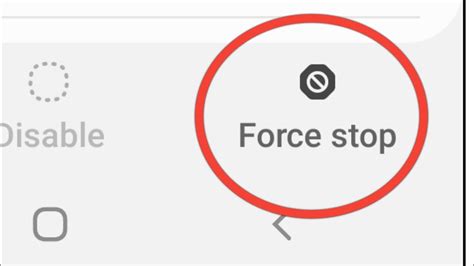
Force-killing apps you use every day is one of the most common habits that backfires.
Is it safe to force-stop or kill background apps myself?Not usually. Android already reclaims memory from cached apps through its own low-memory killer; manually force-stopping an app you use often just makes it reload slower the next time you open it.
Do I need an antivirus or cleaner app to speed up my phone?No official Android performance guidance recommends third-party “booster” or cleaner apps. Running one adds its own constant background service, which works against the goal it’s sold on.
When no software fix will help anymore
If a phone has very low RAM, a swollen or failing battery, no more security updates, or storage that stays nearly full no matter how much you delete, software cleanup has already done what it can. That’s a hardware ceiling, not a failed fix.