Change font size on stock Android and Pixel phones
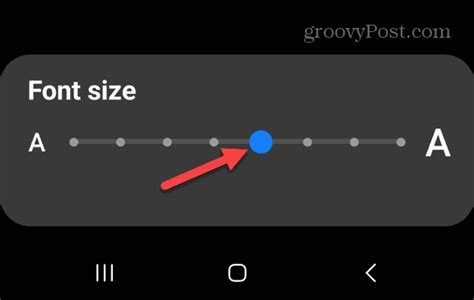
Open Settings, tap Accessibility, then Display size and text, then Font size, and move the slider left or right; a live preview updates as you drag it. Android 14 raised the ceiling on this slider to 200 percent of the default size, and scaling above the old limit is no longer a simple straight-line multiplier: Android’s own developer documentation notes that text scaling became nonlinear from that version on, which is why a single “font scale” number no longer describes the result precisely.
The step count on this slider isn’t fixed across all devices: one reviewer counted seven distinct font-size positions on a Pixel 7a, though Google doesn’t publish a universal number and other Pixel and stock-Android builds can differ.
Change font size on Samsung, Xiaomi, and OnePlus
Android’s three biggest non-stock skins each hide font size in a different place, and one of them has moved it recently.
| Phone / skin | Settings path | What you’ll see | Notes |
|---|---|---|---|
| Pixel or stock Android | Settings → Accessibility → Display size and text → Font size | A percentage slider | Same control also reachable from Settings → Display → Display size and text |
| Samsung (One UI) | Settings → Display → Font size and style | A slider plus a separate font-style picker and a Bold font toggle | The font-style picker also opens the Galaxy Store for downloadable fonts |
| Xiaomi (MIUI) | Settings → Display → Text size | Six steps, XXS to XXL | Whole-interface scaling is separate, under Accessibility → Display size |
| OnePlus (OxygenOS) | Settings → Display → Font size (OxygenOS 12 and earlier) or Settings → Wallpapers & style → Font (OxygenOS 13 and later) | Small, Default, Medium, Large | The setting’s location changed between OxygenOS versions, not just its options |
The OnePlus row is the one worth double-checking against your own phone first: OxygenOS moved font controls into a general personalization menu at version 13, so instructions written for an older OxygenOS release will send you to a menu that no longer holds the setting.
Samsung’s separate font style
Samsung’s Font size and style screen also carries a Font style option, which swaps the typeface itself rather than its size, and can pull additional fonts from the Galaxy Store. That’s a different feature from font size and doesn’t make text bigger on its own.
Make everything bigger, not only the text
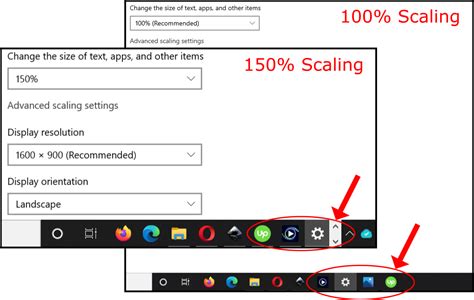
If text still looks small after raising Font size, or you also want bigger icons and buttons, use Display size instead: Settings → Accessibility → Display size and text → Display size (Samsung: Settings → Display → Screen zoom). This scales the whole interface together, not just scalable text.
Will making everything bigger break how my other apps look?
It can, and older or less actively updated apps are the most likely to show it, since their screens were often built assuming a fixed layout. Increasing Font size alone carries much less of this risk than increasing Display size, because it resizes text without touching everything else on screen.
Why the setting doesn’t change anything in some apps
Font size only affects text that an app defined using scalable pixels (sp), Android’s resizable text unit. If an app drew part of its interface with fixed units, or rendered words into an image instead of real text, the system font-size slider has nothing to act on there. On top of that, even correctly built text can end up cut off or hidden if the surrounding screen wasn’t designed to scroll or expand to fit it.
Why didn’t changing font size do anything in this one app?
Most likely that app’s text wasn’t built with Android’s resizable text unit, or its screen can’t expand to fit larger text. It’s also worth checking for an app update first, since some scaling bugs like this get patched in later versions rather than fixed by any setting on your side.
Font size inside specific apps
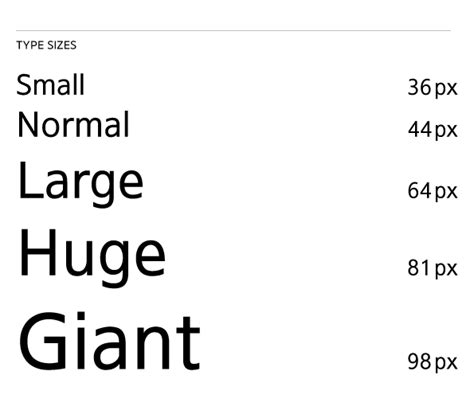
Four commonly used apps behave differently from the system default, and two of the most repeated claims about them are out of date.
| App | Where the setting lives | What it changes | Notes |
|---|---|---|---|
| Google Messages | Messages app → profile picture → Messages settings → “Pinch to zoom conversation text” | Conversation text only, via a pinch gesture | Works only when Google Messages is your default SMS/RCS app |
| No dedicated slider in the current app; follows your phone’s own text-size setting | Whatever you’ve already set at the device level | WhatsApp’s help center currently describes no in-app font-size control, and warns that your device’s largest accessibility text sizes can hide profile photos and group icons inside the app | |
| YouTube (app interface) | Follows system font size (Settings → Display → Advanced → Font size) | Menus, titles, and buttons in the YouTube app | Separate from caption size below |
| YouTube (captions) | YouTube app → profile picture → Settings → Captions → Caption size and style | Only the subtitle text drawn over videos | Independent of both system font size and the app’s own menu text |
| Gmail | No dedicated slider in the current app; follows your phone’s own text-size setting | Message list and message body text | Gmail’s help page directs users to change font size from device Settings rather than inside the app |
Two of these four, WhatsApp and Gmail, have no independent text control at all right now, so for them the phone-level Font size setting isn’t one option among several, it’s the only lever that reaches them.
Can I make WhatsApp or Gmail text bigger without changing my whole phone?
Not right now. Both apps’ current official help pages point back to your device’s own display or accessibility text-size setting rather than describing an app-level slider, so a phone-wide change is the only way to affect either one.
Undo a change that made things too big to read
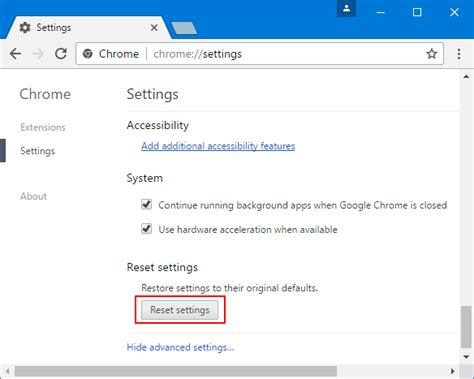
On the same Display size and text screen, tap Reset settings to put both Font size and Display size back to your phone’s original defaults. This works even if the text is now too large to read the rest of the menu comfortably.
Bold text, high contrast, and outline text are not font size

Three nearby settings get confused with font size but do something different. Bold text thickens letter strokes without changing their size. High contrast text adds a strong outline for legibility. Outline text does something similar, but requires Android 16 or later; on Android 15 and earlier, high contrast text is the available substitute. None of the three will make small text occupy more space on screen.
Temporarily zoom in without changing any setting
Android’s Magnification feature lets you zoom into any part of the screen on demand, without touching Font size or Display size at all. Turn it on under Settings → Accessibility → Magnification, then either toggle it as a standing mode or trigger a momentary zoom with a shortcut gesture, release it, and the screen returns to normal.
Does using magnification also increase my system font size?
No. Magnification is a temporary zoom layered on top of whatever Font size and Display size you already have set; turning it off returns the screen to normal without changing either of those settings.