Check this first: is software even the problem?
A two-minute check settles this before touching a single setting: look at free storage, RAM amount, and battery health, because each points to a different fix.
| Symptom | Likely cause | First action |
|---|---|---|
| “Storage almost full” warning, or apps crash on launch | Android has no working room for temp files, camera buffers, or app updates | Free storage now, before anything else |
| Phone gets warm during use and slows, then speeds up once cool | Thermal throttling, a temporary CPU/GPU speed reduction | Let it cool; no setting fixes this permanently |
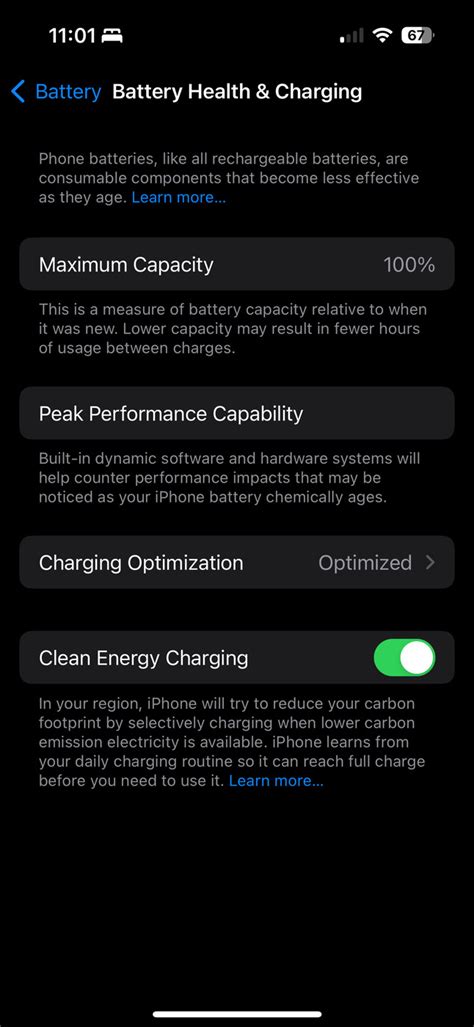
| Battery drains fast, phone is 3+ years old | Degraded battery limiting sustained power delivery | Check battery health in Settings; consider replacement |
| Specific apps lag or notifications arrive late | That app is in a restricted background bucket or vendor sleep list | Check the app’s background/battery permission (brand table below) |
| Everything is slow across the board, phone is 4+ years old with 2 to 3GB RAM | RAM or chipset ceiling | Cleanup gives modest gains only; treat the hardware section below as the ceiling |
Only the last row needs anything beyond the next few sections; every other row in this table has a direct, specific fix later in this guide.
Free storage and clear cache before anything else
Freeing storage is the fix every guide on this topic agrees on, and it’s also the one Google’s own support documentation avoids attaching a specific percentage to.
Google’s official storage help page tells users to clear space, move files to the cloud, or delete unused apps, but it does not publish a hard free-storage percentage that triggers slowdown (Google Android Help, “Free up storage on your Android device”).
Clear the cache
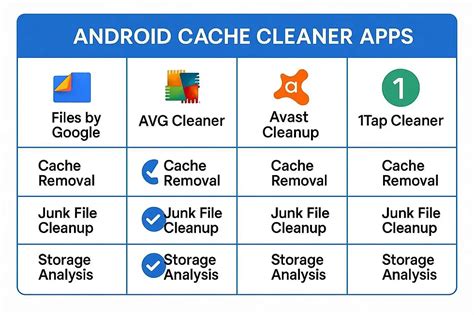
Settings > Storage > (or Apps > [app name] > Storage) > Clear cache. This is per-app on most phones; Files by Google and most manufacturer file managers also include a phone-wide “Free up space” tool.
Update apps and the OS, in that order
Free storage first: many OS updates need several gigabytes of temporary free space to install, so cleanup before updating avoids a failed install partway through. Update apps from the Play Store next, then check Settings > System > System update for the OS itself.
Will clearing cache delete my photos or logins?No. Clearing cache removes only temporary files that apps rebuild automatically. Photos, saved logins, and app settings stay intact unless “Clear data” is used instead of “Clear cache.”
Turn off animations in Developer options
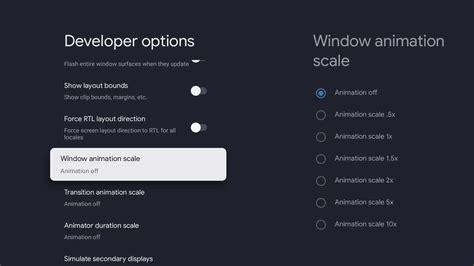
Enable Developer options by tapping the build number in Settings > About phone seven times, then set Window animation scale, Transition animation scale, and Animator duration scale to Off. This doesn’t add processing power: it removes the roughly 150 to 300 millisecond visual transitions Android draws between screens, so taps register as fast as the phone is actually capable of responding, which is why the change feels dramatic even though nothing about the underlying hardware changed.
Does turning off animations make the phone faster, or just feel faster?It changes perceived responsiveness only. Background processing speed, app load times from storage, and CPU throughput are unaffected, so a task like exporting a video won’t finish any sooner.
Let Android manage background apps instead of adding a booster

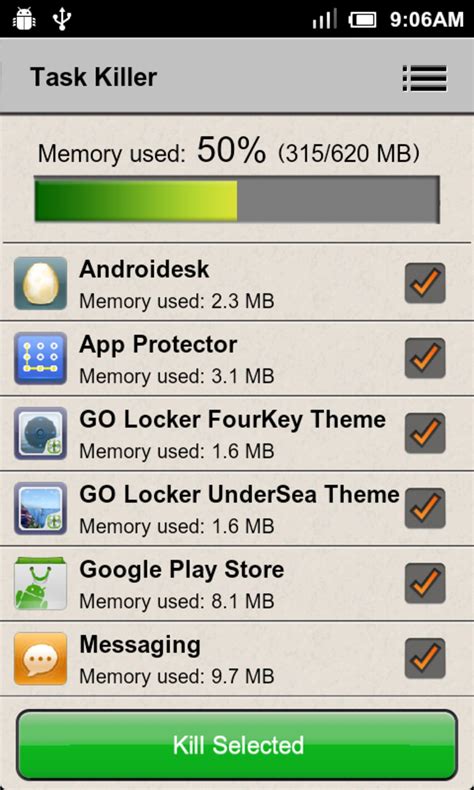
Since Android 9, the OS has automatically restricted how often idle apps can wake up, run scheduled jobs, or reach the network, through a built-in scheduler called App Standby Buckets, one that most “booster” and “task killer” apps duplicate without adding anything (Android Developers, “App Standby Buckets”).
- Active: apps in current or very recent use face no restrictions.
- Working set: used most days; mild limits on jobs and alarms.
- Frequent: used regularly but not daily; stronger limits.
- Rare: rarely opened; scheduled jobs are capped at roughly 10 minutes of total runtime in a rolling 24-hour period (Android Developers, “Power management resource limits”).
- Restricted: added in Android 12, the tightest tier, for apps the system treats as effectively unused.
Will disabling “Put unused apps to sleep” hurt my battery life?On modern phones with large batteries, the reported impact is modest, roughly 5 to 10 percent more daily drain, in exchange for reliably delivered notifications (MakeUseOf).
Brand-specific settings that generic guides skip
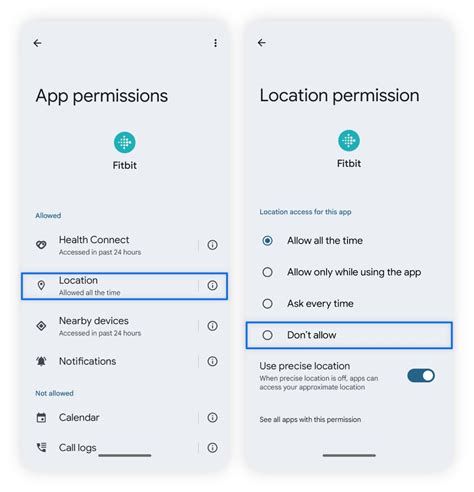
The single “Developer options” path most guides describe only covers stock Android; Samsung, Xiaomi, and other manufacturer builds hide the actual background-restriction controls somewhere else entirely.
| Brand | Menu path | What it controls |
|---|---|---|
| Samsung (One UI) | Settings > Battery and device care > Battery > Background usage limits | Put unused apps to sleep; Sleeping / Deep sleeping / Never sleeping apps lists; Adaptive battery toggle (Samsung Support) |
| Google Pixel / stock Android | Settings > Apps > [app] > Battery > Battery optimization > Unrestricted | Per-app exemption from Doze and App Standby restrictions |
| Xiaomi (HyperOS / MIUI) | Settings > Apps > Manage apps > [app] > Battery saver > No restrictions, then Permissions > Autostart | Both battery restriction and autostart must be set, or the app gets restricted again (Don’t kill my app!, Xiaomi) |
| Any brand (fallback) | Search phone Settings for “battery,” “background,” or “autostart” | Menu names shift between OS versions; the setting exists even when the label doesn’t match this table |
Samsung’s list-based sleep system and Xiaomi’s Autostart toggle each require a second step beyond the basic battery-optimization switch that Pixel handles in one screen; skipping that second step is the most frequently reported reason a fix “doesn’t work” on those two brands (Don’t kill my app!, Samsung).
When the phone itself is the bottleneck
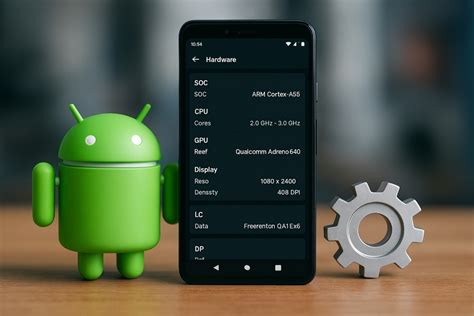
Two hardware signals predict whether cleanup will help at all: how much RAM the phone shipped with, and how healthy the battery still is.
Google itself formally defines the low end of the RAM spectrum: Android (Go edition), built for devices with 1GB of RAM or less, exists specifically because standard Android doesn’t run acceptably at that tier (Android Developers, “Device capability for billions”). Phones above that floor but still short on RAM show the same symptoms in a milder form.
GSMArena’s 2026 entry-level phone buyer’s guide singled out the 4GB RAM version of the Samsung Galaxy A17 5G as “a laggy one,” even though other memory variants of the same phone tested fine, a reminder that RAM alone can decide whether a phone feels smooth (GSMArena).
Independent measurement backs a narrower, related effect: a study using real-user monitoring data found that Battery Saver mode measurably slowed webpage loading on select Huawei and Sony phones, while newer flagship chips showed no such effect (“Web Performance with Android’s Battery-Saver Mode,” arXiv).
Common mistakes that backfire
- Installing multiple cleaner or antivirus apps: each one runs its own background scanning service, adding the exact background load the steps above are trying to remove.
- Disabling system apps you don’t recognize: some support the launcher, keyboard, or connectivity stack, and disabling the wrong one can break basic functions.
- Rooting or flashing a custom ROM purely for speed: this voids warranty and security-patch support on most devices, for a performance gain that community reports describe as marginal on modern mid-range chipsets.
- Turning on “Put unused apps to sleep” or Xiaomi’s Autostart restriction without checking the never-sleep list first: this is the most frequently reported cause of missed alarms and delayed notifications on Samsung and Xiaomi phones (Don’t kill my app!).
If nothing worked: factory reset and what comes after
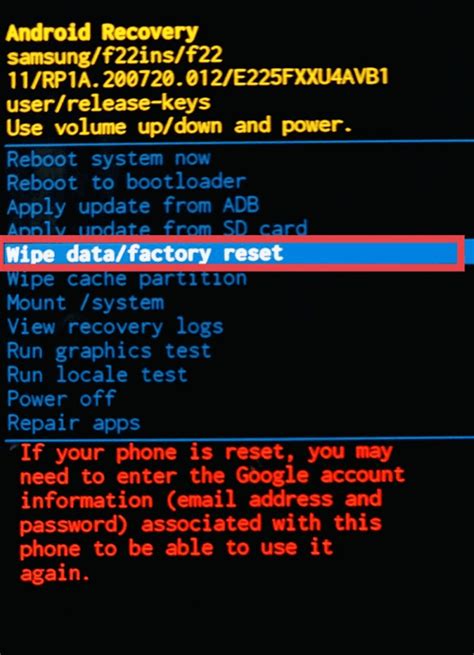
A factory reset works best as the last step, tried only after storage, animations, and background settings, because it erases every customization along with whatever was actually causing the slowdown, and there’s no way to tell in advance which of those it was.
Back up photos, messages, and app data to a Google Account or another device first; a factory reset removes everything else.
| What you tried | What that likely means | What to do next |
|---|---|---|
| Freed storage and cleared cache, no change | The slowdown wasn’t storage-related | Move to background-app settings (brand table above) |
| Disabled animations, feels the same | UI rendering wasn’t the bottleneck; raw processing or network is | Check RAM tier and battery health (hardware section above) |
| Set background limits correctly, still slow only in specific apps | That specific app is heavy or poorly optimized, independent of the phone’s settings | Update or replace that app |
| Did all of the above, still generally slow | Hardware ceiling: RAM, chipset generation, or battery capacity | Factory reset for a clean baseline test; if that doesn’t help, battery replacement or a device upgrade are the remaining options |
A factory reset restores Android to its state at the last system update; any bugs or performance issues introduced by that update carry over.
Does a factory reset fix a phone that’s slow because of hardware?No. A reset clears software clutter but cannot add RAM, replace a chipset, or restore battery capacity, so a hardware-limited phone will feel slow again soon after apps are reinstalled.