Which type of list do you need?
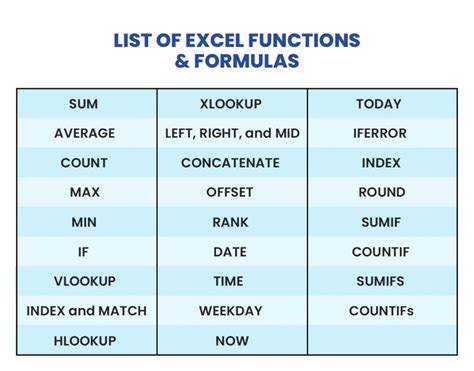
The four types solve different problems, and picking the wrong one is the most common reason a “how to make a list” tutorial doesn’t match what someone actually needed.
| List type | Best for | Where it lives | Key limitation |
|---|---|---|---|
| Plain typed list | Quick, static values you won’t reorganize | A column or row of separate cells | No built-in structure; sorting and filtering need extra setup |
| Excel Table | Data that will grow, get sorted, or feed other formulas | A structured range created with Ctrl+T | Adds a header row and banding you may need to reformat |
| In-cell multi-item list | Grouping several notes or tasks without adding rows | Inside a single cell, separated by line breaks or bullets | Line breaks need Wrap Text turned on to display correctly |
| Drop-down (restricted-choice) list | Standardizing what someone else types into a cell | A Data Validation rule pointing at a source list | Range-sourced lists cap at 32,767 items; typed lists cap at 256 characters |
If the goal is standardizing what someone else enters, only the drop-down actually enforces that. The other three organize data you already control; they don’t restrict anyone’s input.
Type a simple list
Click a cell, type a value, and press Enter to drop to the cell below and keep going. For a sequence, such as numbers, dates, or weekdays, type the first two values, select both cells, and drag the fill handle at the bottom-right corner down: Excel extends the pattern on its own. Nothing here touches Data Validation or Tables. It’s simply the fastest way to get a handful of static values onto a sheet.
Turn a list into an Excel Table
A typed list stays a plain range until you convert it. Select any cell inside the data, press Ctrl+T, confirm whether the first row holds headers, and click OK. The range becomes a Table with filter arrows, alternating row banding, and structured references, so a formula pointing at a table column keeps working as rows are added or removed. Both the drop-down and dynamic-list techniques further down this page behave better when their source data lives in a Table instead of a bare range.
Put a multi-item list inside one cell
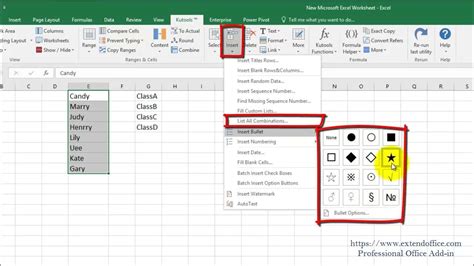
To fit more than one item inside a single cell, use a line break between entries (Alt+Enter) and turn on Wrap Text so all of them stay visible.
Fast keyboard bullets
Double-click the cell, or press F2, to enter edit mode. Hold Alt and type 7 or 0149 on the numeric keypad to insert a solid bullet (on a Mac, Option+8 does the same). Type the item, press Alt+Enter for a new line inside the same cell, and repeat. Pasting a multi-line list copied from elsewhere works too: Excel converts the clipboard’s line breaks into Alt+Enter breaks automatically when you paste into a cell already in edit mode.
Cosmetic bullets that don’t break sorting
Custom number formatting, such as “• @”, adds a bullet in front of whatever the cell displays without changing the cell’s actual stored value. That distinction matters: a typed bullet character, or one inserted through a CHAR(149) formula, becomes part of the text itself, which can break an exact-match formula like VLOOKUP or move the entry out of alphabetical order during a sort. A format-based bullet leaves the underlying value untouched, so lookups and sorting keep working exactly as they would without it.
Will bullets inside a cell break my formulas?It depends on the method. A number-format bullet is cosmetic and leaves the stored value alone. A typed bullet character or a CHAR() formula changes the actual text, which can break exact-match lookups and sort order.
Create a drop-down list
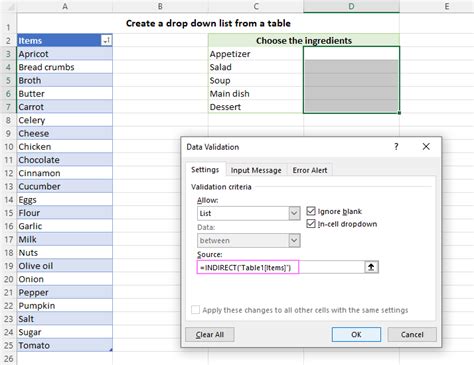
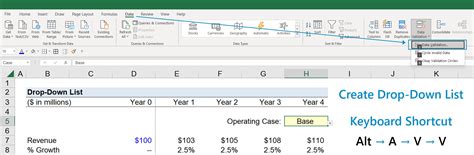
Restricting a cell to a set of items is built through Data Validation’s List option, not typed directly into the cell.
Source from a range
Select the cell or cells that need the restriction. Open Data > Data Validation, and on the Settings tab set Allow to List. In Source, either type the items separated by commas or click into the box and select a range of cells holding the items, then confirm with OK. Microsoft’s own documentation lists this feature as available from Excel 2016 through the current Microsoft 365 release, across Windows, Mac, and the web.
Source from a named Table
Point Source at the same range, but format it as a Table first with Ctrl+T. Items added to the bottom of the Table flow into the drop-down automatically, so the list never falls out of sync with what it should offer, without reopening the Data Validation dialog.
Why did my drop-down arrow disappear?Pasting a value directly over a validated cell strips the rule from it. A protected or shared sheet also blocks the Data Validation dialog entirely until that protection is removed, per Microsoft’s data validation documentation.
Does the drop-down source have to sit on the same sheet?No. The range can live on another worksheet, or even another workbook if it’s referenced correctly. Hiding that sheet doesn’t itself protect the list from editing; protect the sheet separately if that matters.
Dependent and dynamic drop-downs
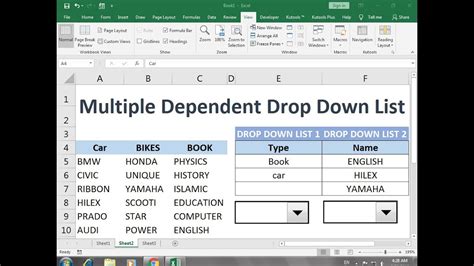
A dependent drop-down changes its available options based on what’s chosen in another cell, typically by naming each category’s item range after the category and referencing that name with INDIRECT. A dynamic drop-down instead builds its source list live with UNIQUE, FILTER, or SEQUENCE, updating as the underlying data changes without any manual range editing.
The dynamic approach needs Microsoft 365 or Excel 2021: Microsoft introduced this dynamic-array calculation engine in September 2018 and rolled it out to Microsoft 365 Current Channel subscribers by January 2020, without extending it to Excel 2019 or earlier.
One limitation carries over from how Data Validation works generally: it checks a value only at the moment someone types it. If a parent selection changes and the child cell already holds a value from the old category, that value stays in place until someone re-enters or clears it.
| Technique | Minimum version or plan | Works in Excel 2016 to 2019? |
|---|---|---|
| Data Validation drop-down (Allow: List) | Excel 2016 | Yes |
| Table-based drop-down source | Same as Data Validation itself; only the source reference changes | Yes |
| In-cell bullet formatting (custom number format) | Works wherever cell number formatting exists | Yes |
| UNIQUE / FILTER / SEQUENCE-based dynamic drop-down | Microsoft 365 or Excel 2021 | No |
For anyone still on Excel 2019 or earlier, every technique on this page works except the dynamic, formula-driven approach in this section. That one alone requires an upgrade.
Why does my dependent drop-down still show the wrong category’s items?The child cell’s existing value doesn’t clear automatically when the parent selection changes, for the same reason a stale value survives anywhere else in Data Validation: the rule checks input only once, at entry.
Common mistakes and limits

Most drop-down problems come down to three things: a value pasted over a validated cell, a protected or shared sheet, or a source list that’s outgrown its own reference.
| Symptom | Cause | Fix |
|---|---|---|
| Drop-down arrow disappeared | A value was pasted directly over the cell, stripping the rule; or the sheet is protected or shared | Reapply the rule through Data Validation, or remove protection or sharing first |
| Old value stays after the source list changes | Data Validation checks entries only at the moment they’re typed | Manually clear or reselect the affected cells after editing the source list |
| Typed Source list stops accepting more items | The delimited list typed into the Source box is capped at 256 characters, separators included | Move the items into a cell range and point Source there instead, raising the ceiling to 32,767 items |
| Dependent drop-down still shows the wrong category’s items | See the explanation above: the child cell’s value doesn’t clear on its own | Clear the child cell manually, or add a check formula for the mismatch |
What’s the actual maximum number of items in a drop-down?Up to 32,767 if the source is a worksheet range. A tested 38,000-item source range topped out at 32,768 visible entries, so treat the number as a practical ceiling rather than an exact guarantee.
Three of these four problems trace back to the same root cause: Data Validation only ever checks a value the moment it’s entered, never afterward.