The settings that matter most, ranked
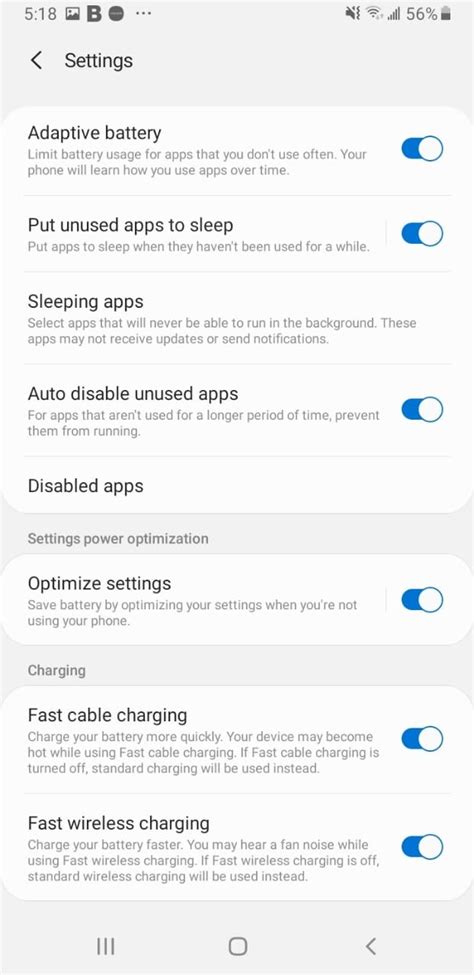
Not every battery tip carries equal weight, and the settings below are ordered by how much they change daily runtime, not by how often they show up in Android’s menus.
The screen remains the single biggest power draw on any phone, so timeout and brightness sit at the top regardless of model. Always-On Display looks minor because the phone is “asleep,” but DXOMARK’s lab measurements across four current flagships (iPhone 14 Pro Max, Pixel 7 Pro, Galaxy S22 Ultra, Xiaomi 12S Ultra) show otherwise: the Pixel 7 Pro specifically lasted 139 hours in idle standby with Always-On Display switched on, well short of the roughly 400-hour idle runtime typical of the same class of phone with the feature off.
| Setting | Typical impact | Effort | What you give up |
|---|---|---|---|
| Always-On Display off | Idle battery life roughly 4x longer, per DXOMARK lab testing | One toggle | Glanceable clock and notifications while locked |
| Screen timeout 15 to 30s, brightness capped or adaptive | Screen is the largest single power draw on any phone | One setting | Screen sleeps sooner during reading pauses |
| Leave Wi-Fi scan throttling on | Cuts background Wi-Fi scanning from as often as every 15 seconds down to once every 30 minutes, per 9to5Google’s testing of Developer Options | None, it’s the default | Slightly stale nearby-network list for background apps |
| Battery Saver or Extreme Battery Saver enabled | Restricts background sync, disables Always-On Display, pauses non-essential processes | One toggle or a schedule | Delayed notifications, no “OK Google,” slower app refresh |
| Mobile Data Always Active off (Developer Options) | Stops the radio holding two live connections at once | Requires enabling Developer Options | A short delay reconnecting to cellular after leaving Wi-Fi |
Bluetooth and GPS toggles, by contrast, rarely move the needle unless a scan or an active navigation session is running: modern Android throttles their idle draw automatically, so switching them off mainly helps in a weak-signal area, where the radio works harder to hold any connection at all.
Does turning off Bluetooth actually save much battery?Idle draw from a paired Bluetooth connection is small on a modern phone. The setting worth touching instead is Bluetooth scanning: a phone that keeps scanning for new nearby devices uses noticeably more power than one that’s simply connected to a pair of earbuds.
Where your phone’s menu differs
The exact path to a battery setting depends on whether the phone runs stock Android, is a Pixel, or is a Galaxy device, and the naming differs enough that generic “check your settings” instructions send people looking in the wrong menu.
| Setting | Stock Android / Pixel path | Samsung Galaxy (One UI) path | Notes |
|---|---|---|---|
| Battery Saver | Settings > Battery > Battery Saver | Settings > Battery and device care > Battery > Power saving mode | Both support an automatic schedule |
| Charge limit (80%) | Settings > Battery > Battery Health > Charging optimization > Limit to 80% (Pixel 6a and later) | Settings > Battery and device care > Battery > More battery settings > Battery protection > Maximum | Pixel still fully charges to 100% every 10th cycle to stay calibrated |
| Background app restriction | Settings > Apps > [app] > Battery > Restricted | Settings > Apps > [app] > Battery > Put app to sleep / Deep sleeping apps | Samsung’s “Deep sleeping” list is stricter than a single-app restriction |
| Adaptive brightness | Settings > Display > Adaptive brightness | Settings > Display > Adaptive brightness | Identically named on both platforms |
The two rows worth checking regardless of brand are the charge limit and background app restriction, both covered in more depth below.
Conserving today versus protecting battery health long term
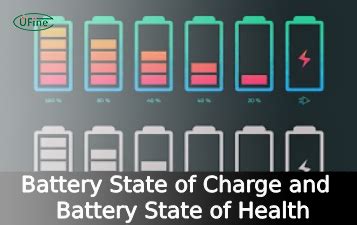
Turning off Wi-Fi overnight saves a trace of power tonight; capping charge at 80% changes how much capacity the battery still holds two years from now, and the two goals call for different settings.
Samsung’s Galaxy phones offer a Battery Protection feature with Basic, Adaptive, and Maximum modes; Maximum stops charging at 80%. The Galaxy S23 series specifically ships with Battery Protection defaulting to an 85% cap out of the box. That’s the gap worth naming plainly: the factory default is 85%, not 80%, though Samsung’s own documentation calls the difference between 80, 85, and 90% minimal for everyday use.
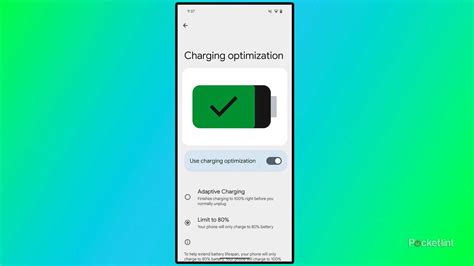
Google’s Pixel line offers the same choice through two named features: Adaptive Charging, which learns a user’s schedule and finishes charging to 100% shortly before they unplug, and Limit to 80%, a hard cap available on Pixel 6a and later. The cost that standard advice skips: capping at 80% doesn’t fully replace an occasional full charge. Pixel phones still charge to 100% automatically every 10th cycle to keep the battery-percentage gauge accurate, and skipping that calibration charge is a common, overlooked reason an owner’s battery percentage starts to look wrong over time.
Is the 20 to 80% charging rule actually true?The underlying mechanism is real: staying near full charge for long stretches does stress a lithium-ion battery. The specific numbers are a simplification. Samsung’s own documentation treats 80, 85, and 90% as close enough in practice that the exact threshold matters less than avoiding long periods sitting at 100%.
Temperature is the other lever. Samsung specifies a normal operating range of 32°F to 95°F (0°C to 35°C) for Galaxy devices, and exceeding it triggers automatic throttling, screen dimming, and paused charging until the phone cools. A Galaxy device held above 95°F while plugged in will pause charging automatically until it cools.
If you’ve done all this and it’s still draining

When the settings above don’t fix a fast-draining phone, the cause is usually one runaway app or a calibration issue, and the fix depends on the exact symptom.
| Symptom | Likely cause | Action |
|---|---|---|
| Drains fast overnight even in standby | An app misusing a wakelock, or a stuck location request | Check Battery Usage for the top consumer while the screen was off; restrict or uninstall it |
| Phone runs hot and slow while charging | Fast charging combined with heavy concurrent use | Stop demanding tasks while charging; persistent heat without charging can point to battery wear |
| Displayed battery percentage jumps or drifts | The gauge lost calibration from never reaching a full charge | Allow an occasional full charge; Pixel does this automatically every 10th cycle |
| Notifications arrive late after restricting an app | The app was fully restricted instead of optimized | Move essential apps from “Restricted” back to “Optimized” battery access |
These four symptoms cover most complaints that survive a full settings sweep; a phone that still won’t hold a charge after ruling out all four usually has a battery that has genuinely lost capacity.
Why does my phone still drain fast with Battery Saver on?Battery Saver restricts background activity for most apps, but it doesn’t override an app that’s already been exempted from battery optimization, or one running a foreground service with a visible notification. Check Battery Usage for the specific app consuming power while the screen was off.
What can backfire
Restricting an app’s background access too aggressively can push it into Android’s “restricted” App Standby Bucket, where the system defers background jobs and can delay notification delivery to occasional maintenance windows. Messaging and calendar apps are the ones most likely to feel this, since a fully restricted app may show a message minutes late. Android’s standard “optimized” battery access is the safer default for anything time-sensitive, with full restriction reserved for apps that are rarely used.
Will restricting background apps break my notifications?Only if the app lands in the “restricted” standby bucket, which defers background jobs to periodic maintenance windows. Apps left on the standard “optimized” setting keep normal notification timing while still limiting unnecessary background work.