Why one set of instructions doesn’t work for every phone

Google’s own general Android Help page doesn’t give one universal combination for Safe Mode. It tells users to check their manufacturer’s support site, because the button trigger that opens the power menu changed on different devices at different points, and Safe Mode is reached from inside that menu.
| Brand / model range | Phone on | Phone off | Confirmation |
|---|---|---|---|
| Samsung Galaxy, before S10/Note10 | Hold Power until the power menu appears | Hold Power + Volume Down as the device restarts, keep holding Volume Down through the reboot | “Safe mode” label, bottom corner |
| Samsung Galaxy, S10/Note10 and later | Hold Power (or Side) + Volume Down to open the power menu | Same, held throughout the restart | “Safe mode” label, bottom corner |
| Google Pixel, before Pixel 6 | Hold Power until the power menu appears | Press Power, then hold Volume Down as soon as the startup animation begins | “Safe mode” label, bottom corner |
| Google Pixel, 6 and later, including Fold | Hold Power + Volume Up to open the power menu | Not applicable; use the on-screen menu once it boots | “Safe mode” label, bottom corner |
| Motorola | Hold Power + Volume Up together until a Safe Mode pop-up appears, then tap OK | Same combination from a powered-off state | “Safe mode” label, bottom corner |
| Other Android phones (generic) | Hold Power, then tap and hold Power off until a Safe Mode prompt appears | Turn the phone off, turn it on, hold Volume Down as soon as the manufacturer logo appears | “Safe mode” label, bottom corner |
The two model-year thresholds in that table, the Galaxy S10/Note10 and the Pixel 6, are the actual reason so many people land on instructions that don’t match their screen. A guide written before 2019 or 2021 is describing a real method, just not the one a current Samsung or Pixel phone uses.
Samsung Galaxy: the exact steps

Galaxy phones before the S10 and Note10 series
With the phone on, hold the Power button until the power menu appears, then touch and hold Power off until the option changes to Safe mode, and tap it. With the phone off, press and hold the Volume Down and Power buttons together as the device restarts, then keep holding Volume Down through the reboot.
Galaxy S10, Note10, and later
The power menu itself now needs two buttons at once: Power (or Side) and Volume Down held together. Once it appears, touch and hold Power off until it changes to Safe mode, and tap it. From a powered-off state, the same combination triggers the restart directly into Safe Mode instead of opening a menu first.
Will Safe Mode erase my apps, photos, or messages?
No. Safe Mode disables third-party apps temporarily; it doesn’t delete anything. The one Samsung-specific side effect is that the keyboard resets to the default Samsung Keyboard until you exit.
Google Pixel: the exact steps

On a Pixel 6 or later, including the Fold, hold Power and Volume Up together to open the power menu, then press and hold either Power off or Restart until a Reboot to safe mode prompt appears. On a Pixel 5a or earlier, the mechanism is the older one: press Power, and as soon as the startup animation begins, hold Volume Down until the phone finishes booting.
Android Police’s walkthrough of the Pixel 10, published in November 2025, confirms the same Power-plus-Volume-Up sequence Google introduced four hardware generations earlier with the Pixel 6. The trigger hasn’t changed again since.
Motorola and most other Android phones: the exact steps
On a Motorola phone, hold Power and Volume Up together until a Safe Mode pop-up appears, then tap OK; a lock-screen password may be requested before the reboot completes. On most other current Android phones, the sequence follows the generic pattern in the table above: hold Power, then tap and hold Power off until the phone offers a Safe Mode prompt.
One exception is worth naming directly. On some phones, especially Pixels with a Google Assistant or Gemini shortcut enabled, a long press of the Power button opens the assistant instead of the power menu. If that happens, use Volume Up plus Power together instead of Power alone; that combination reaches the menu on the affected models.
A phone unresponsive enough that none of these combinations produce any menu at all isn’t a Safe Mode problem anymore.
What if no button combination brings up a Safe Mode prompt?
Try a basic force restart first (typically Power held alone for 20 to 30 seconds, or Power plus Volume Down on newer Samsung models). If the phone still won’t respond to any input, that points to a hardware or deep-software fault outside what Safe Mode can diagnose.
How to tell Safe Mode actually worked

Check for the “Safe mode” text in a bottom corner of the screen first. Beyond the label, the more reliable check is functional: any app icon you didn’t get from the phone’s default setup should be missing or grayed out from the home screen and app drawer. If your usual third-party apps are all still there and usable, you’re still in normal mode.
What changes while you’re in Safe Mode

| Effect | What you’ll notice | Reverses when |
|---|---|---|
| Airplane Mode turns on automatically | No calls, cellular data, Wi-Fi, or GPS until you manually turn it off | You turn Airplane Mode off, or you exit Safe Mode |
| Home screen widgets are removed | Blank spaces where widgets used to sit | You exit Safe Mode and re-add them |
| Samsung Keyboard becomes the default | Any third-party keyboard you installed stops being used | You exit Safe Mode and reselect your keyboard, Samsung devices only |
| Third-party launchers are disabled | The phone falls back to its stock home screen layout | You exit Safe Mode |
The practical upshot is that Safe Mode changes what you see and can use, not what’s stored on the phone: nothing in this table involves data loss, and every change reverses on exit.
Can I still make calls or use Wi-Fi while I’m troubleshooting in Safe Mode?
Pull down the notification shade and turn Airplane Mode off manually; Safe Mode enables it automatically, per Avast’s testing, but doesn’t lock it on.
Finding the app that’s causing the problem

If the issue disappears in Safe Mode, a downloaded app is the cause. Remove recently installed or updated apps one at a time, restarting and testing after each, until the problem stays gone in normal mode. If the problem is still there in Safe Mode, a third-party app almost certainly isn’t the cause, since Safe Mode disables all of them.
Exiting Safe Mode
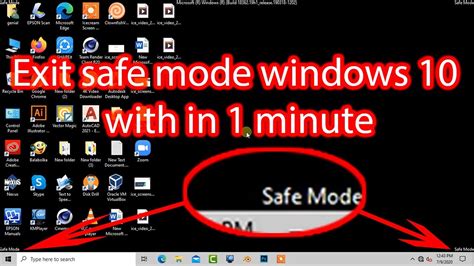
A normal restart takes almost every phone out of Safe Mode. On devices where the notification shade shows a “Safe mode is on” alert, tapping it and choosing Turn off works without a full restart; this shortcut exists on many Samsung and other OEM devices but, per Avast, not on Google Pixel phones, which rely on the restart method instead.
Is Safe Mode the same as Recovery Mode?
No. Safe Mode is a normal, reversible boot state that just disables third-party apps. Recovery Mode is a separate, deeper menu used for factory resets and system updates, and it stays accessible even while Safe Mode is active.
If Safe Mode doesn’t fix the problem

- Update the OS. A pending system update can cause symptoms that look app-related but aren’t; check Settings before going further.
- Check for a hardware cause. Overheating, a swelling battery, or a damaged charging port produce restarts and freezes that Safe Mode can’t isolate, since it only removes software variables.
- Factory reset as a last resort. This erases the device and should follow a backup; it’s appropriate only once app removal and a software update have both failed.
Does iPhone have a Safe Mode?
No. Standard iPhones running iOS have never included a Safe Mode. Apple’s own documented alternative for an unresponsive or misbehaving iPhone is a force restart: quickly press and release Volume Up, quickly press and release Volume Down, then hold the side button until the Apple logo appears. If that doesn’t resolve the problem, Apple’s next step is Recovery Mode, which requires a computer.