That 17.2 threshold is the technical minimum for the modern sticker mechanics. Matching today’s menu labels and screenshots, and getting Genmoji or the Apple Cash pack, means being on iOS 26.
Send a sticker in a message
Tap the plus icon next to the compose field, tap Stickers, then tap a sticker to drop it into the message field, or drag it directly onto the thread. Hit the blue arrow to send.
Using the emoji keyboard instead
The same stickers also live in the emoji keyboard. Switch keyboards, scroll to your saved stickers, and tap one in; it lands in the compose field the same way it would from the dedicated drawer.
Do I need iOS 17 or later to use stickers?You need iOS 17.2, iPadOS 17.2, or macOS 14.1 at minimum for anywhere-placement and Live Stickers. Basic sticker sending from a downloaded pack has existed on older iOS versions too.
Place a sticker on a message as a reaction
Drag a sticker directly onto an existing message bubble instead of the compose field to react to it. While dragging, rotate a second finger around the one holding the sticker to angle it, or move a second finger closer or farther to resize it. You can stack a sticker on top of another sticker already placed on a bubble. To remove one, touch and hold the message, tap Sticker Details, then swipe left on the sticker and delete it.
Make a custom sticker from a photo
Open a photo in Messages or in the Photos app, touch and hold the main subject until it lifts away from the background, then tap Add Sticker. The result saves straight into your sticker drawer for reuse in any conversation.
Live Stickers, the moving kind
Starting from a Live Photo instead of a still image produces a Live Sticker, one that plays a short motion loop when tapped. You can add a visual effect, such as Comic or Shiny, before saving it. When a friend sends you one you like, tap and hold it and choose Save to Stickers to keep your own copy.
Genmoji, an AI-generated alternative
On iOS 26, Apple Intelligence can generate a custom emoji, called a Genmoji, from a text description, a combination of existing emoji, or a photo of a person. Genmoji save into the same stickers drawer and can be sent as a sticker or as a Tapback. The feature isn’t available on every iPhone model, language, or region, so a missing Genmoji button in the emoji keyboard is the first thing to check, not necessarily a bug.
Get more stickers

The drawer’s default packs (Memoji, Genmoji, any Live Stickers you’ve made) sit alongside packs you add. Tap the plus button inside the sticker drawer to open the App Store for iMessage, where sticker packs can be purchased or installed for free. Apps you’ve already installed elsewhere, such as a game or a delivery app, can also contribute their own sticker packs once you enable them from the Messages app drawer.
Pricing for paid packs has historically clustered at the App Store’s lowest tier. In the first week after the iMessage App Store launched in 2016, Sensor Tower found 86 percent of the 944 premium sticker packs priced at $0.99, 12 percent at $1.99, 1 percent at $2.99, and one single pack at $3.99. Current pricing isn’t published in aggregate anywhere, so check the price shown on each pack’s own listing before buying.
Apple periodically adds its own free packs without any download at all. On December 10, 2025, Apple Cash picked up an animated, holographic sticker set delivered as a server-side update, appearing automatically in the Messages sticker drawer on supported iPhones.
Will your sticker show up for an Android or non-iMessage friend?
Treat this as unresolved rather than assume it behaves the way it does in a blue-bubble thread. Apple’s own comparison of iMessage, RCS, and SMS/MMS lists Live Stickers explicitly as an iMessage capability, while its description of SMS/MMS covers only texts, photos, videos, and links, with no mention of stickers at all.
Will my sticker show up if I text someone with an Android phone?Don’t count on it looking like a proper sticker. Send a test sticker to a willing Android-using contact before relying on one for anything time-sensitive, since Apple’s documentation gives no guarantee either way.
Sticker option missing or not working?
| Symptom | Likely cause | Fix |
|---|---|---|
| No Stickers icon appears next to the compose field at all | Device or software predates the current sticker feature set | Update via Settings, then General, then Software Update, to at least iOS 17.2 or iPadOS 17.2 (Mac: macOS 14.1) |
| Stickers open, but a pack from another installed app doesn’t appear | The app’s sticker pack is hidden from the Messages app drawer | Open the app drawer in Messages, tap More, then turn on the app under your installed iMessage apps |
| A sticker sent to a specific contact never behaves like a real sticker for them | The thread is SMS or MMS (green bubble), not iMessage | Confirm the bubble color; stickers aren’t listed among SMS/MMS capabilities in Apple’s own comparison |
| The Genmoji button is missing from the emoji keyboard | Apple Intelligence isn’t turned on, or isn’t supported on this iPhone model, language, or region | Check Settings for Apple Intelligence availability before assuming it’s a bug |
The fastest diagnostic step is checking the bubble color: a green thread explains most “the sticker isn’t working for them” reports, while a blue thread with a missing icon almost always traces back to an outdated OS.
What changed across iOS versions
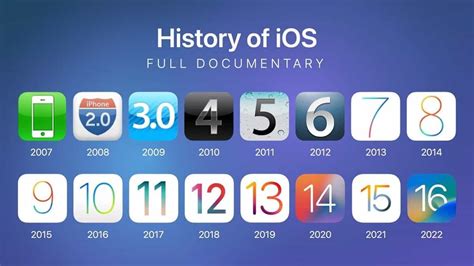
| Software version | What’s available for stickers | What changed |
|---|---|---|
| Before iOS 17.2 / iPadOS 17.2 / macOS 14.1 | Stickers sent from downloaded packs or the emoji keyboard, tapped into the message like an emoji | No anywhere-placement on bubbles, no Live Stickers |
| iOS 17.2 / iPadOS 17.2 / macOS 14.1 / watchOS 10.2 / visionOS 1 and later | Stickers can be dragged anywhere onto a message bubble, resized and angled with a second finger; Live Stickers can be made from Live Photos and saved from other people | Establishes the placement and Live Sticker mechanics still in use today |
| iOS 26 (current) | Genmoji made with Apple Intelligence save into the same drawer and can be sent as a sticker or Tapback; a built-in Apple Cash sticker pack arrived in December 2025 with no download; the Messages interface was redesigned with Liquid Glass | FaceTime’s separate sticker and filter effects tool was removed in this release, which doesn’t affect Messages stickers |
The practical baseline for matching every current menu label and screenshot is iOS 26, even though the placement and Live Sticker mechanics themselves haven’t changed since the 17.2 update three OS generations earlier.
Group chats work the same way
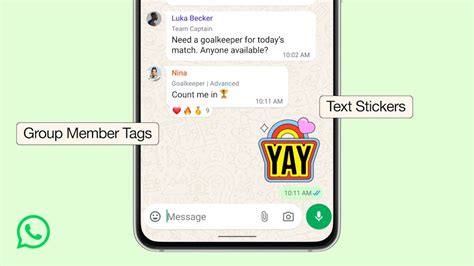
Group threads use the same Stickers drawer as one-on-one conversations, with no separate menu or gesture. What changes is delivery per recipient: each participant on iMessage sees the sticker as intended, while anyone still on SMS, MMS, or RCS in that group follows the same caveats described above. Apple’s documentation doesn’t call out any group-specific sticker behavior beyond that.
Limits and exceptions
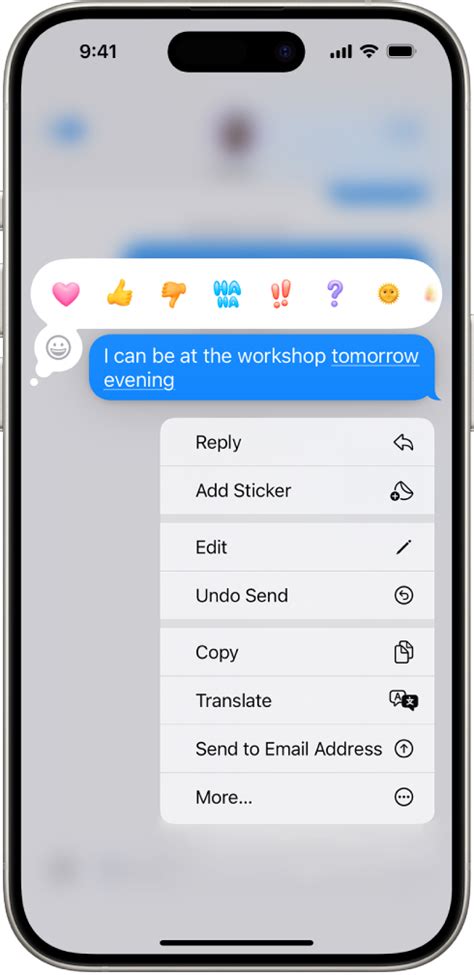
A sticker placed on a message bubble is part of that message, so it follows the same unsend and edit rules as any other message content. You can unsend a message within 2 minutes of sending it, removing it, sticker included, for both sides. You can edit a message up to 15 minutes after sending it, and up to five times, with each version visible to the recipient as edit history.
What happens to a sticker if I unsend or edit the message it’s on?Unsending within 2 minutes removes the sticker along with the rest of the message. Editing within 15 minutes, up to five times, keeps a visible edit history, but only for iMessage threads.