What Apple Actually Publishes About Setup Time
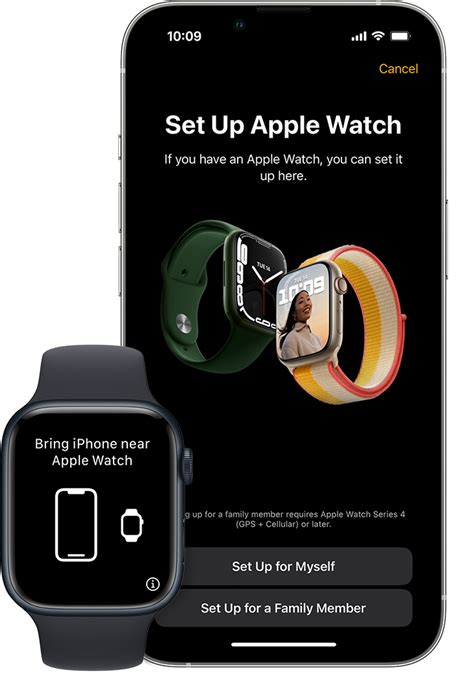
Two separate Apple support pages leave two different impressions of the same process. The general walkthrough for new owners opens by saying setup “takes just a few minutes” (Get started with Apple Watch). The dedicated update article says the software update alone can run from several minutes to a full hour (Update your Apple Watch). Both statements come from Apple, and both describe a real piece of the process: pairing itself is fast, and the update that almost always accompanies a new watch is not.
Do I need Wi-Fi for the update, or does cellular work?
Wi-Fi specifically. Apple’s update instructions list a Wi-Fi connection as a requirement before installing a watchOS update, separate from whatever cellular plan the watch itself might use afterward.
The Pairing Steps, In Order
- Turn the watch on: hold the side button until the Apple logo appears, then put it on your wrist.
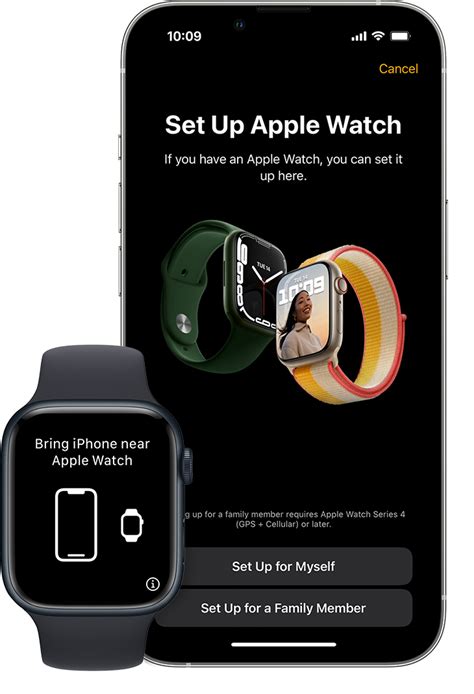
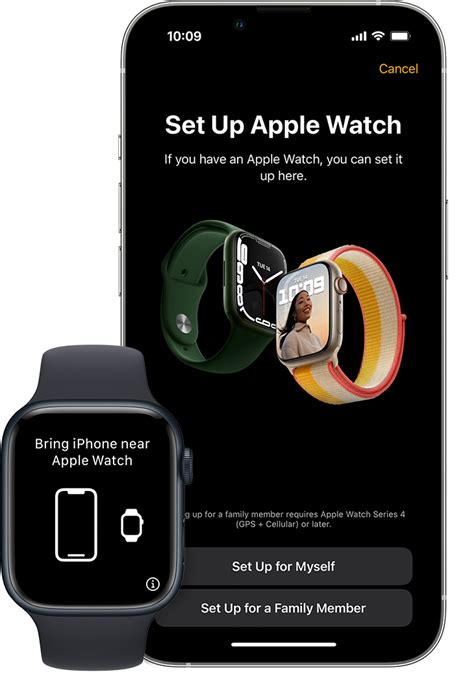
- Bring the unlocked iPhone close: tap Continue when the pairing screen appears, or open the Watch app and choose Add Watch.
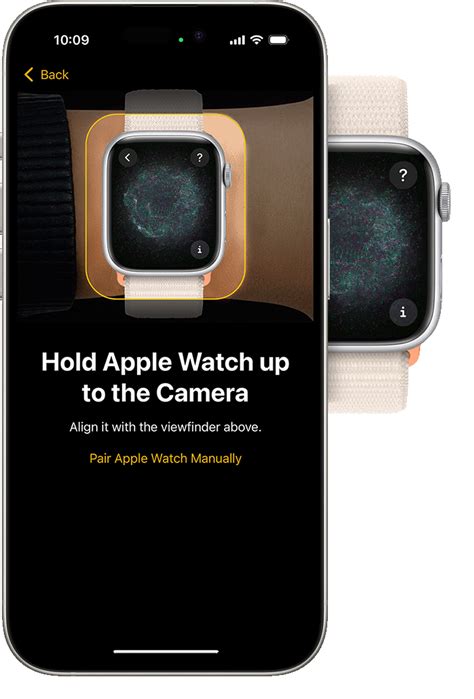
- Center the animation: point the iPhone’s camera at the pattern on the watch; if the camera can’t read it, tap Pair Apple Watch Manually instead.
- Choose new or restore: set up as new, or restore from a previous watch’s backup.
- Sign in and secure it: enter your Apple Account, set a passcode (skippable, though Apple Pay and Health both require one), and pick a text size.
- Mirror or customize permissions: choose whether Location Services, Wi-Fi Calling, and Diagnostics carry over from the iPhone.
- Let it sync: the watch finishes pairing and, if one is waiting, installs its software update.
(Set up your Apple Watch; Set up and pair your Apple Watch with iPhone)
None of these steps is individually slow; camera pairing normally finishes as soon as the animation is centered, and the account and passcode screens are quick taps. The update at the end is the one step with an Apple-quantified range attached to it.
Is there a way to skip choosing permissions one by one?
Yes. Express Setup mirrors the iPhone’s existing settings onto the watch automatically instead of asking screen by screen; Customize Settings is the manual alternative if you’d rather choose each one.
New Watch, Restored Backup, Family Setup, or Transfer: What Changes the Time
Four starting points lead to four different time profiles, and only one of them comes with an Apple-documented delay that shows up after the watch itself is already working.
| Starting point | What adds time beyond pairing | Basis |
|---|---|---|
| Set up as new (Express Setup), same iPhone | Nothing beyond the update window; the watch mirrors the iPhone’s existing settings | Set up your Apple Watch |
| Restore from a previous Apple Watch’s backup | Health and Activity history continues arriving via iCloud after pairing finishes; Apple does not publish a specific window for this | Set up your Apple Watch |
| Family Setup, for someone without their own iPhone | Extra screens for the family member’s Apple Account and two-factor authentication, plus a carrier step if cellular, on top of the same update window | Set up Apple Watch for a family member |
| Transfer an existing watch to a new iPhone | iCloud data (Activity, Health) may take a few days to fully reappear, even after the watch itself finishes pairing | If you can’t pair your Apple Watch with a new iPhone |
The transfer scenario is the outlier: the watch can show as paired and working within the same window as any other setup, while the account’s Health and Activity history keeps arriving separately for days afterward, a distinction Apple states directly rather than leaving implied.
Can I set up a watch for a family member who doesn’t own an iPhone at all?
Yes, through Family Setup, but an iPhone is still required somewhere in the process: the organizer’s iPhone does the pairing. Apple’s requirements call for an Apple Watch Series 4 or later with cellular (or a cellular Apple Watch SE) on watchOS 7 or later, plus an iPhone 6s or later on iOS 14 or later for the organizer.
What Actually Slows Setup Down
Three variables move the total further than the step list above suggests. The watchOS update is the biggest: Apple ties its several-minutes-to-an-hour range to update size and connection speed, and won’t start installing until the watch is at least 50 percent charged. Wi-Fi is the second: that same update step specifically requires the iPhone to be on Wi-Fi, so a cellular-only connection can stall it outright. Bluetooth range is the third and easiest to miss: Apple’s guidance for managing a family member’s watch specifies the iPhone needs to stay within about 33 feet (10 meters) of the watch to push settings and software, so setting the two devices down in different rooms mid-setup is a self-inflicted delay (Set up Apple Watch for your kids).
If you’re pairing one of the watches introduced in September 2025, the Series 11, Ultra 3, or SE 3, alongside watchOS 26, Apple’s requirement is specifically an iPhone 11 or later running iOS 26; older iPhones can pair earlier Apple Watch models but not this generation.
Can I start the update overnight instead of watching it finish?
Yes. Apple’s instructions describe an “Update Tonight” option that lets the watch install overnight while both devices stay on power, instead of you waiting through the full window.
Setting Up Cellular Service
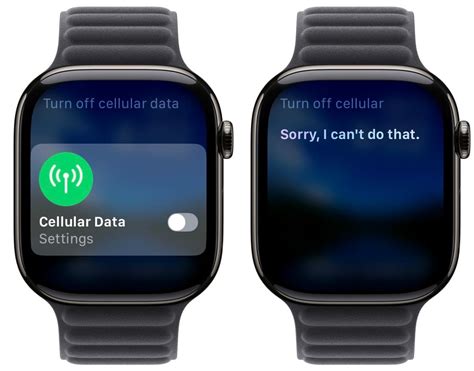
Cellular activation is optional during initial setup and can be turned on later from the Watch app instead. Skipping it doesn’t add or remove any of the time already discussed; it simply defers one screen to a later session. Family Setup is the exception, since a cellular-capable watch is part of what makes that path possible at all.
If Setup Is Stuck, Not Just Slow
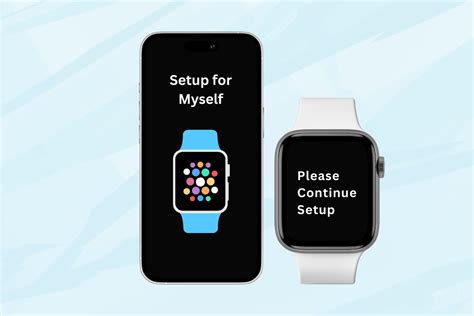
A setup that has stopped moving is a different problem from one that’s simply working through an update, and Apple documents specific fixes for the stuck case instead of leaving it to guesswork.
| What you’re seeing | Likely cause | What to do |
|---|---|---|
| Progress wheel or update screen frozen well past an hour | Large update still downloading, or a dropped Wi-Fi/Bluetooth connection | Confirm Wi-Fi and Bluetooth are on, keep both devices close and on power; Apple documents up to an hour as normal before this counts as stuck |
| Red iPhone or red X icon on the watch face | The devices lost their Bluetooth/Wi-Fi connection after pairing | Follow Apple’s dedicated reconnection steps: bring devices back together, confirm Airplane Mode is off |
| Update won’t begin installing | Watch charge is below Apple’s 50 percent minimum | Charge to at least 50 percent, then retry |
| Health or Activity history missing right after switching to a new iPhone | Normal iCloud propagation delay, not a failed transfer | Give it time; Apple states this can take a few days on its own |
(If your Apple Watch isn’t connected or paired with your iPhone; If you can’t pair your Apple Watch with a new iPhone)
Only one row here is genuinely a problem: a connection that has dropped and stayed dropped. The other three are Apple-documented delays that look alarming but resolve once the charge, connection, or propagation window catches up.
Why is my Activity or Health data missing right after transferring to a new iPhone?
This is expected, not a failure. Apple’s instructions for pairing a watch with a new iPhone say iCloud data can take a few days to fully reappear, even though the watch itself finishes pairing much sooner.
Planning Your Setup Window
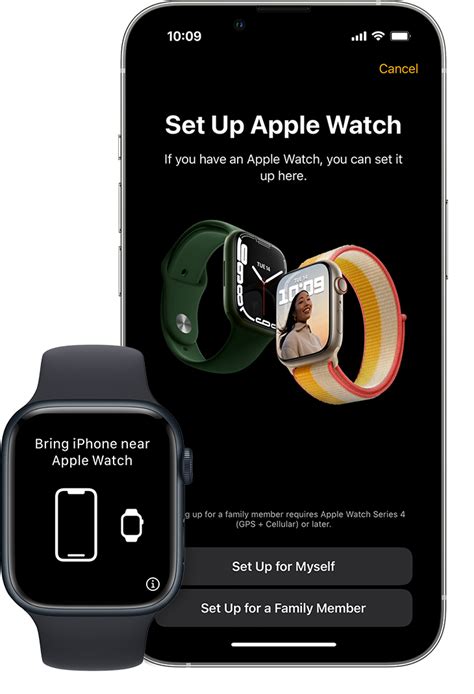
Budget a few unhurried minutes for the pairing screens themselves. Add up to an hour if a watchOS update is waiting, more if your iPhone drops off Wi-Fi partway through. Choose to restore from a backup instead of starting fresh, and the watch will keep quietly filling in Health and Activity history in the background for a while longer. And if you’re also switching to a new iPhone at the same time as pairing the watch, plan for the account and iCloud side of things to keep resolving for a few days after the watch already shows as connected.