Send the EPUB directly
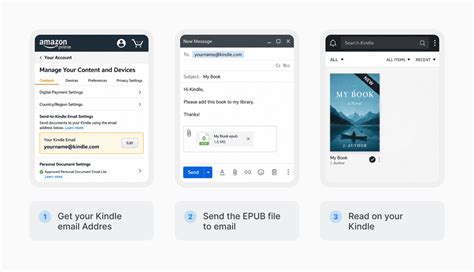
Two routes get the file into your library without installing anything.
- Email: attach the EPUB and send it to your Kindle’s address, listed under Preferences → Personal Document Settings in Manage Your Content and Devices. The address only accepts mail from approved senders, so add yours to the Approved Personal Document E-mail List first. One email can carry up to 25 attachments and 50 MB total; for more, zip the files, since the conversion service opens ZIP archives automatically.
- Web upload: sign in at the Send to Kindle page and drop the file in. This route accepts files up to 200 MB.
Either way, Amazon converts the file to KFX on its servers before it reaches the device. Email and web upload both sync highlights and notes to your Kindle account across every registered device; a file copied over by USB does not sync automatically the same way.
| Method | Size limit | One-time setup | Best for |
|---|---|---|---|
| 50 MB total, 25 attachments per message | Approve your sending address | Sending from any device with email | |
| Web upload | 200 MB | Sign in only | Larger files, no email needed |
| USB cable | No Amazon-imposed cap; limited by device storage | Cable + drag file into the documents folder | Cut-off hardware, or no Wi-Fi |
Email is the lowest-friction path for a typical novel-length EPUB; USB is the only route with no conversion step at all, since it copies the file instead of routing it through Amazon’s servers.
Why the file sometimes doesn’t show up
Two separate failure modes hide behind “it didn’t work.”
The first is the approved-sender list. Before April 2025, Amazon discarded mail from an unapproved address with no bounce message and no notice to either party. That changed on April 1, 2025: Send to Kindle now requires a complete sender address, since partial or domain-only entries are rejected, and mail from an unapproved or malformed address now triggers a send-failure email back to the sender instead of vanishing silently.
The second is simply patience: Amazon states it will keep attempting delivery for up to 60 days after a document is accepted.
Why didn’t my file show up after I sent it?
Check Personal Document Settings for a partial or domain-only sender entry first, since April 2025 those are rejected outright. If the address is fully approved, wait: Amazon retries delivery for up to 60 days before giving up.
When you need to convert it yourself first
Two situations make the default path insufficient.
Kindles that no longer receive Send to Kindle
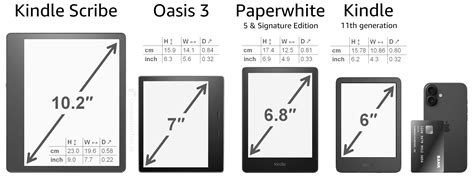
On May 20, 2026, Amazon cut off wireless Send to Kindle delivery for a specific list of older devices: the Kindle 1st and 2nd Generation, Kindle DX and DX Graphite, Kindle Keyboard (3rd Generation), Kindle 4, Kindle Touch, Kindle 5, and the Kindle Paperwhite 1st Generation, along with the first two generations of Fire tablets. These devices predate the TLS/SSL certificate support needed to connect securely to Amazon’s servers, so the cutoff hit both the Kindle Store and Send to Kindle. USB transfer is the only remaining option for these models.
Converting with Calibre
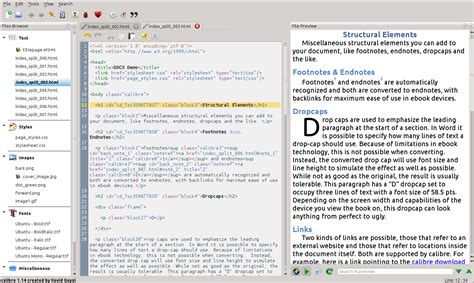
Calibre (free, calibre-ebook.com) converts EPUB to AZW3 in a few steps: add the book, click Convert, choose AZW3 as the output format, pick a Kindle output profile so the result matches your device’s screen, and click OK. Then connect the Kindle by USB and copy the AZW3 file into its documents folder.
One detail catches people who convert and then try to email the result: Send to Kindle’s email service does not accept AZW3 or new-style (KF8) MOBI files as attachments. Converting locally only helps if you finish the transfer over USB.
Can I email a file after converting it to AZW3 in Calibre?
No. Send to Kindle’s email route rejects AZW3 and new-style MOBI attachments outright; transfer the converted file by USB instead.
| Format | Status on Kindle | Notes |
|---|---|---|
| EPUB | Accepted for conversion via email, web upload, or app since August 2022; not read natively on-device | Must be DRM-free |
| KFX | Native; what Send to Kindle currently converts EPUB into | Produced only by the conversion service |
| AZW3 (KF8) | Native on device; created locally with Calibre | Can’t be attached to a Send to Kindle email |
| MOBI (legacy AZW) | No longer accepted for new deliveries since August 2022 | Files already on a device still work |
| Native, fixed-layout | No reflow |
The practical split: emailing a plain EPUB covers nearly every book, and AZW3 only earns its place when you’re already committed to a USB transfer.
Do I still need MOBI, or has it been phased out?
MOBI stopped being accepted for new Send to Kindle deliveries in August 2022, the same update that added EPUB support. MOBI files already on a device keep working; you just can’t send new ones.
Why formatting breaks and how to fix it
Most formatting problems trace back to three things, all documented as constrained in the KDP publishing guidelines.
- Tables: colspan and rowspan values that exceed the table’s actual row or column count render incorrectly, and Enhanced Typesetting doesn’t support nested tables at all; keep tables simple and check them after conversion.
- Custom fonts: embedding works in EPUB, AZW3, and DOCX, but a styling conflict in the source HTML can cause Kindle to strip the embedded font entirely rather than partially apply it.
- Drop caps: Amazon publishes specific CSS for implementing them in reflowable books, but drop caps are known to render inconsistently across Kindle Create, Kindle Previewer, and Calibre-converted output, sometimes spanning a different number of lines depending on which pipeline produced the file.
If a book you didn’t design yourself looks wrong after conversion, one of these three is almost always why.
Fixed-layout books and PDF
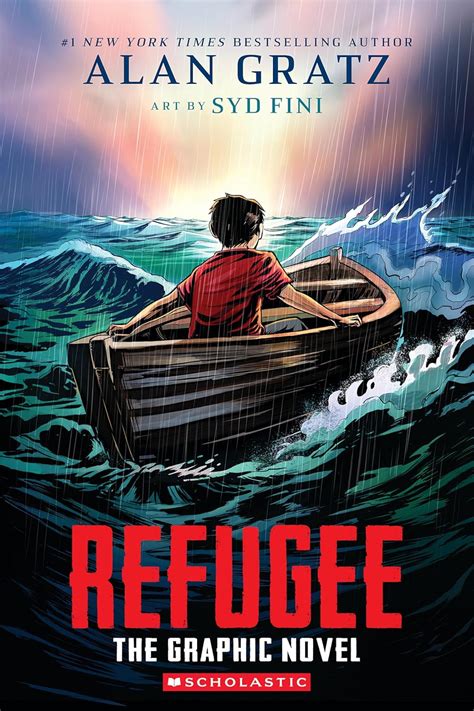
Graphic novels, textbooks, and comics built as fixed-layout EPUB pages don’t reflow well through Send to Kindle’s conversion pipeline. PDF is one of the same supported personal-document types as EPUB, and sending the fixed-layout content as a PDF instead preserves the layout exactly. The trade-off: text won’t reflow when you change font size.
DRM-locked EPUBs
Send to Kindle only accepts DRM-free EPUB files. If a file came from a retailer other than Amazon and won’t convert, the lock is almost always why. Removing DRM from content you’ve purchased can violate both the retailer’s terms of service and, in the US, the anti-circumvention provisions of the DMCA. The safer paths are checking whether the source offers a DRM-free download, or buying the Kindle edition directly.
Can I remove DRM myself to get a locked EPUB onto my Kindle?
Send to Kindle requires DRM-free files, but stripping DRM from purchased content can violate the retailer’s terms and copyright law. Look for an official DRM-free copy or the Kindle edition instead.