Find Your webOS Version First
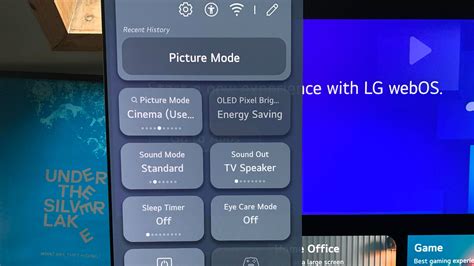
Press Settings on your remote, open All Settings, then go to General or Support (the location moved in 2021) and select About This TV. The version shown there, a decimal like 5.0 or 6.0, or a year like 22, 23, 24, or 25, determines which column to follow in the table below. LG renamed its version scheme in 2022, switching from decimal numbers to model year: webOS 6.0 is a 2021 TV, while webOS 24 belongs to the newer year-based system that started in 2022.
| webOS Version | Typical Year | App Management Path | Reset Path |
|---|---|---|---|
| 4.5 and earlier | 2019 and earlier | Home > press-and-hold app 3 seconds > X | Settings > All Settings > General > Reset to Initial Settings |
| 5.0 | 2020 | Home > press-and-hold app 3 seconds > X | Settings > All Settings > Support > Reset to Initial Settings |
| 6.0 | 2021 | Home > Edit App List > trash icon | Settings > All Settings > General > System > Reset to Initial Settings |
| 22 to 25 | 2022 to 2024 (plus upgraded older sets) | Home > Edit App List > trash icon | Settings > All Settings > General > System > Reset to Initial Settings |
Menu paths per LG’s reset guide and LG’s low-memory troubleshooting article. Match your webOS number to the table above: LG’s Re:New upgrade program can move a 2022 to 2024 set to a newer webOS version than the year it shipped.
Diagnose the Symptom First

| Symptom | Likely Cause | Correct Action |
|---|---|---|
| One app freezes, crashes, or shows stale content | That app’s stored data is corrupted or bloated | Delete and reinstall the app |
| “Restart the app to ensure efficient memory use” message appears | TV is low on available memory | Delete unused apps (LG’s documented fix) |
| Whole interface feels sluggish, home screen lags | Background apps and system memory buildup | Run Memory Optimizer (webOS 22+) or power cycle (older sets) |
| Only the built-in browser is slow or won’t load pages | Browser cache, cookies, and history buildup | Clear browsing data inside the browser’s own settings |
| Problems started after a firmware update, or an app won’t open at all | Outdated app version | Check Settings > Support > Software Update first |
Match your symptom to a single action instead of working through every method in order. The memory-message symptom is one LG documents directly, and app deletion is its documented fix for that exact message.
Free Up Space for a Specific App
LG’s troubleshooting article for this exact symptom recommends deleting the app as the primary fix. This is worth noting since several independent guides describe a “Clear Cache” or “Clear Data” toggle under Settings > Apps that doesn’t appear in LG’s documentation for webOS TVs.
On webOS 6.0 (2021) and 22 to 25 (2022 onward)
Press Home, select Edit App List, tap the app you want to remove, then select the trash icon that appears and confirm.
On webOS 5.0 (2020) and earlier
Press Home, select the app, press and hold for about 3 seconds until an X appears over it, then select the X and confirm.
After deletion, reinstall the app from the LG Content Store and sign back in. This resets its stored data completely and is the closest thing webOS has to a per-app cache clear.
Does LG TV have a Clear Cache button for individual apps?
Not according to LG’s published troubleshooting steps for webOS TVs, which instruct deleting and reinstalling the app instead. If your specific model’s Settings > Apps menu shows a “Clear Cache” or “Clear Data” option, treat it as a bonus feature specific to your unit; LG’s documentation doesn’t guarantee it across the platform.
Clear the Web Browser’s Cache
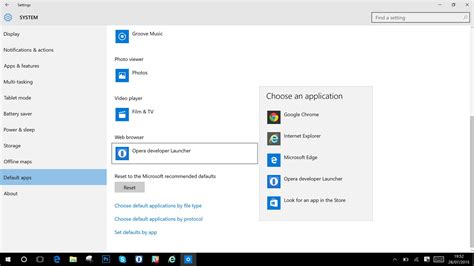
The built-in browser keeps its own history, cookies, and cached pages, separately from any app. Open the Web Browser app from the home screen, open its menu (three dots or three lines, depending on version), select Settings, then Clear Browsing Data, and confirm. LG doesn’t publish a dedicated help article naming this exact path, so this section relies on the browser’s in-app menu instead of a manufacturer document, which is worth knowing if the option’s exact label differs slightly on your firmware.
Run Memory Optimizer (Device Self Care)

On webOS 22 and newer, Settings > Support > OLED Care > Device Self Care (or General > Device Self Care on non-OLED sets) includes a memory and storage tool that closes background apps and frees temporary data in one step. LG documents this menu location for its energy-saving tools in the same place, which is a reliable anchor if the exact screen name shifts between firmware updates.
Why can’t I find Memory Optimizer on my TV?
It’s only present on webOS 22 and later, so 2020 and 2021 model TVs (webOS 5.0 and 6.0) won’t have it unless upgraded through LG’s Re:New program. On those, use app deletion or a power cycle instead.
Full Power Cycle (Cold Boot)
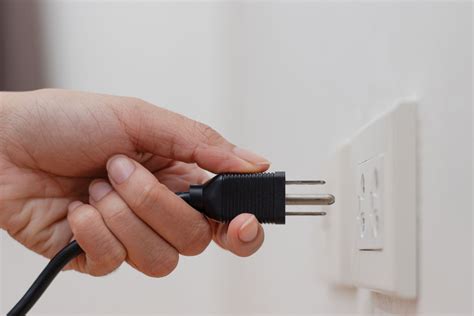
Turn the TV off, unplug it from the wall for at least 60 seconds, then plug it back in. This clears RAM and short-term session data platform-wide.
One precondition matters here: if Quick Start+ (or Q-Start+, on older menus) is switched on, the TV stays in a partially powered standby state instead of fully powering down, per LG’s Quick Start+ documentation, which also states that enabling it increases energy consumption. A remote power-off with Quick Start+ enabled will not fully flush memory the way unplugging does. To confirm it’s off: Settings > All Settings > General > Devices > TV Management > Quick Start+ on 2021-and-newer sets, or General > Additional Settings > Q-Start+ on 2018 to 2019 sets.
Update webOS First If Apps Keep Crashing
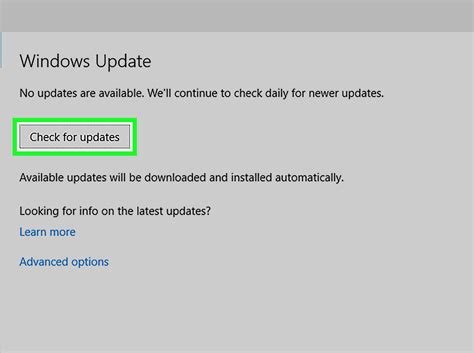
If the problems started right after a firmware update, or one specific app won’t launch at all, the cause is often a stale app version rather than cache. Check Settings > Support > Software Update > Check for Updates before repeating any cache-clearing step.
Will updating my TV’s software clear the cache too?
It can clear some temporary system files as a side effect, but its job is fixing app compatibility and bugs. Don’t rely on it as your primary cache fix.
Factory Reset (Last Resort)
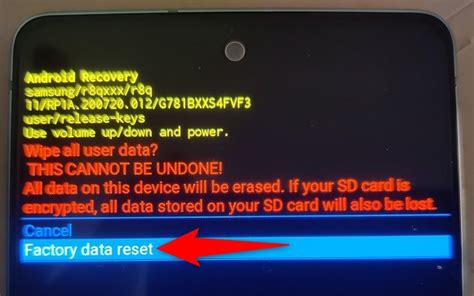
Use the Reset Path column in the version table above. You’ll need your PIN if you set one; LG’s factory-reset guide lists 0000 as the typical default when none was set. Confirming erases all account settings, installed apps, and passwords, and the TV restarts into initial setup. If Reset to Initial Settings appears greyed out, LG’s guide directs you to its 24/7 chat support instead of a menu workaround.
What’s the default PIN if I never set one?
0000, per LG’s own factory-reset instructions. Try that first before contacting support.
What to Expect After Clearing Cache
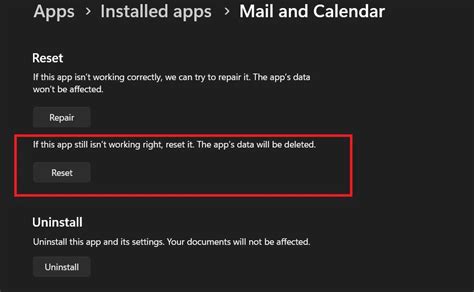
Don’t expect instant snappiness on the very next app launch: the app has to rebuild its cache from scratch, so the first open after clearing is often slower, not faster, before things improve. Software changes can also shift what you’re troubleshooting without any action on your part. LG’s Re:New program pushed webOS 25, under firmware build 33.21.85 (or the newer 33.22.15), to eligible 2022 to 2024 models starting in October 2025, meaning the exact screens and even the presence of Memory Optimizer on a given TV can change after purchase.
Why does my TV feel slower right after I clear the cache?
The app or system has to rebuild the data it just lost, so a short slowdown right after clearing is expected as part of that rebuild.