What this guide leaves out
Split screen, basic app pinning, and the Wi-Fi QR code share menu are genuinely useful, and every major Android outlet has already walked through them in near-identical detail. They get a single row each in the tables below, next to the version and brand they actually need, instead of a full section apiece.
Privacy & security features
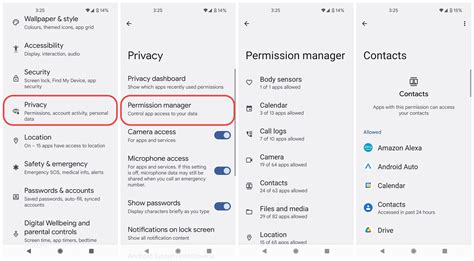
Two features solve the “someone else is using my phone” problem in different ways, and a third solves a related but separate problem: staying unlocked without retyping a PIN all day.
Screen pinning
Screen pinning locks the display to a single app. It was introduced in Android 5.0 Lollipop in 2014 and has worked the same way on every version since, though the exact menu path differs by brand (see the compatibility table below). It does not, by itself, guarantee that the notification panel stays out of reach: whether a pinned app blocks the notification shade depends on the Android version and the manufacturer’s build, so it’s worth testing on the specific device before handing it to someone else.
Does pinning an app to the screen also stop the person using it from seeing my notifications?
Not automatically. Whether the notification panel stays reachable during screen pinning depends on the Android version and the manufacturer’s configuration, so it isn’t a guaranteed privacy wall by itself.
Guest profiles and separate users
Guest profiles and full user profiles go further than pinning: according to Google’s support documentation, files, messages, and apps are not shared between the device owner and any guest or user profile at all. Both were introduced alongside screen pinning in Android 5.0. The difference between them is practical rather than technical: a guest profile is meant for a short session and is easy to wipe clean afterward, while a full user profile persists and needs its own Google account to use Play Store apps, which makes it the better fit for someone with repeat access rather than a single errand.
Extend Unlock
Extend Unlock, formerly called Smart Lock, skips the PIN screen at a trusted place, on the body, or near a trusted Bluetooth device. Google’s own documentation states it keeps a phone unlocked for up to 4 hours at a time, and that a trusted place’s boundary is accurate to about 100 meters, meaning the unlocked zone can extend past a home’s actual walls. It’s worth setting up for one specific address; Trusted Devices is worth skipping for anything that’s permanently attached to the phone, like a case, since that removes the security benefit entirely.
Speed & multitasking features
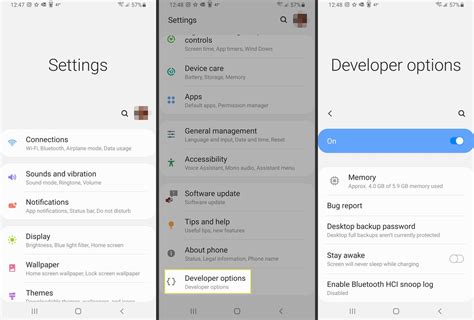
Developer options unlock by tapping Build Number seven times in About Phone, a step documented directly on Android’s own developer site. Past the well-known animation-scale sliders, two less-covered settings sit in the same menu: a default USB connection mode, so a phone always offers File Transfer instead of charge-only when it’s plugged into a computer, and a Bluetooth audio codec picker, where LDAC favors higher fidelity and aptX favors lower latency, with SBC as the universal fallback.
Does lowering the animation scale in Developer options actually make a phone faster?
It shortens how long transition animations take to play, which makes the phone feel snappier, but it doesn’t change the CPU or GPU performance underneath.
Communication & input features
Gboard’s personal dictionary turns a short typed shortcut into a full phrase, useful for an address, an email, or anything typed often. It’s configured under the keyboard’s own Dictionary settings and works across any app that uses Gboard as the default keyboard.
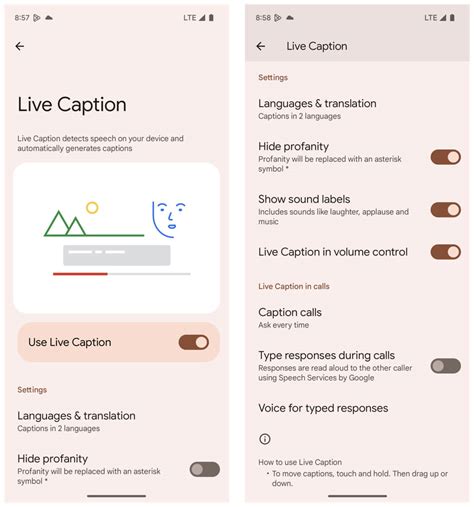
Live Caption captions audio and calls with a single tap from the volume controls. Google’s accessibility documentation states that all processing happens on the device: captions are never stored and never sent to Google, and the feature doesn’t use mobile data. It doesn’t work on music, and it turns off automatically in Battery Saver mode. Expressive Captions, the newer version that reflects tone and emotion in the caption text, requires Android 14 or higher.
Does Live Caption send any of my audio to Google’s servers?
No. Google states that captioning happens entirely on the device, and that audio and captions are never stored or transmitted anywhere.
Connectivity & battery features
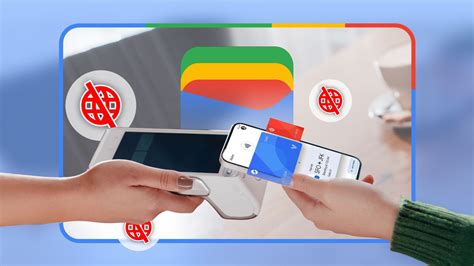
Wi-Fi sharing via QR code replaces reciting a password out loud: open the network’s settings and tap Share to generate the code, a feature that needs Android 10 or newer. Notification history, tucked under Settings, Notifications, Notification history, keeps a log of dismissed alerts so a swiped-away message isn’t gone for good; it works on any version that shows the toggle, with no brand-specific variation worth noting.
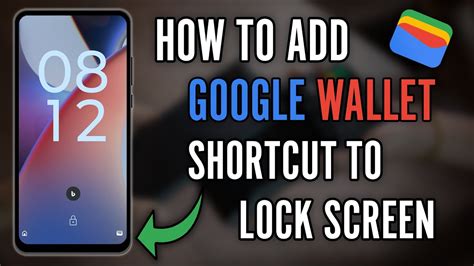
The Google Wallet double-press shortcut, added in Android 16, lets a double-press of the power button open Wallet instead of the camera. For months after Android 16 shipped, it worked on a Pixel 8 but not on a Pixel 7 running the identical software build. An Android Authority investigation traced this to a device configuration value, config_doubleTapPowerGestureMode, that Google had set to restrict the gesture to newer hardware; a Google spokesperson later confirmed the wider rollout was limited “outside of India and Russia.” Overriding that value manually on an older Pixel made the shortcut work immediately, with no apparent technical barrier behind the restriction. Even with the shortcut turned on, the device still requires a fingerprint, face, or PIN unlock before the cards become viewable, so it isn’t a way to skip authentication.
If I double-press the power button to open Wallet, do I still need to unlock my phone first?
Yes. The shortcut opens the Wallet screen, but viewing or using a card still requires the device’s normal biometric or PIN unlock.
Where each feature works, and what it needs
| Feature | Stock Android / Pixel | Samsung One UI | Minimum Android version |
|---|---|---|---|
| Screen / app pinning | Settings, Security & privacy, More security & privacy, App pinning | Settings, Security and Privacy, Other security settings, Pin windows (One UI 6+) | 5.0 (2014) |
| Guest profile / new user | Settings, System, Multiple users | Same menu, slightly different label | 5.0 (2014) |
| Extend Unlock | Settings, Security & privacy, More security & privacy, Extend Unlock | Named Smart Lock on older builds, Extend Unlock from Android 14 | 10 (for full trusted-places accuracy) |
| Live Caption | Settings, Accessibility, Live Caption | Settings, Accessibility, Hearing enhancements, Live Caption | 10 (Expressive Captions needs 14+) |
| Wi-Fi QR sharing | Settings, Network & internet, Internet, network name, Share | Same location, wording may vary | 10 |
| Google Wallet double-press | Settings, System, Gestures, Double press power button | Configurable through One UI’s own gesture settings | 16, and Pixel 8 or later only at launch |
The version floor here ranges across more than a decade: screen pinning and multi-user profiles date to Android 5.0 in 2014, while the Wallet shortcut arrived on select hardware only in 2025 with Android 16, which is the exact spread every generic “hidden features” list glosses over by treating all its entries as equally current.
When to use it, and when to skip it
| Feature | Use it when | Skip it if |
|---|---|---|
| Extend Unlock, Trusted places | There’s one specific address you’re regularly at | Daily routine covers a wide radius; 100-meter accuracy won’t map cleanly to a small apartment building |
| Extend Unlock, Trusted devices | The paired device is only sometimes with the phone, like a car stereo or a watch worn a few hours a day | The device is permanently attached, like a case or a keyboard; this removes the security benefit |
| Guest profile | Someone needs the phone for one short task | Someone needs repeat access over weeks; a full user profile fits better |
| Developer options, animation scale | The goal is a snappier daily feel | The goal is measurably faster app load times; this setting doesn’t touch underlying performance |