Lag or buffering, and why the difference matters
Lag is a system-responsiveness problem: the remote feels delayed, menus stutter, apps take a long time to open. Buffering is a playback problem: the video itself stalls once it’s already running. They have different causes, so the fastest way to a fix is identifying which one you have before trying anything.
| Symptom | Likely cause | First action |
|---|---|---|
| Home screen stutters or remote input feels delayed | Storage near capacity, or background processes using up limited RAM | Check available storage under Settings, then clear cache on your largest apps |
| Apps take noticeably long to open | Same as above, more pronounced on 1GB-RAM models | Uninstall apps you no longer use, then restart |
| Video stalls mid-playback with a buffering icon | Wi-Fi delivering less bandwidth than the stream needs | Run a network check and compare it to the app’s stated requirement |
| Slowness confined to one app, like Kodi or an IPTV app | App-specific codec mismatch or a bad stream source | Switch players or sources inside that one app before touching device settings |
| Stuttering worsens the longer you stream, and the stick feels hot | Thermal throttling | Move the stick into open air, away from enclosed AV cabinets |
Storage and RAM explain menu stutter and slow app launches; bandwidth explains stalls that happen after playback has already started. Working through a single undifferentiated checklist for both is why generic troubleshooting takes longer than it needs to.
Why does my phone stream fine but my Fire TV keeps buffering on the same Wi-Fi?Older or entry-level Fire TV models use an older Wi-Fi standard than most current phones, so at the same distance from the router, the stick’s radio can pull a materially weaker signal even on the same network.
Why Fire TV devices slow down as they age
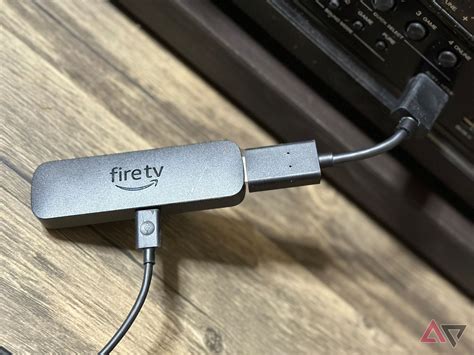
The internal storage chip is the main reason a Fire TV that felt fast on day one starts to stutter months later. Fire TV Sticks use eMMC storage, which uses a half-duplex interface, meaning it can only read or write at one time, never both at once (TechTarget’s eMMC definition). The chip’s controller manages wear-leveling, bad-block handling, and garbage collection internally, per the JEDEC eMMC 5.1 standard (Rayson’s eMMC 5.1 datasheet), so any write in progress, such as an app updating its cache, briefly blocks the reads your interface needs to stay responsive.
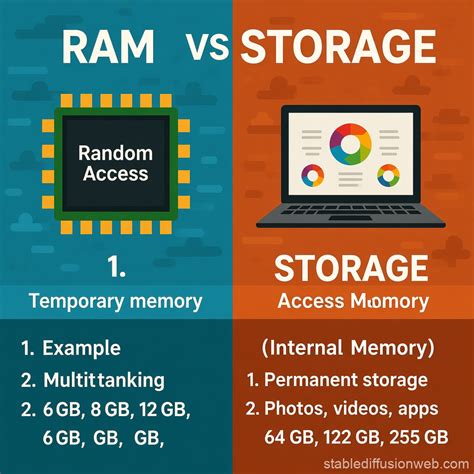
RAM is the other constraint, and it varies more across the current lineup than most guides acknowledge:
| Model | RAM | Storage | Wi-Fi standard |
|---|---|---|---|
| Fire TV Stick HD | 1GB | 8GB | Wi-Fi 5 |
| Fire TV Stick 4K / 4K Plus | 2GB | 8GB | Wi-Fi 6 |
| Fire TV Stick 4K Max (2nd Gen) | 2GB | 16GB | Wi-Fi 6E |
| Fire TV Cube (3rd Gen) | 2GB | 16GB | Wi-Fi 6E |
Specs per Amazon’s device specifications and the Fire TV Stick 4K Max listing, cross-checked against Liliputing’s independent comparison.
RAM is the tighter budget on the entry-level stick: doubling the 4K Max’s storage from the previous generation didn’t touch its RAM ceiling, so app-switching speed varies less across the lineup than storage headroom does. Anyone still on the 1GB Fire TV Stick HD is working with half the memory of every other current model.
Software updates cut both ways here. Amazon’s 2026 Fire TV interface redesign is documented as delivering “up to 20 to 30% gains in speed” on compatible devices, but AFTVnews, testing a 2nd-generation Fire TV Stick 4K Max running the update, reported no noticeable speed improvement in practice (AFTVnews’s hands-on coverage).
The storage question nobody answers with real numbers
No manufacturer publishes an exact free-storage threshold below which a Fire TV starts to lag, and any guide that gives you one is asserting it without a citation. What’s documented is the mechanism above: as usable space shrinks, the eMMC controller spends more cycles relocating data during garbage collection instead of serving the app in front of you. The practical signal is whether the slowdown started right after installing a large app, downloading offline video, or a storage warning first appeared.
Background load you can turn off, and the VPN question worth getting right

Autoplay previews on the home screen and Amazon’s usage-tracking settings both run continuously in the background, competing for the same limited RAM your apps need. Turning off Video and Audio autoplay (Settings, Preferences, Featured Content) and disabling Device Usage Data and Collect App Usage Data (Settings, Preferences, Privacy Settings) removes two processes that run every time the home screen is open.
Will a VPN make my Fire TV faster or slower?For most viewers it adds modest processing overhead and a small speed cost. It only helps in the narrower case where an ISP is deliberately throttling a specific streaming service’s traffic, which most U.S. ISPs don’t do openly.
If you use Kodi, IPTV, or a sideloaded player
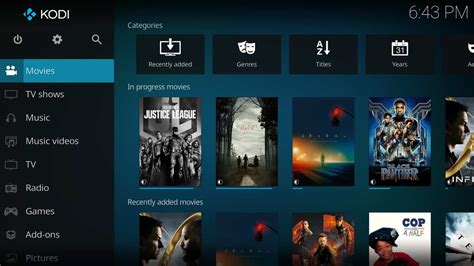
None of the mainstream troubleshooting guides address this, but a share of lag complaints on modified or sideloaded setups trace to the app itself: a stream source using a codec the built-in player struggles to decode, or a broken link that causes an app to stall while it retries, produces symptoms that look identical to device-level lag. Before touching device settings, try a different source inside the same app, or an alternate player like VLC or MX Player for local or network files. If performance is fine in Prime Video or Netflix but poor only in one third-party app, the device isn’t your bottleneck.
Is your Wi-Fi the real bottleneck?
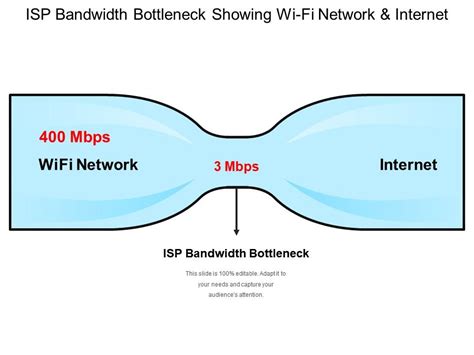
If the problem is mid-playback stalling instead of menu stutter, bandwidth is the first thing to check, using real numbers instead of the inflated ones that circulate online.
| Video quality | Resolution | Netflix’s recommended speed |
|---|---|---|
| HD | 720p | 3 Mbps or higher |
| Full HD | 1080p | 5 Mbps or higher |
| Ultra HD | 4K | 15 Mbps or higher |
Table per Netflix’s Help Center.
Older Fire TV models are also working with weaker Wi-Fi hardware than most phones in the same house: the Fire TV Stick HD supports only Wi-Fi 5, while most 2024-and-later phones support Wi-Fi 6 or 6E, so identical distance from the router produces a meaningfully weaker connection on the stick.
Quick fixes worth doing first

A restart clears temporary processes without touching any settings: hold Select and Play/Pause on the remote for about 10 seconds, or go to Settings, My Fire TV, Restart. Clearing cache on your two or three heaviest streaming apps (Settings, Applications, Manage Installed Applications, then Clear Cache per app) frees storage without deleting logins. Uninstalling anything unused does the same, permanently. None of these require more than a couple of minutes, and all three are worth doing before anything below.
When to factory reset, and what it resets
A factory reset is worth trying only after cache clearing and app cleanup haven’t helped, since it also removes sideloaded apps, saved Wi-Fi passwords, and app-level sign-ins. Go to Settings, My Fire TV, Reset to Factory Defaults, confirm, and allow 5 to 10 minutes without unplugging the device.
Does a factory reset delete my Amazon purchases?No. Purchases and subscriptions tied to your Amazon account remain available in the cloud and redownload after you sign back in; only local app data, saved credentials, and anything you sideloaded yourself is lost.
Confirming the fix worked
- Reopen your heaviest app and time it. A noticeably faster launch than before is the clearest signal.
- Recheck storage after cleanup. Confirm the free space genuinely increased; a warning disappearing on its own doesn’t guarantee that.
- Watch the first five minutes of a 4K title in whichever app buffered worst. This is the real test for a bandwidth-related fix.
- Check again after 24 hours. Some background processes only fully clear after a full reboot cycle, so an improvement that fades within a day points back to storage or RAM as the underlying cause.
Repair it or replace it

Amazon commits to software security updates for at least four years from purchase on devices bought new from Amazon (Amazon’s Fire TV Software Security Updates page), which is a reasonable floor for how long to expect a device to keep receiving fixes at all. If cache clearing, storage cleanup, and a factory reset haven’t resolved the lag and your device is a 1GB-RAM model, you’ve most likely reached a hardware ceiling that settings alone can’t move. A current Fire TV Stick 4K Max lists at $59.99 (Tom’s Guide’s review) and doubles both RAM and storage over the entry-level stick, a modest cost against continuing to troubleshoot a device that’s structurally out of headroom.
Is my Fire TV Stick too old to fix?If it’s a 1GB-RAM model and you’ve already cleared cache, freed storage, and run a factory reset, you’ve likely reached a hardware limit that no further setting change will fix.