Is Encrypto still maintained, and does it run on current macOS?
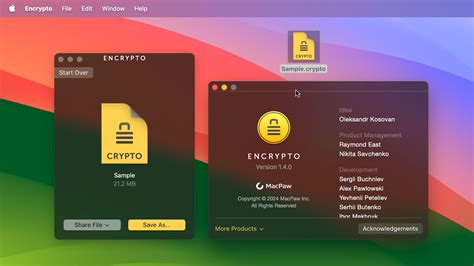
Encrypto hasn’t shipped an update since version 1.4.3 on August 14, 2024. The last change with any functional weight was version 1.4.0, released March 6, 2024, which added native Apple Silicon support and moved the stated minimum to macOS 10.13. A review posted to the App Store on October 5, 2024 confirms someone running it on an M2 Max MacBook Pro. Neither Apple nor MacPaw has published anything about how Encrypto behaves on macOS 26 Tahoe or the Apple Silicon-only macOS 27 Golden Gate, expected this fall, so anyone on current Mac software is trusting an app its developer hasn’t touched in close to two years.
How to encrypt a file with Encrypto
Encrypting a file with Encrypto means dragging it into the app’s window, choosing a password, and sending or saving what comes out the other side.
- Install Encrypto from the Mac App Store. It’s an 8 MB download and free.
- Drag the file or folder you want to protect into the Encrypto window.
- Set a password, and optionally add a hint. Encrypto never stores the password anywhere, so the hint is the only backup you get.
- Choose what happens next. Share the encrypted file directly through Mail, Messages, AirDrop, or a connected app, or save the resulting .crypto file to disk.
Writing a password hint that doesn’t give away the password
A hint is supposed to jog your memory, not answer the question for anyone who intercepts the file. “Mom’s maiden name” is a hint. “Smith2019” is the password. The same problem shows up with hints that reference a pet’s name that’s also your Wi-Fi password, or a date printed on your driver’s license. If someone else could plausibly guess the password from the hint alone, it isn’t a hint, it’s a second copy of the password.
Does the person I send the file to need Encrypto installed too?Yes. Only Encrypto can open a .crypto file, on either Mac or Windows, so the recipient needs the app installed before they can decrypt anything you send them.
How to decrypt a file with Encrypto
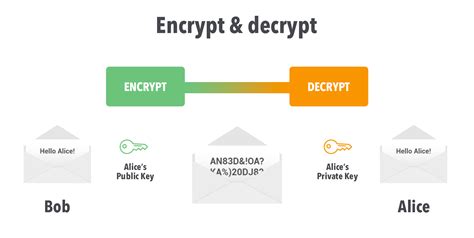
Decrypting means opening the .crypto file in Encrypto and typing the password used to create it.
Double-click the .crypto file, which launches Encrypto automatically, then enter the password and click Decrypt. Encrypto compresses files during encryption, so a slightly different file size after decrypting is normal and doesn’t mean the file was corrupted.
Why is my encrypted file a different size than the original?Encrypto compresses files as part of the encryption process, so the resulting .crypto file, and the file you get back after decrypting, can be slightly smaller or larger than the original.
What Encrypto can’t do
Encrypto protects only the specific files you choose to encrypt, and it offers no way back in if you lose the password.
No password recovery, ever
There’s no recovery mechanism built in. Encrypto doesn’t store your password anywhere, and MacPaw’s support team has no way to decrypt a file without the correct one either.
Compare that to FileVault further down this page, which generates an automatic recovery key the moment you turn it on.
Not full-disk protection
Encrypto only protects the files and folders you actively drag into it. It has no folder-level or drive-level mode; if your goal is protecting everything on a stolen laptop, Encrypto isn’t built for that job.

One October 2024 App Store review, posted from an M2 Max MacBook Pro, reported that the “Hide Original” option under Encrypto’s Share menu no longer functioned, forcing the reviewer to manually move original files to removable media instead. It’s a small, dated data point, but it’s a reminder that a feature described in the app’s own listing doesn’t necessarily still work as described on a current machine.
What happens if I forget my Encrypto password?The file becomes permanently unreadable. Encrypto doesn’t save passwords anywhere, and there’s no recovery option, no support-ticket workaround, and no way to reset it.
Encrypto vs. FileVault vs. a Disk Utility encrypted disk image
The three tools protect different amounts of data, and only one of them lets you recover access after a forgotten password.
| Tool | What it encrypts | Algorithm | Password recovery | Cross-platform | Best for |
|---|---|---|---|---|---|
| Encrypto | Individual files or folders you choose | AES-256 | None; forgotten password means permanent loss | Yes, Mac and Windows | Sending or storing specific sensitive files |
| FileVault | The entire startup volume | AES-XTS | Yes, a 24-character recovery key is generated automatically | No, built into macOS only | Protecting an entire Mac if it’s lost or stolen |
| Disk Utility encrypted disk image | A custom-sized container you create and can keep adding files to | 128-bit or 256-bit AES, your choice | None documented by Apple | Mac natively; needs conversion to work on Windows | A self-contained encrypted folder you’ll keep adding to over time |
Recovery is what actually separates these three tools. FileVault gives you a way back in if you forget your password; Encrypto and a Disk Utility disk image share the same all-or-nothing design once that password is gone.
Is Encrypto safe enough for tax documents or other sensitive files?The cipher is strong enough for that use case. The real question is whether you’re comfortable with an all-or-nothing password: lose it, and the file is gone, with nobody able to recover it for you.
Compatibility snapshot

Here’s every current compatibility fact Encrypto publishes, drawn from two MacPaw pages that don’t quite agree with each other.
| Detail | Value | Source |
|---|---|---|
| Current version | 1.4.3, released August 14, 2024 | App Store version history |
| Minimum macOS (App Store listing) | 10.13 High Sierra | App Store compatibility field |
| Minimum macOS (support FAQ) | 10.9 Mavericks | Encrypto support FAQ |
| Apple Silicon (arm64) support | Added in version 1.4.0, March 6, 2024 | App Store version history |
| Most recent user confirmation | October 5, 2024, on an M2 Max MacBook Pro | App Store review |
MacPaw’s two published compatibility numbers don’t match each other; treat 10.13 as the safer floor, since it’s the more recent of the two figures.
Mistakes that cost people their files

Most Encrypto failures trace back to one of four avoidable habits.
- Writing a hint that states the password outright. Defeats the point of encrypting the file in the first place.
- Deleting the original before confirming the .crypto file decrypts correctly. Test the round trip before you clean anything up.
- Assuming the recipient can just open the file. They need Encrypto installed first, on whichever platform they’re using.
- Reaching for Encrypto where FileVault is the right tool. Encrypto never touches the rest of the disk.
Given how thin the maintenance activity has been since 2024, anyone with sensitive, long-term files is trusting a tool its own developer hasn’t publicly revisited since before the current macOS was released.