Turn on backup in Google Photos
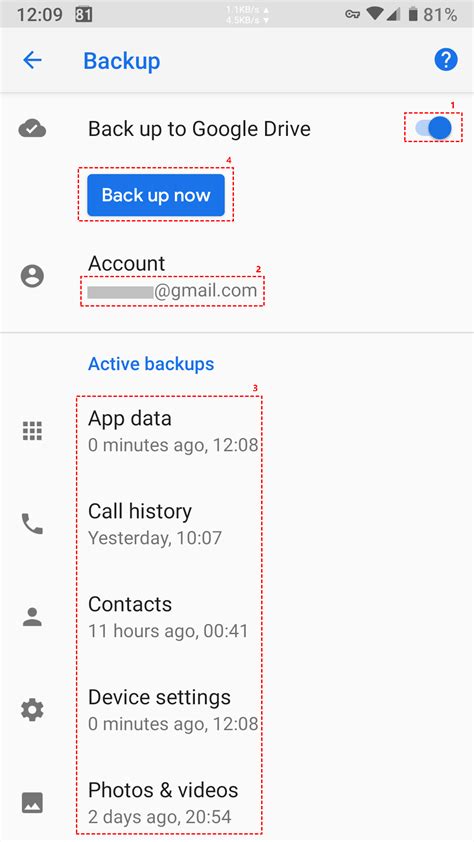
Google Photos backs up automatically once signed in and turned on, and it needs no separate account beyond the one already on the phone.
- Open Google Photos and sign in with the Google Account to use.
- Tap the profile picture, then go to Photos settings, then Backup.
- Turn on Backup, then choose Wi-Fi only or mobile data under Backup settings.
- Under Backup quality, pick Storage Saver or Original quality.
Storage Saver resizes photos larger than 16 megapixels down to 16 megapixels and can still print well up to 24 inches by 16 inches, according to Google’s own guidance on the setting.
Photos back up to only one Google Account at a time, so on a shared or hand-me-down phone, check which account is signed in before assuming a photo is protected.
Will my photos still take up space on my phone after they back up?Yes. Backup copies photos to the Google Account; it doesn’t remove them from the device. To free up local storage, use Manage storage, then Free up space inside the app, which deletes only the copies already confirmed backed up.
What happens when your storage actually runs out
Every Google Account shares one 15 GB pool across Photos, Drive, and Gmail, so backup can stall for a reason that has nothing to do with the camera roll. A full inbox or a large Drive folder can exhaust the shared quota before a single photo finishes uploading.
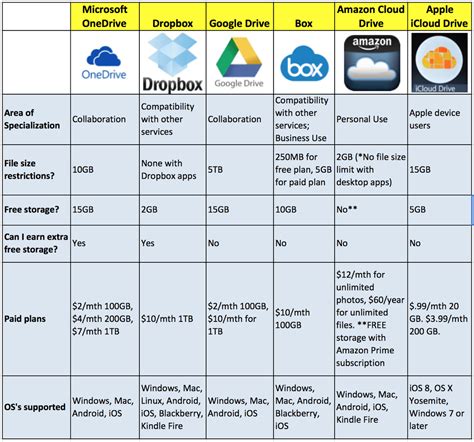
| Service | Free storage | What happens at the limit | Fix |
|---|---|---|---|
| Google Account (Photos, Drive, Gmail combined) | 15 GB | New backups, Drive uploads, and Gmail messages all stop until the account is back under quota | Delete or move files, or buy more space through Google One |
| Microsoft OneDrive | 5 GB | Uploads, edits, and sync stop; if the account stays over quota for 6 months, Microsoft may delete the OneDrive and everything in it, with no recovery | Free up space promptly, or upgrade through Microsoft 365 |
| Dropbox Basic | 2 GB | Sync, upload, sharing, moving, and previewing are restricted; Dropbox emails a warning before deleting files to bring the account back under the limit | Delete files or upgrade to Plus |
| Samsung Cloud | reported around 15 GB on Galaxy devices | Samsung has not published what happens at this limit | Check current usage in Settings, then Accounts and backup, then Samsung Cloud |
The concrete difference that matters is timing: OneDrive’s 6-month non-recoverable deletion window is a hard deadline once an account is over quota, while Google and Dropbox mainly block new activity until action is taken, so an OneDrive account left over its limit is the one that needs the fastest attention.
What happens if I run out of free storage mid-backup?Whichever photo is uploading when the quota is hit fails silently in most cases; items already confirmed backed up stay in the cloud, but everything after that point in the queue waits until space is freed.
Comparing your free options
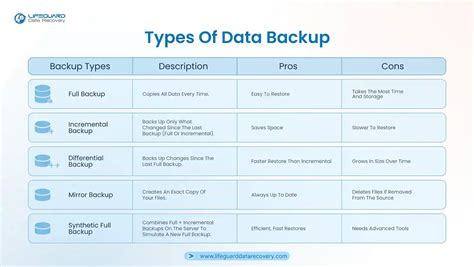
Google Photos, OneDrive, Dropbox, Samsung Cloud, and a plain USB transfer solve different problems, and free storage size alone doesn’t say which one fits.
| Method | Backup type | Needs an account | Best for |
|---|---|---|---|
| Google Photos | Automatic | The default choice on any Android phone | |
| Microsoft OneDrive | Automatic via app | Microsoft | Households already paying for Microsoft 365 |
| Dropbox | Automatic via app | Dropbox | Anyone already using Dropbox for other files |
| Samsung Cloud | Automatic | Samsung | Galaxy phones staying inside the Samsung ecosystem |
| USB to a computer | Manual | None | Avoiding cloud accounts entirely, or keeping an offline copy |
If avoiding a new account matters more than automation, USB is the only method here that asks for nothing beyond a cable, and Samsung Cloud mainly makes sense if the phone is already a Galaxy device.
One account, one backup
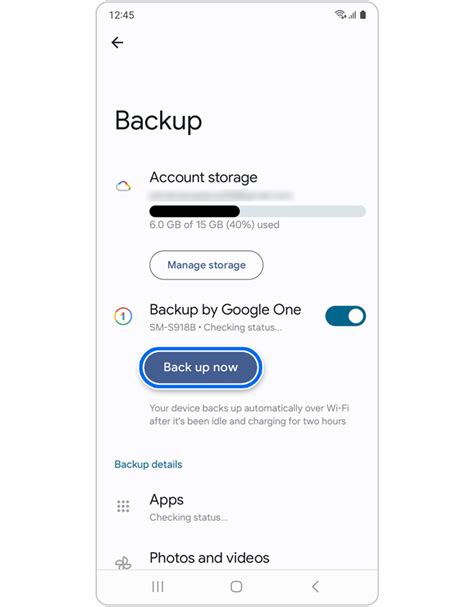
Android backs up photos to only one Google Account at a time. On a phone signed into a work or school account for other tasks, that’s usually fine, but on a device shared between family members or handed down after a factory reset, it’s easy to assume a photo is safe when it’s actually queued under an account nobody checks anymore.
If you have a Samsung or other non-Google phone
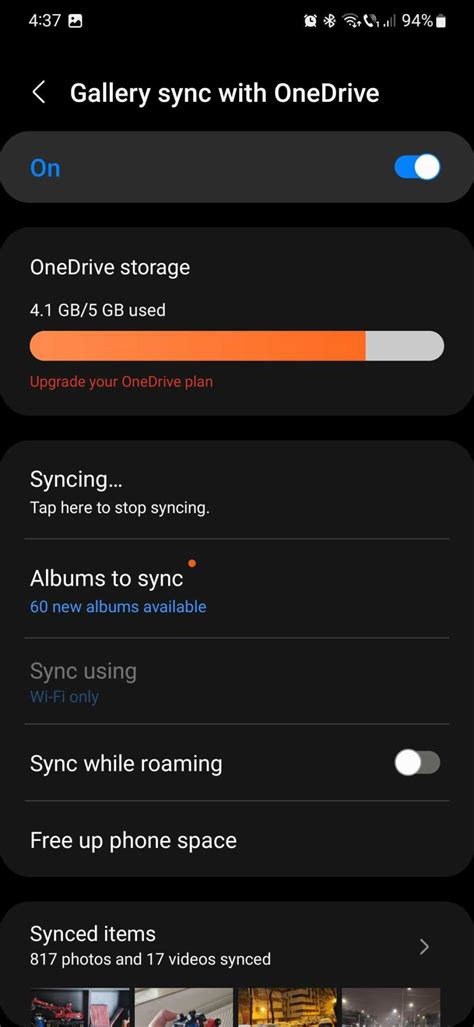
Samsung’s Gallery app has synced photos to Microsoft OneDrive for years, but that link ends after September 30, 2026, when Samsung moves Galaxy devices to its own Samsung Cloud instead. Photos already synced through Gallery stay on OneDrive after that date; they simply stop appearing inside the Gallery app unless the account is reconnected directly in Settings, then Accounts and backup.
Samsung Cloud itself offers Galaxy devices roughly 15 GB of free storage of its own, separate from the Google Account quota described above.
A free backup that skips the cloud entirely
Copying photos to a computer over USB costs nothing, needs no account, and isn’t limited by any company’s storage tier.
- Connect the phone to a computer with a USB cable.
- On the phone, choose File Transfer or Media Transfer Protocol when prompted.
- On the computer, open the phone’s DCIM folder.
- Drag the photos to keep into a folder on the computer.
This method backs up whatever is in DCIM at that moment; it runs on demand, not automatically, so it only protects photos as recent as the last manual transfer.
Can I back up photos without using the cloud at all?Yes. A USB transfer to a computer works with no account and no ongoing storage limit; the trade-off is that nothing backs up between transfers unless a scheduled copy is also set up on the computer’s end.
Confirm the backup actually worked before you delete anything
Google Photos marks every item with a status, and deleting local photos before checking that status is how backups fail silently.
| Status | What it means | What to do |
|---|---|---|
| Backup complete | Every item is uploaded | Safe to free up device storage |
| Backing up / Preparing backup | Upload is in progress | Wait, or check the connection |
| In queue or paused | Waiting, often for Wi-Fi or storage space | Connect to Wi-Fi or clear space |
| Permanent failure | The item failed and won’t retry automatically | Open the item and try Back up now |
A status of anything other than “Backup complete” means the local copy is still the only copy, so treat “In queue” the same as “not backed up yet” when deciding what’s safe to delete.
Do I need to keep the Google Photos app installed for the backup to keep working?Yes, on Android. Backup runs through the app itself, and uninstalling it stops new uploads, even though photos already backed up remain safely in the account online.
Why backups stall
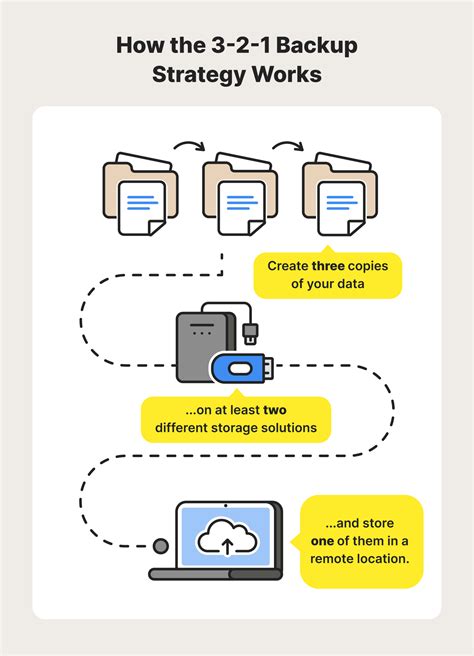
Four causes explain most stalled backups, and three of them have nothing to do with storage space.
- Battery optimization: some phones pause background apps aggressively enough to stop uploads; check the app’s battery settings if backup stays stuck.
- Wi-Fi-only setting: if mobile data backup is off, photos taken away from Wi-Fi simply wait in queue.
- Screen-off pausing: Google Photos can pause uploads while the screen is off to save battery, then resume later.
- Wrong account signed in: since only one account backs up at a time, photos taken while a different account is active won’t appear where expected.
Backing up before you switch phones
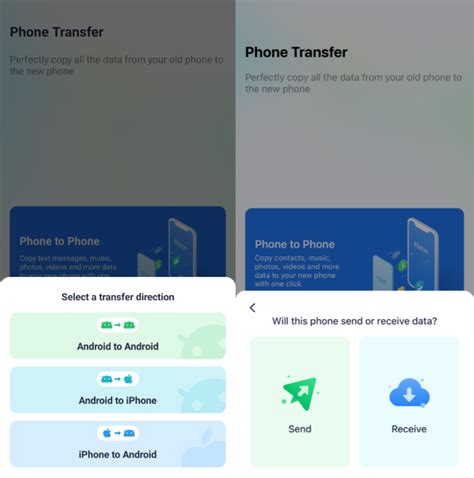
Backup is worth checking the day before setting up a new phone, not after, since Google Photos syncs to the new device automatically once signed into the same account.
Because only one account backs up at a time, confirm the old phone was actually signed into the account planned for going forward before wiping it. How well formats like Motion Photos carry over between different phone brands isn’t something manufacturers document consistently, so when moving between ecosystems, check the destination app’s own import instructions instead of assuming.
Will switching phones delete my backed-up photos?No. Backed-up photos live in the Google Account, not on the phone, so they survive a factory reset, a lost phone, or a full device wipe as long as backup was confirmed complete beforehand.