Opening, closing, and switching tabs without digging through menus
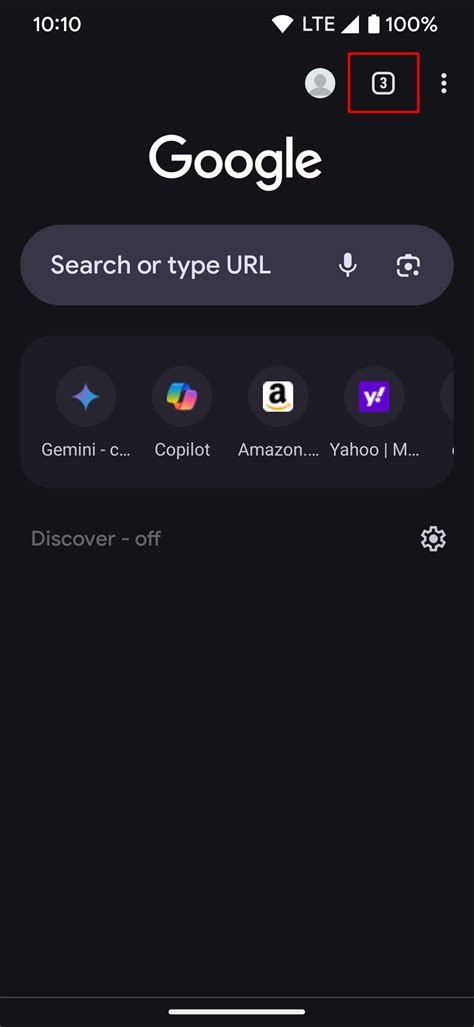
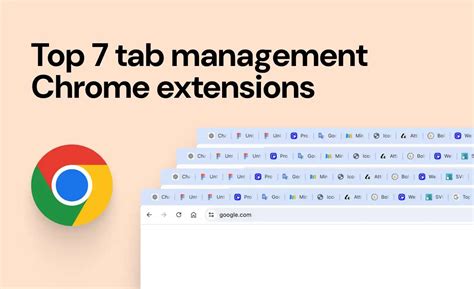
The tab switcher icon next to the address bar shows your open tab count and opens a grid of every tab. Tapping the icon again, or swiping on it, switches tabs; tapping the X on a card closes it; the overflow menu inside the switcher offers “Close all tabs” for a full reset. Long-pressing a link opens it in a new tab. That covers the everyday actions almost every Android Chrome user already knows without help. The parts that actually confuse people, and that this page focuses on, start below.
How tab groups on Android actually work, and what’s changed since 2021
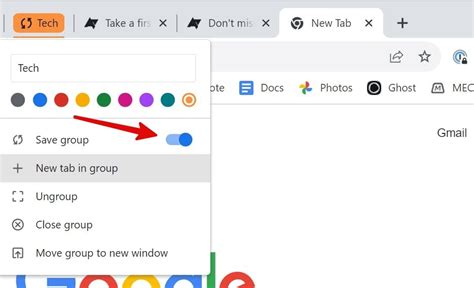
Tab groups reached Chrome for Android with version 88, rolling out from late January 2021 as part of a new grid-based tab switcher; you could drag one tab onto another to group them, or use “Group tabs” from the overflow menu (9to5Google). At launch, Android’s version of the feature was noticeably thinner than desktop’s: no renaming, no color assignment, only grouping and merging (Android Headlines).
Several still-circulating guides repeat that limitation as if it were permanent.
The feature keeps moving: Google reworked the bottom control strip for Android tab groups again in mid-2025 (9to5Google).
Timeline of Android tab-group and tab-management changes
| Milestone | Date / version | What changed |
|---|---|---|
| Tab groups + grid tab switcher | Chrome 88, rolling out late Jan 2021 | Grouping and merging tabs by drag-and-drop or menu |
| Group naming/coloring unavailable on Android | Confirmed at 2021 launch | Desktop and ChromeOS had it; Android didn’t |
| Disable-groups flag removed | Chrome 91, mid-2021 | The chrome://flags toggle that turned off grouping stopped working |
| Group naming/coloring added | Canary testing ~April 2024, confirmed live by Sept 2024 | Closed the gap noted above |
| Cross-device tab-group sync announced | Sept 2024 | Groups made on phone intended to appear on desktop |
| Inactive-tab and auto-close settings expanded | Reported current as of Feb to May 2025 | 21-day default hide, 60-day default close, both adjustable |
| Tab-group control strip redesigned | Reported July 2025 | UI layout change, same underlying feature |
| Current stable release | Chrome 150, week of June 30, 2026 | Baseline version this page’s facts are checked against |
Sources: 9to5Google, Android Headlines, XDA Developers, Android Headlines, Google, 9to5Google, 9to5Google, Chrome Releases.
What this table settles: the Android tab-group feature is a moving target, not a fixed spec, so a claim about what it can or can’t do is only trustworthy if it names a date.
Can I turn off Chrome’s tab groups on Android?Not the way older guides describe. The chrome://flags toggle that disabled grouping was removed in Chrome 91. The closest current equivalent is choosing “Open in new tab” instead of “Open in new tab in group” from a link’s long-press menu, which Chrome added specifically because the flag disappeared (XDA Developers).
Why tabs, groups, and open pages disappear or reset
Two unrelated mechanisms cause almost every “where did my tab go” complaint, and they have different fixes.
Diagnosing a missing or resetting tab
| Symptom | Likely cause | Fix |
|---|---|---|
| A tab reloads from scratch every time you switch to it | Android discarded the background renderer process for memory, not a setting | Expected behavior on low-to-mid RAM devices; fewer simultaneously open tabs reduces frequency |
| Archived or inactive tabs briefly reappeared out of order | A rollout bug in the archiving feature, tracked publicly | Fixed in Chromium build 133.0.6876.0; update Chrome |
| A tab or group vanished after a few weeks of not opening it | Moved to the “Inactive tabs” section (see the settings table below for exact timing) | Open the tab switcher and check “Inactive tabs” |
| A tab you hadn’t opened in about two months is gone completely | Auto-closed under the current default timing | Check Chrome History; it isn’t deleted from there |
Sources: 9to5Google, Chrome for Developers, Chromium Issue Tracker.
The distinction that matters most: a memory-discarded tab and an inactive-tab timeout look identical from the outside, a blank tab card that needs a tap, but only one of them is a setting you can change.
Inactive tabs and auto-close, explained as a decision
| Setting | Current default | Adjustable range | Effect |
|---|---|---|---|
| Move to inactive section | ~21 days | Never, 7, 14, or the default | Hides the tab from the main grid, doesn’t close it |
| Automatically close inactive items | 60 days | On or off | Closes the tab; it still exists in History |
| Archive duplicate tabs | On by default in the current rollout | On or off | Keeps only the most recently used copy of a duplicate page |
Source: 9to5Google, corroborated by Chrome Story.
The default 21-day trigger isn’t the fastest option: the minimum you can set manually is 7 days. If you rarely reopen old tabs on purpose, shortening the trigger keeps the switcher cleaner without touching auto-close. If you regularly dig back into research from weeks ago, leaving auto-close on Never costs nothing but switcher clutter, since inactive tabs are hidden either way.
Why did Chrome close tabs I hadn’t touched in weeks?Because the default auto-close setting is 60 days of inactivity, and the move-to-“Inactive” trigger before that defaults to about 21 days. Both are configurable under Settings > Tabs, including turning either off with “Never” (9to5Google).
Why a background tab reloads instead of staying put
This isn’t a Chrome-specific quirk. Chromium’s own engineers have documented two separate causes: the OS sends a memory-pressure signal and Chrome drops some tabs to free RAM for the rest of the system, or Android silently kills the backgrounded app entirely after a period of inactivity, which happens to every app, not just Chrome (Chromium bug tracker). Chrome’s developer blog confirms the mechanism is deliberate: the renderer process is shut down, the tab stays visible in the switcher, and it reloads when you tap back into it (Chrome for Developers).
One workaround exists for tabs you want frozen sooner than the 21-day default allows: a 2026 hands-on test found the shortest setting Chrome exposes is 7 days, and used a throwaway tab group to force specific tabs into the inactive state ahead of that schedule on a memory-constrained phone (Android Police).
Why does a tab reload every time I switch back to it?Because Android freed its memory while it was in the background. The tab itself wasn’t closed, just its running process; Chrome reloads it on demand, restoring scroll position where it can (Chrome for Developers).
Which approach fits depends on what you’re optimizing for: fewer visible tabs means shortening the inactive trigger, and fewer reloads means keeping your total open-tab count lower, since discarding happens under memory pressure regardless of any Chrome setting.
Whether your tab groups follow you to your computer
For most of tab groups’ history on Android, the answer was no: groups made on a phone stayed on that phone, with no sync to desktop. That changed with Google’s September 2024 announcement of cross-device tab-group sync, alongside tab groups arriving on iOS for the first time (Google). The rollout is staged rather than universal on a fixed date, so whether it’s live on a given account depends on when that update reaches the device and whether Chrome sync is turned on for that Google Account.
Do tab groups made on my phone show up on my computer?They’re intended to, since Google announced cross-device tab-group sync in September 2024, but the feature rolled out gradually instead of to every account at once (Google). If a phone-made group doesn’t show up on desktop, confirm Chrome sync is enabled on both devices before assuming it’s broken.
Turning off automatic tab grouping and fixing the switcher layout
Two separate complaints get conflated here. The first is links opening into a tab group automatically instead of a standalone tab; the fix, since Chrome 91 removed the disabling flag, is picking “Open in new tab” specifically from the long-press menu instead of the grouped default (XDA Developers). The second is a change to whether the tab switcher shows a grid of thumbnails or a plain text list. Research for this page found no authoritative, currently-working setting that restores the old list layout; the practical options are living with the grid or trying a different Chromium-based Android browser that still offers a list view.
Mistakes that make tab clutter worse
- Assuming closing the Chrome app closes your tabs. It doesn’t; tabs persist across app restarts by design, and the accumulation continues silently.
- Treating a reloaded tab as a bug and reporting it. It’s memory management doing its job on a constrained device, not data loss.
- Setting auto-close to Never and forgetting about it. Old tabs then sit indefinitely, which is fine for the browser but defeats the point of the feature if the goal was decluttering.
Tab groups made on Android had no cross-device backup for years, and even with sync now rolling out, a group still isn’t a bookmark. Anything you can’t afford to lose track of belongs in Chrome’s “Bookmark tabs” action instead.
Is it bad to keep dozens of tabs open at once?Not inherently. Chrome and Android are built to discard background tabs under memory pressure precisely so a large tab count doesn’t crash the browser (Chrome for Developers); the cost is more frequent reloading when you switch between them, not instability.
What “Custom Tabs” means, if that’s what you were actually looking for
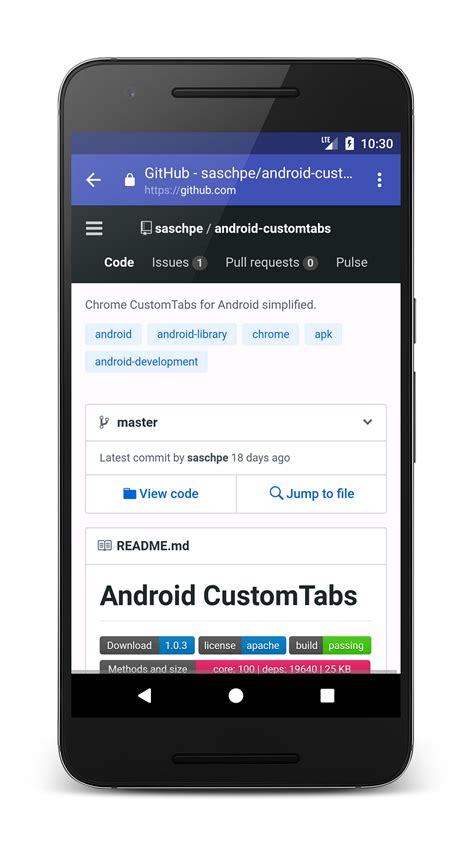
If you landed here searching for “Custom Tabs” as a developer term, that’s a different feature entirely: an Android API that lets app developers open web content inside their own app with a customized, in-app browser view, instead of launching a full separate browser. It has nothing to do with the tab-management features described above. Google’s developer documentation covers it separately (Chrome for Developers).