Where Battery Usage Lives on Each Device
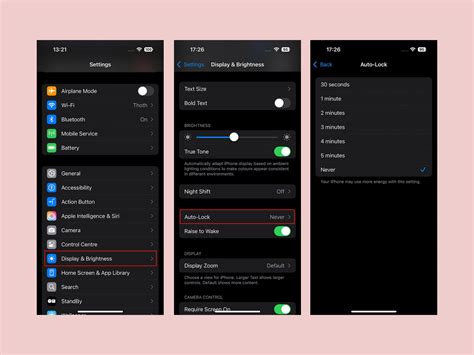
The path differs enough between manufacturers that following your own phone’s documentation matters more than a generic “Settings > Battery” instruction. Samsung documents its version in its own support library, Google documents the Pixel version in its Pixel Battery Help, and OnePlus covers the equivalent screen in its OxygenOS 14 user manual.
| Device / software | Menu path |
|---|---|
| Samsung Galaxy (One UI) | Settings > Battery and device care > Battery > View details |
| Google Pixel | Settings > Battery > Battery usage |
| OnePlus (OxygenOS 14 and later) | Settings > Battery, then the battery-usage screen covered in OnePlus’s own user manual’s Battery section |
| Other stock or near-stock Android | Settings > Battery > Battery usage (some skins label it App battery usage) |
Whichever path you take, the screen ranks apps and system processes since a start point you can usually change, which the next section turns into something you can actually act on.
Reading the Percentage Correctly
Android’s battery-usage percentages describe an app’s share of the power used in the selected time window, not a share of the battery’s total capacity, so the same app can show 20 percent on a day you barely touched your phone and 5 percent on a day you used ten other apps just as much. Google’s own Pixel Battery Help refers to this window as usage “since last full charge”; some phones offer a rolling view as well, though the exact options vary by manufacturer and Android version, so treat any specific window behavior you read about a different phone as that phone’s behavior, not a universal rule. This is also why comparing your screen to a friend’s phone rarely tells you much: different charge times and different total usage change the ranking without anything being wrong on either device.
Why does the same app show a different percentage on different days? Because the number is relative to everything else you did in the same window. A quiet day with light use inflates every app’s share; a heavy day with many apps active spreads the same drain thinner across more entries.
Normal Use Versus a Real Problem
A high percentage next to an app you use constantly usually just means you used it a lot; a high percentage next to a system process while the screen was mostly off is the more useful signal to check. Neither Google nor device makers publish a fixed normal-range percentage for individual apps or system processes, so treat any specific number quoted elsewhere as someone’s personal experience, not a spec.
| Signal you see | Likely meaning | Suggested action |
|---|---|---|
| An app you use constantly tops the list | Expected: heavy foreground use converts directly into drain | No action needed unless total battery life feels short for your day |
| Google Play Services or Android System is high while the screen was mostly off | Often another app routing location, sync, or notifications through the service | Check which apps have location or background-data permission, then restrict the actual offender |
| An unfamiliar app shows meaningful background drain | Possible leftover from a sideloaded install outside Google Play | Verify the package under Settings > Apps and remove it if you can’t explain why it’s there |
| One app’s background time is high right after an update, with foreground time near zero | Consistent with a bug in that specific update | Wait for the next update or restrict its background usage in the meantime |
| Drain continues steadily overnight while every app shows low usage | Signature of a stuck wakelock from one process | Check each app’s background time specifically, not just its total percentage |

Is Google Play Services supposed to use this much battery? Google Play Services rarely drains battery on its own; it acts as the delivery layer for location, sync, and push notifications that other apps request, so persistent high usage almost always traces back to one of those requesting apps, not the service itself.
Fixing an App That’s Actually Draining Your Battery
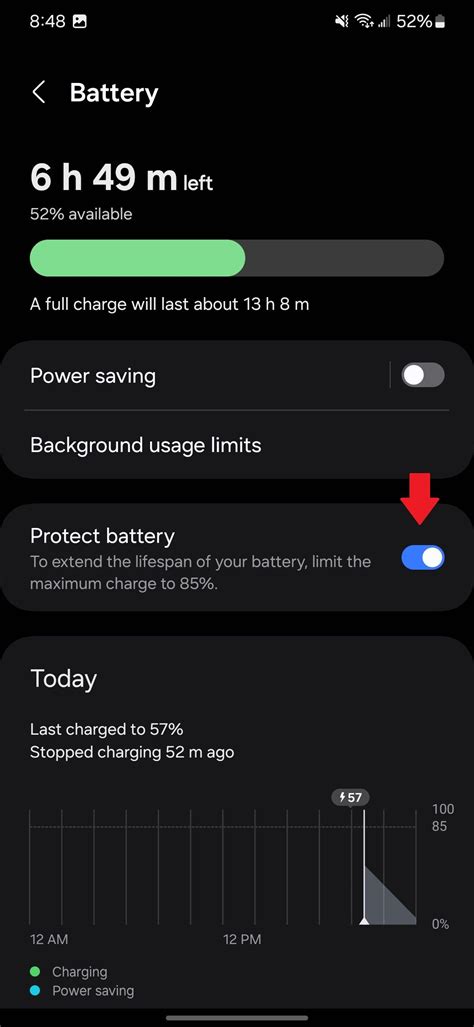
Restricting a specific app’s background activity, found under Settings > Apps > [app] > Battery usage > Allow background usage, is the most targeted fix, more effective than a phone-wide power-saving mode when only one or two apps are responsible. Android’s own control, documented in Google’s Pixel Battery Help, offers Optimized as the default recommended setting, with Unrestricted available for apps you rely on for real-time alerts and are willing to trade extra drain for. Turning on Battery Saver throttles activity phone-wide rather than app by app, which helps when several apps contribute to drain but is a blunter tool than restricting the one or two actual offenders.
Does force-closing apps actually save battery? No. Android suspends inactive apps in a low-power state automatically, so closing them manually mostly forces a costlier reload the next time you open them. Android’s own engineering leadership has said as much publicly, and independent reporting from TechRadar confirms the underlying Doze and App Standby systems handle this without user intervention.
Why the Steps Above Can Vary by Android Version
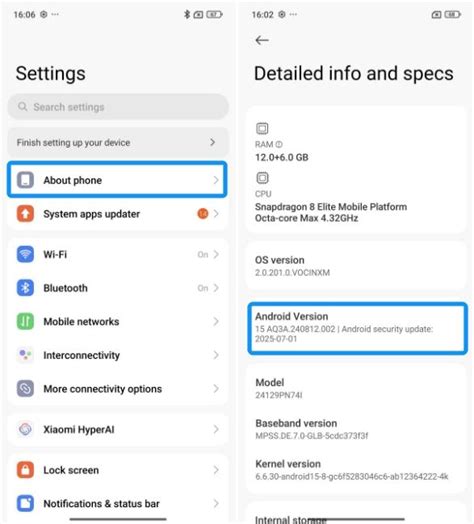
Google’s own Pixel documentation notes that some of its battery-saving steps only apply on Android 14 and newer, and older versions place the same settings under different menu names or skip them entirely. If your battery screen looks different from what’s described here, checking your Android version under Settings > About phone is the fastest way to explain the mismatch before assuming something is broken.
When It’s Not an App: Battery Health and Hardware Limits

A phone that drains faster across every app, with no single app or process standing out, more often points to the battery’s chemistry aging than to anything fixable in software. The 80 percent capacity mark that manufacturers use as a spec-sheet cutoff for end of life is an industry convention documented in peer-reviewed battery research, not a moment your phone stops working; batteries commonly stay usable well past it, and the number matters mainly for comparing warranty terms and lab tests across brands.
| Peak charge voltage per cell | Typical cycles to 80% capacity |
|---|---|
| 4.20V (charged fully to 100% each time) | 300 to 500 |
| 4.10V | 600 to 1,000 |
| 4.00V | 1,200 to 2,000 |
| 3.90V | 2,400 to 4,000 |
Cycle counts are drawn from independent lab testing published by Battery University; a phone’s actual peak charge voltage isn’t user-visible, which is why manufacturers increasingly automate this tradeoff instead of exposing it directly.
How many charge cycles does a typical phone battery last before it needs replacing? Independent lab data puts the range at 300 to 500 cycles for a battery charged fully to 100% each time, up to 2,400 to 4,000 cycles if peak voltage is capped well below that.